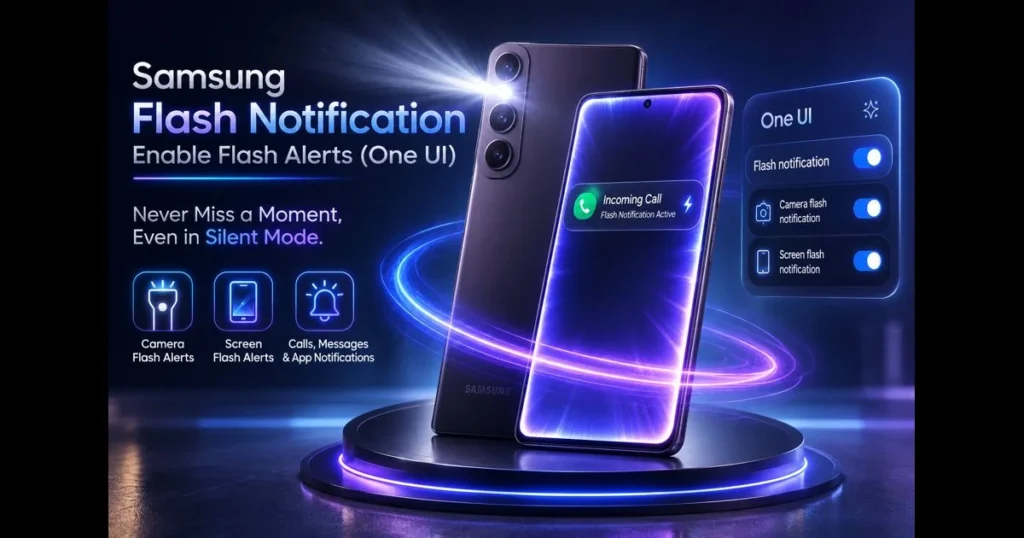
Need a quick visual cue for calls, messages, or alerts? Samsung flash notifications turn your device’s screen or camera LED into a bright signal, ensuring you never miss a moment. This guide shows you how One UI transforms light into information, covering setup, customization, and troubleshooting. Whether you refer to them as Samsung flash alerts, Galaxy flash notifications, or simply “flash notifications,” the outcome is clear: fast, visual alerts that cut through noise and distraction.
- Understanding Samsung Flash Notifications
- Benefits of Using Flash Alerts
- How to Enable Flash Notifications on Your Samsung Device
- Customizing Your Flash Alerts
- Troubleshooting Common Issues with Flash Notifications
- Samsung Flash Notifications vs. Other Notification Methods
- Future of Notification Features in Samsung Devices
1. Understanding Samsung Flash Notifications
Definition and Purpose
Samsung Flash Notifications are a One UI feature that uses light — either from your screen or the rear camera LED — to signal new activity such as calls, messages, alarms, or app alerts. Think of it as a silent beacon. When an alert arrives, your device flashes, letting you know to take a look. (See: Samsung – Wikipedia.)
This concept isn’t unique to Samsung; many Android brands offer flash notifications. However, Samsung integrates them seamlessly into Accessibility and Notifications, making them easy to toggle and test. They are visual alerts designed to complement, not replace, sound and vibration. Related reading: screen flash vs camera flash.
Differences from Standard Alerts
Standard alerts use tone or vibration to get your attention. Flash alerts rely on light. Samsung menus differentiate between screen flash and camera flash: the screen briefly turns a bright color, while the camera LED blinks like a mini strobe. Both are designed to be visible from a distance.
2. Benefits of Using Flash Alerts
Visibility in Noisy Environments
In loud settings, background noise can drown out ringtones, but light stands out. A bright screen flash catches your eye, and the camera LED shines even in daylight. That’s the beauty of Galaxy flash notifications: reliable alerts without cranking up the volume or needing a smartwatch.
Accessibility for Individuals with Hearing Impairments
Flash alerts complement other accessibility features, providing non-audio cues for calls, messages, or reminders, enhancing independence for users who rely on visual signals. This functionality helps caregivers establish consistent signals, whether the phone is in a bag or on a counter.
Comparable options exist on other devices as well: iPhones offer LED flash alerts for calls and notifications, and many other Android brands provide customizable visual cues such as flashlight blinks, edge lighting, or screen pulses. These alternatives follow the same principle—supplementing sound and vibration with a quick visual signal.
3. How to Enable Flash Notifications on Your Samsung Device
Step-by-Step Guide
To enable flash alerts, follow these steps. The menus may vary depending on your device and One UI version, but start with this path:
- Open Settings.
- Tap Accessibility.
- Select Advanced settings (or “Hearing enhancements” on some models).
- Choose Flash notification.
- Activate Screen flash notification and/or Camera flash notification.
If you don’t see the option, check under Settings > Notifications or search for “flash” in the Settings app. The toggle names remain consistent across One UI features.
Pro tip: After enabling, use the “Preview” or “Test” button if available. It’s the quickest way to confirm that the light behaves as expected.
Adjusting Notification Settings
- Per-app control: Navigate to Settings > Notifications > App notifications, select an app, and confirm that alerts are enabled. If the app can’t post notifications, flash won’t trigger.
- Do Not Disturb: If DND is active, your phone may suppress alerts. Add exceptions for calls or key apps to ensure flash notifications still work.
- Modes and Routines: Use Modes (Sleep, Work, Driving) to allow or pause flash effects as your context changes, keeping evening alerts subtle and daytime alerts visible.
- Power saving: Extreme power modes may dim or delay visual effects. Avoid maximum savings if you rely on flash alerts.
If you’re struggling to locate the setting, use the search bar in Settings to find “Flash” or “Accessibility” quickly.
4. Customizing Your Flash Alerts
Changing Flash Frequency and Duration
Samsung offers basic on/off toggles rather than detailed controls for frequency or duration. Typically, the screen flashes once or in a short burst, and the camera LED blinks briefly. However, you can still personalize your experience:
- Screen color and preview: Many recent One UI builds allow you to choose a screen flash color and preview it. A warmer or cooler hue can be less jarring at night.
- Repeat behavior: Create a routine that reacts to a notification from a specific app, toggling the flashlight on and off after a set time for a custom “blink” pattern.
- Night comfort: Use Bedtime or Sleep Mode to keep flash subtle (screen only) after a certain hour while enabling the camera LED during the day.
For more granular control beyond the built-in options, explore Samsung’s Modes and Routines or third-party apps, but test them to ensure compatibility with your daily use.
Setting Specific Flash Alerts for Different Apps
You can tie screen flashes to specific apps. In the Flash notification menu, look for a list of apps under Screen flash and select those that matter most to you — such as calendar or smart doorbell apps. Some devices allow color coding per app, making it easy to identify alert types at a glance.
Ensure your app categories are organized. Go to Settings > Notifications and check that each app’s notification categories are enabled. Flash can only mirror events that the system posts, so filtering for key notifications reduces unnecessary flashes.
5. Troubleshooting Common Issues with Flash Notifications
Identifying Problems
If flash alerts aren’t working, it could be due to several factors: the camera or flashlight may be in use, battery optimization might be limiting alerts, Do Not Disturb could be blocking notifications, or the app may not have permission to post alerts. Occasionally, Modes might silence visuals or a case could obscure the LED.
Another consideration: is the alert type supported? Some apps may post silent syncs that don’t trigger visual cues.
Solutions for Common Problems
- Confirm core settings: Go back to Settings > Accessibility > Advanced settings > Flash notification and ensure Screen and/or Camera options are enabled. Tap any available Test button.
- Check camera status: Ensure the Camera app is closed and the flashlight is off. If the LED is occupied, it won’t flash for alerts.
- Disable extreme power saving: Turn off Maximum Power Saving or adjust limits so critical apps can send timely alerts.
- Review Do Not Disturb: Add exceptions for Calls, Alarms, and essential apps to allow flashes even when silence is active.
- Verify app categories: Go to Settings > Notifications > App notifications > [App] > Notification categories and enable the appropriate categories.
- Check Modes and Routines: If a Mode like Sleep is active, it may dim or block visual effects. Pause it or add exceptions.
- Accessibility permissions: In some setups, Flash notification may be restricted by work profiles or parental controls. Lift those limits if necessary.
- Case and placement: Thick cases can diffuse the camera LED light. Try removing the case or switch to screen flash while on a nightstand.
If issues persist, restart your phone, then re-enable flash alerts to refresh notification and camera light services, often resolving conflicts.
6. Samsung Flash Notifications vs. Other Notification Methods
Comparison with Sound and Vibration Alerts
Sound is informative but can be intrusive, while vibration is discreet yet easy to miss. Flash alerts strike a balance: visible, quick, and silent. A screen pulse is polite in meetings, while a camera LED blink is unmistakable in a noisy gym. Consider context and distance: if your phone is a few feet away, light is more effective; if it’s in your pocket, haptics are preferable.
Power consumption is another factor. Screen flashes have a slight energy cost, while LED blinks are short and efficient. When traveling, limit repeats and use the camera LED for brief signals.
User Preferences for Notification Methods
- Shared spaces: Silence tones and let light communicate during classes and meetings.
- Loud environments: In workshops, concerts, or gyms, combine LED flash with vibration for redundancy.
- Nightstand etiquette: Use screen flash for a soft glow that won’t disturb others.
- Task focus: Set a Mode so only priority apps trigger flashes while others remain quiet.
Many users adopt a hybrid approach: sound for calls, vibration for most apps, and targeted flash notifications for high-priority events. This balance complements Samsung One UI features like Modes, app categories, and quick settings tiles.
7. Future of Notification Features in Samsung Devices
Advancements in Notification Technology
Anticipate more context-aware alerts. Your phone already knows when you’re driving or sleeping; linking that awareness to nuanced visual cues is a logical next step. Imagine adaptive brightness for Screen flash that adjusts to ambient light or color-coding that syncs across devices.
Integration with wearables is also likely to deepen. A coordinated pattern — a watch buzz combined with a phone flash — can signal urgency without noise. AI-powered notifications are a forward-looking concept and not currently available on Samsung devices; in the future, such systems could trigger different cues based on content type, not just app source.
User Expectations and Trends
Users want control without complexity. This means intuitive presets with optional depth for advanced users. There’s a growing interest in low-disturbance design: alerts that are clear to the owner but subtle to others. As these trends evolve, Samsung flash alerts will continue to focus on clarity, context, and respect for attention.
Interest in android flash notifications remains robust, as light is a universal signal. As phones become thinner and bezels shrink, software-driven effects — tasteful screen pulses, status glows, and smart edge lighting — will play a larger role in notifications.
Ultimately, the best features are those you don’t have to micromanage. Set them once and trust them to work across all contexts.
One last tip: if you’re unsure about screen flash versus camera flash, try both for a day each. Keep notes on when you noticed them and when you didn’t. Your habits will guide you to the right default faster than any spec sheet.
Flash alerts are practical tools in your daily toolkit. With just a few minutes in samsung flash settings and a couple of tests, you can make them reliable and unmistakably yours.
Ready to try it? Open Settings, enable Flash notification, select Screen and/or Camera, and test with your most important app. Then fine-tune with Modes and per-app categories, ensuring the right lights blink at the right times. Your attention is valuable — let your phone’s light earn it.
Frequently Asked Questions
What is the Samsung flash notification feature?
The Samsung flash notification feature uses the device’s camera flash to alert users of incoming calls, messages, or notifications. This visual cue can be especially useful in noisy environments or for individuals with hearing impairments.
How can I enable flash notifications on my Samsung device?
To enable flash notifications, go to Settings > Accessibility > Hearing enhancements, and toggle on the ‘Flash notification’ option. You can customize when the flash will activate, such as for incoming calls or messages.
Are there any battery implications when using flash notifications?
Using flash notifications may have a minimal impact on battery life, as the camera flash will activate with each notification. However, this effect is generally negligible compared to other features like screen brightness and background apps.