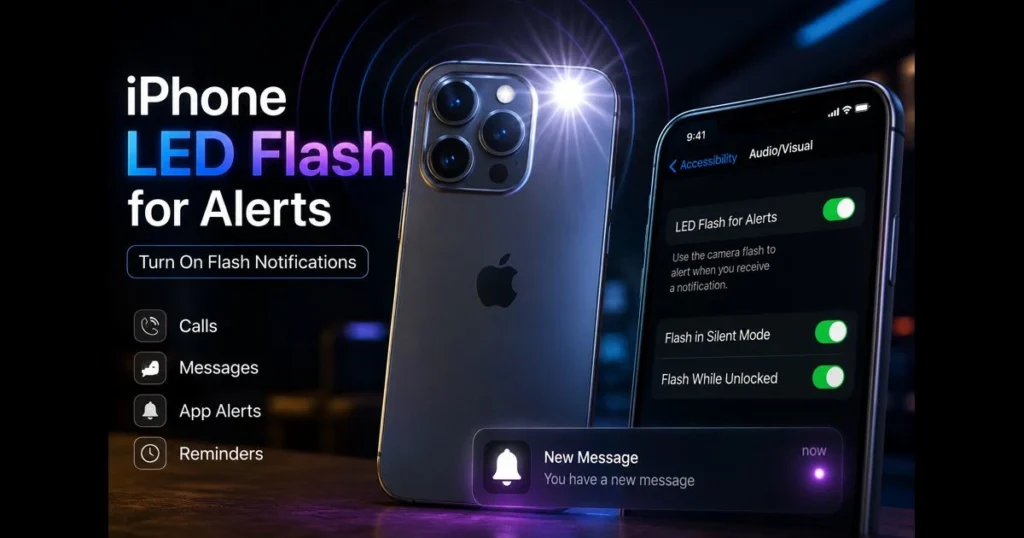
When sounds and vibrations fade into the background, iPhone flash notifications stand out. The rear camera LED blinks for calls, texts, and app alerts, providing clear signals you won’t miss, whether your phone is in a bag or on the table. If you prefer quiet notifications or need a visual cue to complement a ringtone, this guide explains how to enable, customize, and troubleshoot flash notifications on your device—no guesswork required.
- 1. Understanding LED Flash Notifications
- 2. How to Enable LED Flash for Alerts on Your iPhone
- 3. Customizing Your Flash Alerts
- 4. Troubleshooting Common Issues with Flash Notifications
- 5. Using LED Flash Notifications for Accessibility
- 6. Comparing Flash Notifications to Other Alert Methods
- 7. User Experiences and Feedback
- 8. Future of Flash Notifications on iPhone
1. Understanding LED Flash Notifications
Definition of LED flash notifications on iPhone
LED flash notifications use the iPhone’s rear camera flash to blink when an alert arrives. This feature, called LED Flash for Alerts, pulses the light for incoming calls, texts, timers, or app notifications that comply with your Focus or Do Not Disturb settings. If you’ve searched for led flash for alerts iphone, you’ll find this same feature. (See: Notification (Wikipedia).)
The flash is visible from a distance and through semi-opaque bags or cases, making it a practical form of visual notification, especially when your phone is face down or across the room.
Benefits of using flash notifications over sound alerts
- Quiet by design: Visual cues won’t interrupt meetings, classes, or sleeping family members.
- Cut through noise: In loud environments, a bright pulse can be easier to catch than a ringtone.
- Useful at a glance: Spot the blink across a room while your phone is silent.
- Accessibility: An essential tool for those who are hard of hearing, providing redundancy.
2. How to Enable LED Flash for Alerts on Your iPhone
Step-by-step guide to activate flash notifications
- Open Settings.
- Tap Accessibility.
- Tap Audio/Visual.
- Turn on LED Flash for Alerts.
- Consider toggling related options, such as:
- Flash in Silent Mode (helpful if you rely on flash while your iPhone is silent).
- Flash While Unlocked (to see the blink while actively using the phone).
To test, ask someone to call you or send a notification from another device. To change which apps can trigger alerts, navigate to Settings > Notifications and adjust permissions for each app.
Settings adjustments for optimal performance
- Case check: Thick cases can diffuse the light. If the blink seems faint, briefly remove the case to compare.
- Focus rules: If a Focus is active and blocking an app, the flash won’t activate for those notifications. Allow the app in that Focus if you want the blink.
- Screen position: The LED is on the back—if your iPhone is face up, you may miss the blink. For maximum visibility, place it face down on a desk.
- Camera use: The alert flash won’t interrupt the camera flash or flashlight. If either is on, the blink may not appear.
Some readers ask whether they need to allow flash access iphone for apps. The system feature doesn’t require special permissions from third-party apps; it’s controlled entirely in your iOS flash alert settings.
Popular apps that can trigger flash notifications
Because LED Flash for Alerts mirrors any allowed iOS notification, many everyday apps can activate the blink when their alerts are enabled:
- Messaging and calls: Phone, Messages, WhatsApp, Telegram, Signal, Facebook Messenger.
- Work and collaboration: Slack, Microsoft Teams, Zoom.
- Email and calendars: Mail, Gmail, Outlook, Calendar, Reminders.
- Social and services: Instagram, X, ride‑share and delivery apps (e.g., Uber, DoorDash), banking alerts.
Tip: To ensure a blink only for high‑priority items—like Slack mentions or WhatsApp favorites—adjust each app’s notification style and add them to Allowed Apps/People within your Focus. The apps themselves don’t control the flash; iOS does.
3. Customizing Your Flash Alerts
Options for customizing flash notifications for different apps
iOS doesn’t currently allow unique flash patterns per app or contact. However, you can control which apps trigger the blink by adjusting their alerts. Go to Settings > Notifications, select an app, and decide whether to allow notifications, show them on the Lock Screen, or mark them as Time Sensitive. This way, only the apps you’ve allowed will make the LED blink during that Focus.
For instance, during a “Work” Focus, allow only your team chat and calendar; during “Personal,” permit family messages. The flash then serves as a selective visual signal, preventing overwhelming notifications.
How to adjust flash intensity and frequency
Apple doesn’t provide controls for brightness or blink speed of flash alerts, as these settings are fixed for consistency and battery safety. If you need a stronger cue:
- Use a case with a clear cutout around the camera to avoid blocking light.
- Place the phone on a dark surface; contrast enhances visibility.
- Combine the flash with a custom vibration pattern for redundancy (Settings > Sounds & Haptics > Haptics).
While third-party utilities may promise deeper control, be cautious: system-level flash alerts remain governed by Apple’s security and power rules.
4. Troubleshooting Common Issues with Flash Notifications
Solutions for when flash notifications don’t work
- Confirm the toggle: Revisit Settings > Accessibility > Audio/Visual to ensure LED Flash for Alerts is on.
- Check related options: Enable Flash While Unlocked and/or Flash in Silent Mode as needed.
- Test the LED: Open Camera, switch to Photo, activate the flash, and take a quick photo. If the LED doesn’t fire, the issue lies with the flash itself.
- Look for Focus conflicts: If a Focus is active and blocking the app, you won’t see a blink. Allow the app in that Focus.
- Mind the environment: If the phone is buried in a bag or obstructed by a stand, the flash may be hidden.
- Reboot: A restart often resolves notification glitches.
- Update iOS: Install the latest software; Apple refines Accessibility behavior regularly.
- Power modes: Low Power Mode can alter background activity. While it shouldn’t disable the alert LED, it may affect timing—test with it off.
- Camera/flashlight active: Turn off the flashlight or close the Camera app before testing alerts.
If problems persist, back up your device and reset settings. Go to Settings > General > Transfer or Reset iPhone > Reset > Reset All Settings. This preserves your data but resets system preferences, which can fix stubborn notification issues.
For corporate or school-managed devices, your admin’s configuration profiles may override alert behavior. In that case, consult IT to review the policy and help troubleshoot iPhone flash notifications.
How to reset settings for troubleshooting
- Back up to iCloud or a computer.
- Open Settings > General > Transfer or Reset iPhone.
- Tap Reset > Reset All Settings, enter your passcode, and confirm.
- After the restart, re-enable LED Flash for Alerts and retest with a call or message.
This reset won’t erase your photos or apps, but you’ll need to reconnect to Wi‑Fi networks, set wallpapers, and revisit key iPhone notification settings.
5. Using LED Flash Notifications for Accessibility
Benefits for hearing-impaired users
This feature is categorized under Accessibility for good reason. For those who are deaf or hard of hearing, the LED blink offers a strong, repeatable visual cue for calls, messages, and timers. Combined with on‑wrist haptics from Apple Watch or custom vibrations, it forms a reliable alert system that doesn’t rely on sound.
It also complements other accessibility features iPhone provides, such as Sound Recognition (to detect doorbells or alarms) and Live Captions during calls. While these tools serve different needs, the LED flash adds an always‑on visual layer that is seamlessly integrated.
How flash notifications improve communication in noisy environments
In construction sites, sporting events, or crowded transit, vibrations and sounds can easily be lost. A bright pulse in your peripheral vision ensures you catch important moments, such as a supervisor calling or your rideshare arriving. Even at home, it’s useful: while cooking with loud ventilation, you can spot a blink and check the timer before the pasta overcooks.
6. Comparing Flash Notifications to Other Alert Methods
Pros and cons of flash alerts versus vibration and sound notifications
- Pros:
- Highly visible from a distance or in peripheral vision.
- Silent by design; ideal for shared spaces.
- Works through many bags and some cases.
- Cons:
- Can be startling or distracting in dark rooms.
- Only visible from certain angles—easy to miss if the back isn’t facing you.
- There’s some impact on flash notifications battery drain, though brief blinks typically consume modest power compared to the screen.
Vibrations are discreet and pocket-friendly but can be missed in motion. Sounds travel well but may not be appropriate in all settings. Many users combine them: flash notifications in silent contexts, vibration in transit, and sound at home.
When to use flash notifications instead of other alert types
- Meetings and libraries: Keep ringtones off and rely on the blink plus a gentle vibration.
- Loud venues: Pair the flash with a strong haptic pattern for added reassurance.
- At night: Consider disabling Flash While Unlocked to avoid bright bursts while using your phone.
- Work zones: If your hands are busy or gloved, a visual cue is often quicker to notice than a subtle buzz.
If you frequently use flash on silent iphone, enabling “Flash in Silent Mode” guarantees a visual cue without sound.
7. User Experiences and Feedback
Real-life testimonials from iPhone users about flash notifications
Readers often share how the blink resolves a common issue: missing calls in quiet offices where ringers are discouraged. Parents appreciate the visual cue during bedtime routines when the house is dark. One frequent traveler described spotting the blink across a hotel room while the phone charged behind a TV—no ringtone needed.
Conversely, night owls may disable the feature to avoid bright flashes in dark rooms, while photographers sometimes turn it off to prevent distractions during shoots. The consensus is clear: when used thoughtfully, the feature remains in the background until you need it.
Community tips and tricks for enhancing the flash alert experience
- Use Focus schedules: Allow only essential apps in each Focus so the LED blink signals something important.
- Desk visibility: Place the phone face down near a wall; reflections can enhance the visibility of the blink.
- Case choice: If your case has a deep camera cutout, consider a design with a wider opening for better light dispersion.
- Combine with Apple Watch: Wrist haptics plus a room-visible blink cover both near and far notifications.
For troubleshooting iPhone flash notifications, start with the Accessibility toggle, then check Focus settings, and finally test the LED with the Camera—those steps resolve most issues.
8. Future of Flash Notifications on iPhone
Speculations on upcoming features and improvements
The ideas below are hypothetical improvements and examples of potential updates—Apple hasn’t announced or scheduled any of them. There’s potential for Apple to enhance this feature. Power users might appreciate per‑app flash patterns, contact-specific blink styles, or coordination with Apple Watch haptics when the phone is across the room. Another idea is a “night mode” that dims or slows the blink in low light to reduce disruption.
iOS could also introduce a screen‑edge glow as a gentler alternative to the LED flash—a request from users who prefer visual cues without bright camera flashes at night. These innovations could preserve battery life and maintain focus while supporting accessibility goals, but they remain speculative at this time.
How user feedback shapes future updates
Feature adjustments can stem from real-world feedback shared through Apple’s Feedback Assistant, and such input may inform Apple’s thinking alongside other factors. However, feedback does not guarantee changes, and there is no public confirmation or timeline for any specific flash‑alert enhancements.
Search trends like “iphone flash alerts” show that this feature addresses a broad need for attention. As that demand persists, further refinements are possible, but there is no confirmed roadmap or timeframe.
Ready to implement this feature? Open Settings, enable LED Flash for Alerts, and customize your Focus and notification settings so the blink always means “pay attention.” If you rely on quiet cues, this small adjustment can transform how you receive calls, messages, and reminders. Try it today, tweak it over the next week, and see what works—your future self will appreciate it.
Frequently Asked Questions
What are iPhone flash notifications?
iPhone flash notifications are visual alerts that use the device’s camera flash to indicate incoming calls, messages, or app notifications. This feature is especially useful for individuals who are hard of hearing or prefer a silent notification method.
How can I enable flash notifications on my iPhone?
To enable flash notifications, go to Settings > Accessibility > Audio/Visual, and toggle on the ‘LED Flash for Alerts’ option. You can also customize it to work only when your device is set to silent mode.
Can I customize the flash notification settings?
Yes, you can customize flash notifications by choosing whether they activate for all alerts or only for specific ones. Additionally, you can adjust settings based on whether the phone is in silent mode or not.