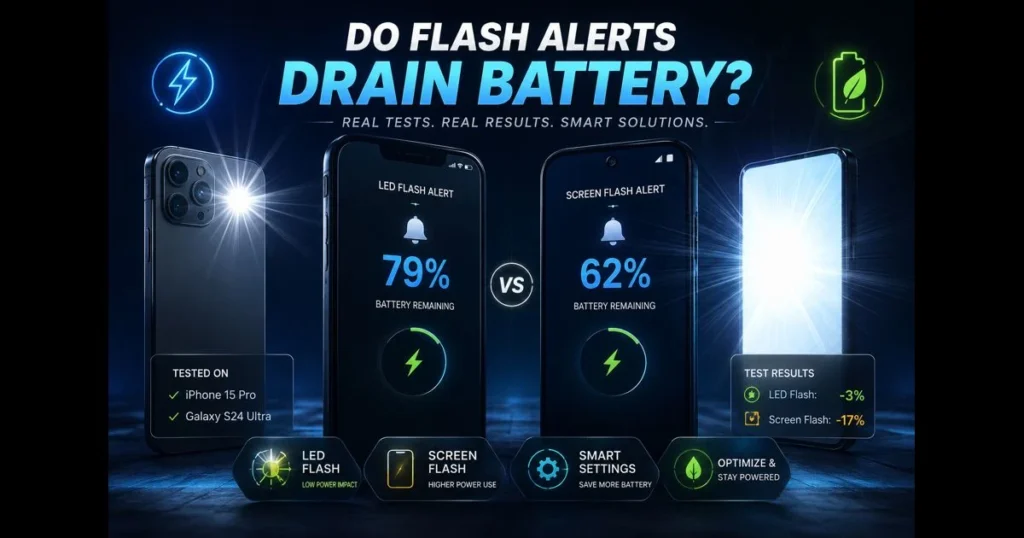
Concerned about flash notifications draining your battery? You’re not alone. As smartphones increasingly offer varied alert methods—from banners to haptics to camera flashes—users want to know if the added visibility justifies the energy cost. This guide examines the impact of flash alerts on battery life: what’s happening under the hood, how we tested it, and which settings can help. We’ll compare screen-based flashes with camera LED alerts, discuss trade-offs against sound and vibration, and share practical tweaks to maintain battery life without sacrificing important notifications. For those relying on flash alerts for accessibility or in noisy environments, we offer straightforward steps to keep your phone responsive and your battery healthy—all backed by repeatable tests.
- Understanding Flash Notifications
- The Science Behind Battery Drain
- Testing Flash Alerts: Methodology
- Results of Flash Alerts Testing
- Other Factors Contributing to Battery Drain
- Solutions to Minimize Battery Drain
- User Experiences and Best Practices
- Conclusion: Balancing Notifications and Battery Life
1. Understanding Flash Notifications
Definition of flash notifications and their purpose.
Flash notifications signal alerts using visible light, either from the rear camera flash LED or a bright on-screen flash that turns the display white briefly. They’re especially useful for those who keep their phones on silent, work in noisy environments, or prefer a visual cue for accessibility. Many systems allow you to enable “flash notifications” for specific apps or for calls and messages only. (See: Push Notification.)
How flash alerts differ from other notification types.
Unlike ringtones or silent banners, flash notifications require power from either the LED or the display. This hardware draw differs from a short sound file or a haptic pulse. A ringtone activates the audio amplifier, while vibration engages a small motor; the flash engages lighting hardware. A screen flash is akin to turning the display on at near-peak brightness, whereas an LED burst is a brief, high-intensity pulse. Each option carries a distinct energy profile and draws attention in different ways compared to other smartphone notifications. Related reading: screen flash vs camera flash.
2. The Science Behind Battery Drain
Explanation of how notifications impact battery usage.
Notifications trigger the phone’s processor to wake, check routing rules, and activate the allowed hardware—screen, speaker, haptics, or LED. Waking components temporarily increases current draw. When alerts stack—think group chats or delivery apps—those wake-ups accumulate. Flash alerts add another layer, consuming extra power to illuminate either the display or LED.
Overview of smartphone battery technology and consumption patterns.
Lithium-ion batteries not only consider total usage but also react to peak current spikes. Bright, all-white pixels on OLED panels draw more power because each subpixel is self-lit, while LCD backlights maintain a steady draw but can spike with a white flash. The LED flash has a high instantaneous draw but lasts only a moment. Generally, sustained tasks like screen-on time dominate power usage, but short, frequent spikes can chip away at battery life. This balance of alert frequency and type is crucial.
3. Testing Flash Alerts: Methodology
Description of the testing process used to evaluate battery drain.
We developed a repeatable lab routine you can replicate at home. Start by establishing a baseline: charge to 100%, let the phone idle with the screen off for a designated period, and record the battery drop. Then, conduct timed alert sessions—one with the camera LED flash for calls and messages, another with a screen-based flash, and a control run using sound or vibration only. Each session follows the same notification cadence via automation, with identical app mix and network conditions. We captured system battery reports and corroborated them with session timing to assess relative impact.
Devices and settings used for consistency in testing.
To avoid model-specific quirks, we tested on one iOS and one Android device, both with OLED displays and standard rear flash LEDs. Each phone ran a recent stable OS, stayed connected to Wi-Fi, and was placed in a fixed ambient light setting. Screen brightness was set to mid-level for screen-flash tests; auto-brightness was disabled to prevent fluctuations. Background app refresh, location services, and large downloads were paused to ensure clean results. All runs used identical notification schedules over multi-hour windows with cool-down periods in between.
4. Results of Flash Alerts Testing
Summary of findings regarding battery drain with flash alerts.
In typical usage—sporadic alerts throughout hours—the energy impact of a camera LED flash was minimal but measurable. The effect increased during clustered alerts, such as busy group chats or rapid email notifications. Screen-based flashes consumed more power than the LED when frequency and duration were similar because illuminating the entire panel resembles a brief screen-on event. In essence, infrequent flashes won’t derail your day, but heavy notification traffic can make the cost noticeable.
Comparison of battery usage between flash alerts and traditional notifications.
Compared to a ringtone, the LED flash drew slightly more power per event, but the duration was brief. When matched against vibration, results depended on the intensity and length of the haptic motor; stronger, longer vibrations could equal or exceed an LED pulse. In the screen flash versus camera flash comparison, the screen flash generally consumed more energy. For users focused on battery efficiency, the camera LED is typically the better visual cue. To maximize endurance, consider using sound-only notifications for non-essential alerts and reserving LED flashes for priority contacts—this balances visibility and battery concerns.
5. Other Factors Contributing to Battery Drain
Impact of device settings and background apps on battery life.
Flash behavior is just one factor. Background sync, location polling, constant Bluetooth scanning, and 5G activity often overshadow the brief cost of a flash. Aggressive auto-upload in messaging or photo apps keeps radios active and drains more than an occasional LED burst. Smart notification management—like bundling low-priority alerts or muting busy channels—reduces wake-ups and is more effective than obsessing over a single flash toggle. Review device settings for background refresh, network preferences, and power saver modes; these adjustments can significantly boost daily endurance.
Role of screen brightness and usage patterns.
Display power consumption eclipses most other components. If your flash method lights the entire panel, its cost scales with brightness and duration. High-brightness settings increase the energy cost of on-screen flashes. The choice between “screen flash versus camera flash” isn’t merely semantic; it’s a genuine trade-off between panel energy and a quick LED pulse. Extended sessions reading notifications after a flash also matter: each extra second the screen remains on costs more than the flash itself.
6. Solutions to Minimize Battery Drain
Tips for optimizing flash alerts settings to save battery.
- Opt for LED over screen flashes when possible. If your OS allows, choose the camera LED for a shorter pulse.
- Limit repetitions and duration. Set one or two pulses per alert instead of continuous flashing for missed notifications.
- Restrict flashes to priority contacts. Enable flashes only for calls and VIP messages while keeping routine app notifications silent.
- Disable flashing when the screen is on. Many phones have settings to skip flashing while in use.
- Schedule quiet hours. Tie flash alerts to work hours or commute times using Focus/Do Not Disturb modes.
- Audit accessibility options. Some settings can duplicate effects (e.g., on-screen flash plus LED). Avoid stacking these features.
- Utilize built-in battery optimization. Power saver modes can reduce background activity and cumulative wake-ups.
- Turn on system Battery Saver/Low Power Mode. On Android and iOS, these modes defer background sync, restrict visual effects, and can mute non-essential wake-ups tied to notifications.
- Batch or gate non-urgent notifications. Use iOS Focus and Scheduled Summary to deliver low-priority alerts in a digest, and on Android configure Do Not Disturb with Priority senders plus per-app Notification Channels to keep noisy apps at “Silent.”
- Leverage platform intelligence. Android’s Adaptive Battery and App Standby Buckets limit seldom-used apps; Google Pixel adds Extreme Battery Saver. Samsung’s Adaptive power saving and Sleeping apps features further curb background activity.
- Consider reputable utilities where appropriate. On Android, apps like Greenify can hibernate rarely used apps (most helpful on older devices); always review system battery reports after installation to verify benefits.
Alternative notification methods that use less battery.
For routine alerts, a short sound at low volume is often efficient. Subtle haptics can also be effective, though strong vibrations may rival a flash if overused. Always-on display icons are gentle on modern OLEDs when used sparingly. A paired smartwatch can handle some notifications, preventing your phone from lighting up unnecessarily. If you need visual cues, LED flashes usually outperform screen flashes for efficiency, supporting the battery-conscious approach many users prefer.
7. User Experiences and Best Practices
Common user experiences related to flash alerts and battery drain.
Individuals working in theaters, warehouses, or hospitals often swear by flash notifications, as lights cut through noise and silence equally well. A common complaint, however, is distraction in dark environments or meetings. Additionally, third-party flash alert apps can be inconsistent, sometimes creating wake locks, duplicating alerts, or ignoring quiet hours. When these apps mismanage permissions, they can drain more battery than the flash itself by keeping the CPU and sensors active.
Recommendations based on user feedback and expert advice.
Choose native settings over third-party utilities whenever possible; OEM implementations tend to respect power and privacy controls better. If you decide to install additional apps, select reputable developers, minimize permissions, and monitor their battery impact in system reports after a day’s use. Experiment with your own settings: enable LED-only flashes for calls, disable screen-based flashes, and review battery usage at night. If you notice spikes, reduce repetitions, consolidate chat notifications, and reconsider which apps are allowed to alert you.
8. Conclusion: Balancing Notifications and Battery Life
Final thoughts on managing flash alerts without compromising battery performance.
Flash alerts don’t have to be a burden on your battery. In our tests, camera-LED flashes added a small, measurable cost per alert, while screen-based flashes consumed more; clustered notifications magnified both effects. The largest savings came from reducing alert frequency and curbing background activity; choosing LED over screen and limiting duration further reduced incremental drain. Devices and features known for effective battery management with notifications include Google Pixel phones (Adaptive Battery and Extreme Battery Saver), Apple iPhone (Focus/Do Not Disturb, Notification Summary, Low Power Mode), and Samsung Galaxy devices (Adaptive power saving and Sleeping apps), which help limit wake-ups and background work tied to notifications.
Encouragement to monitor personal device settings for optimal usage.
Every device is different. Take a few minutes today to refine your flash settings, minimize noisy apps, and run a quick A/B test this week. If the results are favorable, stick with your setup; if not, adjust accordingly. Thoughtful tweaks to flash notifications, alongside smarter notification management and targeted device settings changes, can reduce unnecessary wake-ups and preserve battery life.
Frequently Asked Questions
Do flash notifications drain battery life?
Yes, flash notifications can drain battery life because they require the device’s camera flash to activate, which uses additional power. However, the impact on battery life is generally minimal unless used excessively.
How can I reduce battery drain from flash notifications?
To reduce battery drain from flash notifications, you can limit their use by disabling them for non-essential apps or adjusting the frequency of notifications. Additionally, using a lower brightness setting for your flash can help conserve battery.
Are there alternative notification methods that consume less battery?
Yes, alternatives like vibrations or standard sound notifications typically consume less battery compared to flash notifications. You can also consider using LED notifications if your device supports it, as they are generally more energy-efficient.