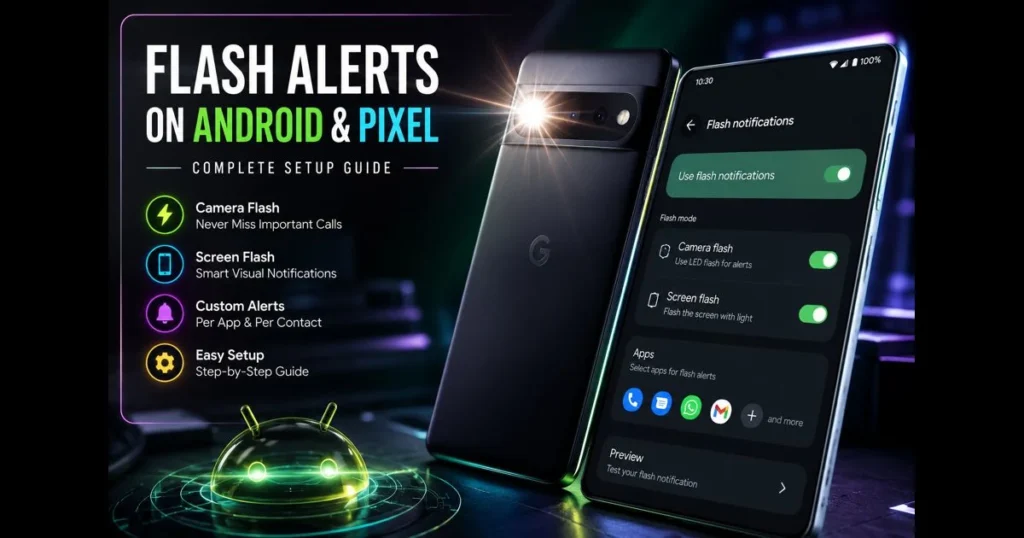
Missed a call because your phone was on silent? Android flash notifications turn your camera flash or screen into a bright visual cue, ensuring you catch urgent pings even when audio and vibration fail. This guide explains what flash notifications are, why they help, and how to set them up across various Android phones, including Google Pixel. You’ll find step-by-step walkthroughs, smart customization tips, and troubleshooting advice. Whether you want a quick burst of light for calls or custom flash alerts for specific messaging apps, we’ll guide you through Android notification settings that give you control.
If you rely on visual cues—at work, in class, or while cycling—flash alerts can be more reliable than ringtones. They complement accessibility features Android provides, offering another way to stay aware. Let’s get started, then refine the behavior so it shines when you need it and stays quiet when you don’t. (See: Android Operating System.)
- Understanding Flash Notifications
- Benefits of Using Flash Alerts on Android
- Setting Up Flash Notifications on Android Devices
- Configuring Flash Alerts on Pixel Devices
- Managing Flash Notification Settings
- Troubleshooting Common Issues
- User Experiences and Feedback
- Future of Flash Notifications on Android
1. Understanding Flash Notifications
Definition of flash notifications and their purpose
Flash notifications are visual alerts that utilize your phone’s camera flash or a quick color pulse on the screen to signal an incoming call, message, or app notification. Instead of relying solely on sound and vibration, the phone produces a bright burst of light that can be seen across a room or out of the corner of your eye.
Their purpose is to provide a clear visual indicator for incoming calls, messages, or app notifications by emitting light from the camera flash or the display, either alongside or in place of sound and vibration.
How flash alerts differ from regular notifications
Regular notifications depend on sound, vibration, and status bar banners. Flash alerts introduce high-visibility light—either from the rear camera LED or the display. This distinction is vital: the camera LED is more directional and intense, while a screen flash offers a broader, less jarring effect in dark rooms. Many devices allow you to choose one or both options.
If you see “flash notifications” in your Settings app, those toggles control this visual behavior for calls, messages, or selected apps.
2. Benefits of Using Flash Alerts on Android
Increased visibility for important notifications
Light is hard to miss. A brief strobe from the camera LED can cut through background noise and grab attention, even if your phone is buried under papers on a desk. Screen-based flashes are softer but still noticeable, making them ideal at night or during meetings when you want a visual nudge without sound.
With per-app control, you can reserve the bright effect for your most critical apps—like calls from family or delivery alerts—ensuring you’re not overwhelmed by every notification.
Accessibility features for hearing-impaired users
Flash alerts enhance existing accessibility features Android offers, providing a reliable visual channel for calls and notifications. They can be combined with captions, vibration patterns, and on-screen text for a well-rounded set of cues, allowing users to respond timely to missed communications.
3. Setting Up Flash Notifications on Android Devices
Step-by-step guide for enabling flash alerts
Menu names vary by brand and Android version, but you’ll typically find the feature in one of two places. Try these paths:
- Settings > Notifications > Flash notifications (toggle Camera flash and/or Screen flash).
- Settings > Accessibility > Hearing or Advanced settings > Flash notification.
Once inside, you’ll usually see toggles for camera flash and screen flash. Turn on one or both, then use any available “Preview” button to test the effect. If your device allows per-app selection, choose which apps you want to trigger a flash. Some phones support flash for calls only, while others include messaging and third-party apps.
Brand-specific notes can help you locate the setting faster:
- On Samsung, search Settings for “flash notification” or check under Accessibility > Advanced settings.
- On Xiaomi/Redmi/POCO, search Settings for “flash notification” or look in Notifications > Call settings or Accessibility.
If your phone lacks a built-in option, reputable flash alert apps from the Play Store can provide similar functionality, though they may require notification access and camera permission to control the LED.
Customizing notification settings for specific apps
Fine-tune which alerts trigger light using per-app Android notification settings:
- Long-press a recent notification from the app and tap Settings (or the gear icon), or go to Settings > Apps > [App] > Notifications.
- Enable only the categories you care about (for example, “Direct messages” but not “Marketing”).
- Return to your device’s Flash notifications screen and select only those apps/categories for custom flash alerts.
To limit nighttime interruptions, pair this with Do Not Disturb exceptions. For instance, allow calls from starred contacts to trigger the flash, but not from everyone else. This approach offers practical notification management you can set and forget.
4. Configuring Flash Alerts on Pixel Devices
Detailed instructions for Pixel users
Pixel devices include a native control for light-based alerts. Look for one of these paths:
- Settings > Notifications > Flash notifications
- Settings > Accessibility > Flash notifications
Inside, toggle Camera flash, Screen flash, or both. On many Pixels, you can choose a screen flash color and preview the effect. If your model supports per-app selection, pick the apps you want to light up. This simplicity is at the core of Pixel flash notifications.
Prefer not to flash during quiet times? Under Settings > Notifications, review Do Not Disturb and Bedtime Mode. Make sure the flash follows the same rules you set for calls and messages, or add exceptions for important contacts and apps.
Using the native features to manage flash notifications
Pixel phones integrate smoothly with system automation. You can link flash behavior to your existing rules:
- Create a Do Not Disturb schedule that silences sound after 10 p.m. but allows flash for starred contacts.
- Use Bedtime Mode to dim the screen and turn off screen flash, keeping only the camera LED for urgent calls.
- Add a Quick Settings tile (if available) to toggle flash alerts before meetings.
- Leverage Focus Mode to pause distracting apps, ensuring only mission-critical apps can trigger flash.
Attach light cues to contexts where you’ll notice them most.
5. Managing Flash Notification Settings
How to adjust flash frequency and duration
Built-in features usually provide straightforward on/off options with short pulses. Some devices include limited controls for color (screen flash) and repetition. For finer control—such as longer bursts or multi-blink patterns—explore third-party tools that support advanced tuning.
Keep it practical; two or three quick flashes are often enough to catch your eye without being distracting. Test with the phone facedown and in a pocket; adjust the method until it fits your environment.
Tips for optimizing battery life while using flash alerts
- Prefer screen flash at night or indoors; the rear LED consumes more power and can be harsh in dark rooms.
- Limit flash to essential apps. Fewer triggers mean fewer light pulses.
- Use Do Not Disturb schedules to pause flash overnight.
- Turn off repeating patterns in third-party apps; a single short burst is usually enough.
- If you rely on Battery Saver, test whether it suppresses light cues and adjust as needed.
Thoughtful notification management features—like per-app categories and schedules—allow you to keep flash alerts useful without draining your battery or attention.
6. Troubleshooting Common Issues
What to do if flash notifications aren’t working
Start with the basics:
- Verify the feature is on: Settings > Notifications or Settings > Accessibility > Flash notifications. Use Preview to confirm.
- Test the camera LED: open the Camera and toggle the flashlight. If the LED doesn’t light, the hardware may be blocked or busy.
- Check app notifications: Settings > Apps > [App] > Notifications. Ensure the expected categories are enabled.
- Disable the flashlight/torch if it’s on; the LED can’t flash for alerts while the torch is active.
- Restart the phone to clear any camera or notification service issues.
Using third-party flash alert apps? Confirm they have Notification access and, if required, Camera permission. Then test again.
Common settings that may interfere with alerts
- Do Not Disturb or Bedtime Mode: if these suppress visual effects, add exceptions for priority contacts and apps.
- Battery Saver/Adaptive Battery: may restrict background behavior. Allow the app “Unrestricted battery” if needed.
- App restrictions: Settings > Apps > [App] > Battery > Unrestricted; also turn off “Remove permissions if app isn’t used.”
- Camera in use: video calls or barcode scanners can reserve the LED, blocking camera flash alerts.
- Screen effects: some themes or Always-on Display settings can mask screen flashes. Test with a default theme.
- Accessibility conflicts: if you use other accessibility overlays, temporarily disable them to see if they block the flash routine.
Still stuck? Clear the app’s cache, update the OS, then test in Safe Mode to rule out conflicts.
7. User Experiences and Feedback
Testimonials from Android and Pixel users
Many users report flash notifications have transformed how they handle silence-only hours. A warehouse manager relies on camera LED blinks for urgent dispatch calls in noisy environments. A teacher keeps her phone muted during class but uses screen flashes for messages from the school office. Cyclists find a bright pulse from a jersey pocket easier to notice than a vibration while on the move.
Some prefer the consistency of Pixel’s built-in controls, while others stick with flash alert apps for deeper patterns and per-contact rules. The choice often hinges on how granular you want your setup. Popular third-party options users mention include Flash Alerts, Flash Notification, LED Flash Alert for Calls & SMS, and Call Flash: LED Flash Alert on Google Play.
Impact of flash notifications on daily life
The biggest shift is confidence. With a quick pulse of light, you can enter a meeting or library without worrying about missing something critical. Parents use per-app filters so only daycare calls and texts trigger the flash. Freelancers set alerts for new client emails and payment confirmations, muting everything else. Small tweaks lead to significant benefits.
8. Future of Flash Notifications on Android
Emerging trends in notification technology
Expect smarter, context-aware behavior. Phones already blend sound, haptics, and light; the next step is adjusting intensity and color based on time, ambient brightness, and priority. Screen flashes could shift hue for categories—green for calls, blue for messages—or dim automatically at night. Cross-device sync might trigger a subtle flash only if your watch or earbuds aren’t connected.
Potential updates and features to look forward to
We anticipate tighter integration with routines: light cues that follow location (office vs. home), calendar states (meeting vs. commute), or Focus modes. Better per-app category mapping would allow flash only for verified transactions or direct mentions. For brands with unique interfaces—like Samsung and Xiaomi—unified controls that standardize options across camera and screen would simplify setup for everyone.
Third-party developers will likely continue to innovate: offering multi-pattern sequences, contact-based colors, and safety-oriented features that increase flash intensity for repeat calls from the same number.
Flash alerts aren’t just a novelty; they’re a flexible visual language for your phone.
Ready to try it? Open Settings and enable flash notifications using the paths above. Fine-tune your apps and schedules so the light only activates when it truly matters. If your device doesn’t provide the controls you want, explore well-reviewed flash alert apps and set sensible limits. Thoughtful choices today can keep you responsive—quietly, clearly, and on your terms.
Frequently Asked Questions
What are Android flash notifications?
Android flash notifications are visual alerts that appear on the screen, typically as colorful flashes or lights, to notify users of incoming messages, calls, or other important events without requiring them to unlock their device.
How can I enable flash notifications on my Android device?
To enable flash notifications, go to your device’s Settings, select ‘Accessibility’, then ‘Hearing’, and toggle on the ‘Flash notification’ option. Some devices may have this feature under ‘Notifications’ settings as well.
Are flash notifications available on all Android devices?
Flash notifications are not available on all Android devices, as this feature may depend on the manufacturer and model. However, most modern Android smartphones support this feature, especially those running Android 4.0 and above.