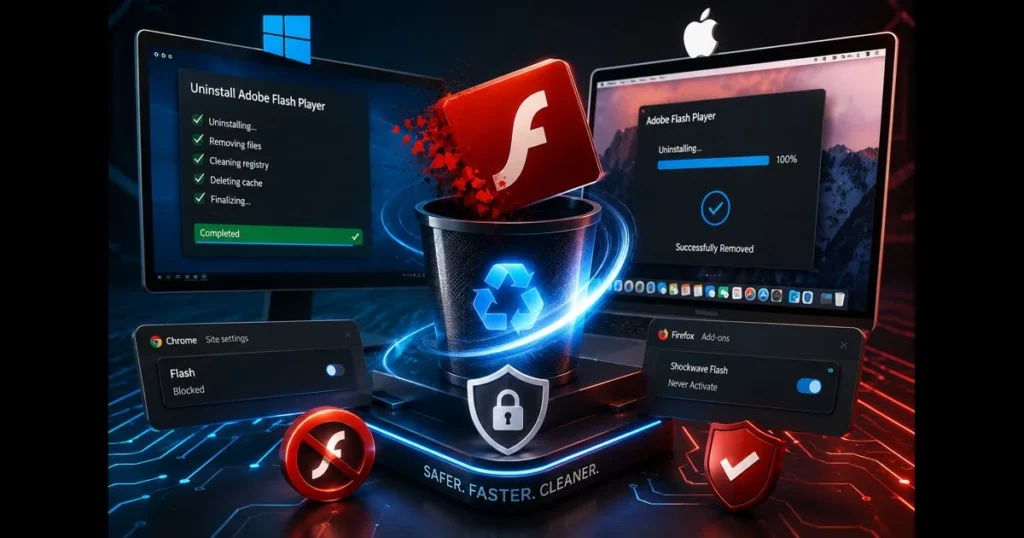
Adobe has officially ended support for Flash, and modern systems no longer run it safely. If you still see traces of the plugin or old settings, this guide will help you uninstall Flash Player completely and cleanly—safely now that Flash Player is obsolete. We’ll cover what Flash was, why its end-of-life matters, and step-by-step methods to remove Flash Player from Windows, macOS, and major browsers. You’ll also find tips to verify the cleanup, troubleshoot hiccups, and consider safe Adobe Flash alternatives for legacy content. Whether you’re handling a work laptop, an older home PC, or a hand-me-down Mac, a thorough cleanup reduces your attack surface and eliminates nagging leftovers. Related reading: allow flash in browser.
There’s no benefit to keeping an obsolete plugin around. Traces tend to hide in system folders, user caches, and browser profiles. We’ll check them all. (See: Adobe Flash – Wikipedia.)
- Understanding Adobe Flash Player
- Why You Should Uninstall Adobe Flash Player
- Preparing to Uninstall Flash Player
- How to Uninstall Flash Player on Windows
- How to Uninstall Flash Player on macOS
- How to Remove Flash Player from Browsers
- Verifying Flash Player Removal
- Troubleshooting Uninstallation Issues
- Modern Web Technologies (Beyond Flash)
Understanding Adobe Flash Player
What is Adobe Flash Player?
For years, Flash powered animated websites, browser games, video players, and interactive training modules. It functioned as a browser plugin or as a component embedded in the operating system. Developers compiled content into SWF files that loaded inside the Flash runtime within your browser. Related reading: is flash player safe.
The impact of Flash Player’s discontinuation on users
With support officially ended, new security patches ceased. Browsers eliminated built-in Flash code paths, and operating systems began scrubbing it automatically. Most sites have migrated to modern standards, but some legacy portals still reference SWF files. This is why you may see traces or receive prompts from old pages to enable something that no longer exists.
Why You Should Uninstall Adobe Flash Player
Security risks associated with outdated software
Flash had a long history of critical vulnerabilities. Once updates stopped, any remaining installs became soft targets. If you’re wondering whether Flash Player is safe, the answer is simple: unsupported plugins are a liability. Removing them mitigates these security risks.
Improving system performance by removing unnecessary programs
Even dormant plugins consume disk space, scatter files across system and user libraries, and can trigger error messages. Cleanups simplify browser profiles and reduce background processes that may still attempt (and fail) to run.
Preparing to Uninstall Flash Player
Backing up important data before removal
While you don’t need to back up Flash itself, it’s wise to back up documents and browser profiles before making any system changes. If you work with archived training or animations, copy those SWF files to a clearly labeled folder for reference or conversion later.
Checking for any remaining Flash content on your system
Search your drives for “.swf” files. Note any business-critical files. If you must keep viewing them, plan a safe alternative rather than trying to enable Flash in your browser—modern browsers simply won’t support it, and attempting to force it with third-party downloads is unwise.
How to Uninstall Flash Player on Windows
Using the Control Panel to remove Flash Player
If Flash appears as an installed program, remove it like any other app:
- Close all browsers and applications that might use Flash.
- Open Control Panel > Programs > Programs and Features.
- Look for entries named “Adobe Flash Player” or “Flash Player Plugin/PPAPI.” Select and uninstall.
- Restart Windows.
Some systems received an official Windows Update titled Update for Removal of Adobe Flash Player. If you see it in your update history, core components may already be gone; the next step is cleaning up any leftovers.
Using the Adobe Flash Player uninstaller tool
Adobe provides a standalone uninstaller that removes plugin files and services. If you can access the official Adobe page or have the tool on hand, use it:
- Download the official uninstaller for Windows (avoid third-party mirrors).
- Right-click the uninstaller and choose “Run as administrator.”
- Follow the prompts, then reboot.
Afterward, check and manually remove leftover folders if they still exist:
- C:WindowsSystem32MacromedFlash
- C:WindowsSysWOW64MacromedFlash
- C:Users[YourName]AppDataRoamingAdobeFlash Player
- C:Users[YourName]AppDataLocalLowAdobeFlash Player
- C:Users[YourName]AppDataLocalGoogleChromeUser DataPepperFlash (if present)
Delete these only if you’re comfortable with system paths. When in doubt, rename a folder first (e.g., add “.old”) and test your system for a day before permanently purging.
How to Uninstall Flash Player on macOS
Removing Flash Player from System Preferences
Older Macs may still show a Flash pane in System Preferences:
- Quit Safari, Chrome, Firefox, and any app that might use web views.
- Open System Preferences and select Flash Player if present.
- In the Advanced tab, click “Delete All…” to remove site data, then close.
This clears site data but not the plugin itself, so continue with the removal.
Using the Adobe uninstaller for macOS
The official Mac uninstaller simplifies the cleanup:
- Download Adobe’s uninstaller for macOS from the official site.
- Open the DMG, run the uninstaller app, and follow the prompts.
- Restart your Mac.
Then verify and delete any remaining components via Finder > Go > Go to Folder:
- /Library/Internet Plug-Ins/Flash Player.plugin
- /Library/Internet Plug-Ins/PepperFlashPlayer
- ~/Library/Preferences/Macromedia/Flash Player
- ~/Library/Caches/Adobe/Flash Player
If any folder resists deletion, ensure all browsers are closed, or try again after a reboot.
How to Remove Flash Player from Browsers
Disabling Flash in Google Chrome
Chrome no longer runs Flash, but thorough browser removal includes clearing any stale permissions or files. Avoid guides suggesting you can still enable Flash via hidden flags; that route is unsafe and typically ineffective.
- Open Chrome Settings > Privacy and security > Site settings > Additional permissions. Reset any lingering site permissions referencing Flash.
- In the address bar, visit chrome://policy and ensure no enterprise policy is attempting to enable Flash.
- Close Chrome and delete the PepperFlash folder if it exists in your profile directories.
Removing Flash from Mozilla Firefox and other browsers
Firefox has removed NPAPI support for Flash but you can still clean references:
- Type about:addons in Firefox. In Plugins, ensure “Shockwave Flash” does not appear. If it does, set it to “Never Activate,” then remove via your OS steps.
- Clear site permissions: Settings > Privacy & Security > Permissions > Settings, and remove any Flash entries.
- For Microsoft Edge and Safari, confirm there’s no Flash toggle and clear any site exceptions. This completes browser Flash removal across common browsers.
Verifying Flash Player Removal
Checking for any remaining files or components
- Search your system for “Flash Player” and “PepperFlash.” Nothing should remain in system plugin folders.
- On Windows, revisit Programs and Features to confirm no Flash entries.
- On macOS, check /Library/Internet Plug-Ins and your user Library for any Flash-related folders.
- Look for background processes named FlashPlayerPlugin or similar; these should not appear.
Ensuring no Flash content is still accessible
Try opening a local SWF file in a current browser. It should not play, which is a good sign—it means there’s no plugin to execute it. If your work depends on archived animations, consider using the ruffle flash emulator, which can render many SWFs securely without the old plugin.
Troubleshooting Uninstallation Issues
Common problems and their solutions
- Uninstaller says Flash is in use: Close all browsers, chat apps, and any program with embedded web views. If needed, reboot and run the uninstaller first.
- Folders won’t delete: Ensure you’re using an admin account. On Windows, try deleting from Safe Mode. On macOS, move items to Trash, then Empty Trash after closing apps.
- Flash seems to “reinstall” itself: On managed devices, a software deployment or policy may be pushing it. Contact IT to remove that package.
- Leftover prompts on websites: Clear site data/permissions, purge cache, and ensure no old extensions claim to restore Flash. Avoid any “Flash enabler” extensions.
- Discrepancies over variants: Remember there were multiple builds (ActiveX, NPAPI, PPAPI). A full cleanup checks system folders, user profiles, and plugins.
When to seek additional support
If you’ve followed the steps and still can’t remove Flash Player, it may be due to enterprise policies, disk permission errors, or third-party security tools. This is the moment to loop in your IT team or consult official Microsoft, Apple, or Adobe guidance for your OS version.
Modern Web Technologies (Beyond Flash)
Exploring the modern web platform that superseded Flash
Modern sites utilize HTML5 video/audio, CSS animations, JavaScript frameworks, Canvas, WebGL for 2D/3D graphics, and WebAssembly for high-performance applications. Collectively, these built-in web platform capabilities have superseded the need for Flash and are not standalone plugins.
Recommendations for safe multimedia playback
- Keep your browser and OS updated; that’s the best defense and performance boost.
- For preserved content, try the Ruffle project or curated archives like Flashpoint for offline viewing.
- Convert old training modules to HTML5 when possible; many authoring tools can export modern formats.
- Never download random “Flash Player” installers—many are malware. Only use official or well-vetted tools.
Uninstalling Flash Player takes just a few minutes, but the payoff is lasting security and fewer quirks. Use the steps above to remove Flash Player, delete Adobe Flash remnants, finish your browser cleanup, and confirm everything is clean. If you hit snags, refer back to the Flash Player troubleshooting section, then move on with confidence using safer, modern web technology. Ready to get started? Close your browsers, run the uninstaller for your platform, and sweep those leftover folders now—then share this checklist with anyone still clinging to the plugin at your office or home.
Frequently Asked Questions
How do I uninstall Flash Player from my computer?
To uninstall Flash Player, go to your system’s Control Panel or Settings, find the installed programs list, locate Adobe Flash Player, and select ‘Uninstall’. Follow the prompts to complete the removal process.
What should I do if Flash Player doesn’t appear in my installed programs?
If Flash Player doesn’t show up in your installed programs, it may be because it was not installed properly or is already uninstalled. You can use the Adobe Flash Player Uninstaller tool available on Adobe’s website to ensure all components are removed.
Is it safe to uninstall Flash Player?
Yes, it is safe to uninstall Flash Player, especially since Adobe has officially discontinued support for it. Most modern browsers no longer support Flash content, making it unnecessary to keep it installed.