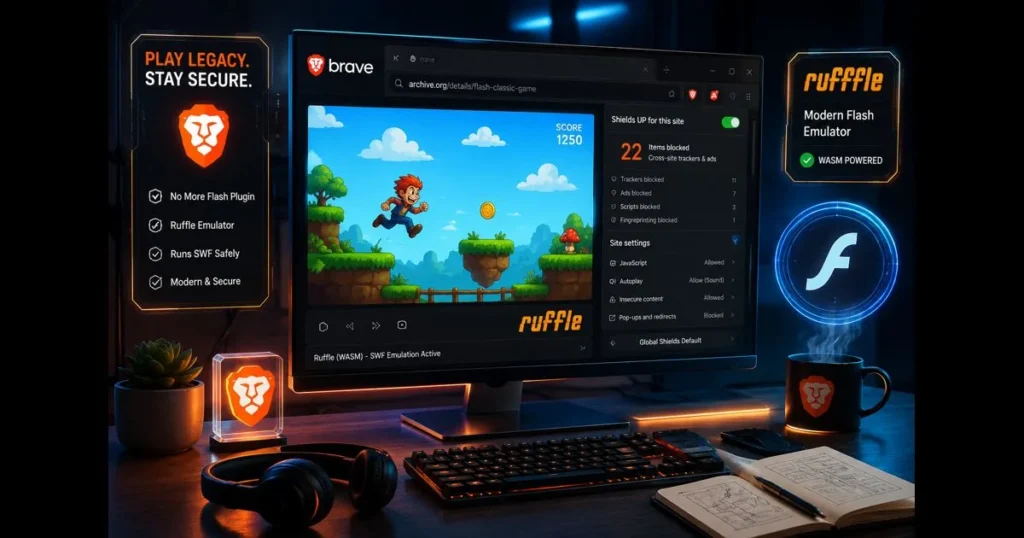
Flash may be gone, but your favorite classics are not lost forever. If you’re looking to allow Flash in Brave to revisit animations, school projects, or browser games, you’ve found the right guide. Here, we’ll explore what happened to Adobe Flash, why Brave is a smart choice for safer playback, and how to run Flash-era content in 2023 without risky plugins. You’ll learn practical steps: using the ruffle flash emulator, trusted archives, and optimal Brave settings to enhance your experience. Although you can’t turn Flash “back on” in Brave, you can still enjoy the content responsibly.
- 1. Understanding Flash and Its Discontinuation
- 2. Why Use Brave Browser for Flash Content?
- 3. Installing Flash in Brave Browser
- 4. Configuring Brave Settings for Flash Playback
- 5. Troubleshooting Flash Issues in Brave
- 6. Safety Considerations When Using Flash
- 7. Exploring Alternatives to Flash Content
- 8. The Future of Flash-like Content in Browsers
1. Understanding Flash and Its Discontinuation
Overview of Adobe Flash Player and its role in web content.
For nearly two decades, Adobe Flash Player was the backbone of cartoons, music players, educational modules, and countless browser games. If you recall pre-rolls on Newgrounds or math activities, those were often .swf files running through Flash. The technology enabled interactive ads and entire microsites with motion and sound that earlier web standards couldn’t support.
Flash was everywhere — until it wasn’t. (See: Centers for Disease Control and Prevention.)
Reasons behind the discontinuation of Flash support.
Security vulnerabilities, high CPU usage, and the emergence of open standards led to Flash’s decline. Modern technologies like HTML5, CSS animations, JavaScript, WebGL, and WebAssembly matured enough to take over Flash’s core functions, eliminating the need for a third-party plugin. Adobe ceased support for Flash on December 31, 2020, and major browsers removed the code necessary to load it. That’s why you won’t find any working toggle to enable Flash in browsers now.
2. Why Use Brave Browser for Flash Content?
Privacy features of Brave that enhance security while using Flash.
Brave is designed with privacy and security in mind. Its Shields block trackers, malicious scripts, and known bad ad domains, creating a safer environment when exploring older sites or community archives. Per-site controls allow you to grant only the permissions each page truly needs. With sandboxed tabs and profiles, Brave reduces risks when testing unknown content. While this won’t resurrect Flash or enable native Flash playback, Brave’s safeguards make it a safer, more controlled environment for using web-based emulators and archived players than a typical setup.
Comparison with other browsers regarding Flash support.
No mainstream browser supports the original Flash plugin anymore — not Brave, Chrome, Firefox, or Safari. Brave adheres to the same rules since it’s based on Chromium. If you’ve tried to allow flash in chrome and faced obstacles, that’s to be expected. The key difference lies in how each browser handles scripts, extensions, and permissions that emulate Flash content. Brave’s privacy defaults and robust extension support make it a strong choice for this purpose.
3. Installing Flash in Brave Browser
Step-by-step guide to enabling Flash in Brave settings.
Here’s the reality: there is no native way to enable Flash in Brave. The legacy plugin is gone. Instead, you can prepare Brave for smooth emulation and playback.
- Update Brave. Go to brave://settings/help to ensure you’re on the latest version for optimal extension compatibility.
- Decide on your approach: use an emulator extension for web pages, or a standalone player for offline files.
- Install an emulator extension (details below). This will serve as your “Brave Flash player.”
- Adjust permissions per site when prompted (autoplay, downloads), then test a known-good Flash page from a reputable archive.
If a site prompts “Click to enable Flash,” that message is outdated. Use an emulator to replace the missing plugin instead of searching for a toggle that no longer exists.
Recommended Flash player alternatives for better compatibility.
- Ruffle: This actively developed, open-source emulator runs many .swf files via WebAssembly. For Brave:
- Download the Chromium extension from the official Ruffle website.
- Unzip the archive to a folder.
- Open brave://extensions, enable Developer Mode, click “Load unpacked,” and select the Ruffle folder.
- Visit a page with embedded .swf; Ruffle should auto-replace the missing plugin.
Note: Ruffle handles many older animations and games well, but complex ActionScript 3 titles may be only partially supported.
- BlueMaxima’s Flashpoint: A preservation project that runs archived Flash and other web games/apps locally using curated components. Great for reliability, though it operates outside the browser tab model.
- Standalone “projector” players: The old Adobe Flash Player projector can open local .swf files without a browser. If you choose this route, obtain it from trustworthy archives and keep it offline for safety.
If your aim is to play Flash games directly in a tab, Ruffle is typically the most convenient starting point.
4. Configuring Brave Settings for Flash Playback
Adjusting site settings to allow Flash content.
Since there’s no plugin, you’ll want to ensure the emulator code can run without being blocked. Consider these adjustments:
- JavaScript: Ensure it’s enabled for the site (click the lock icon in the address bar > Site settings).
- Autoplay: Some games require sound to start; set Autoplay to “Allow” for trusted sites.
- Insecure content: If a preserved page serves .swf over HTTP, allow “Insecure content” for that specific site only.
- Brave Shields: If an archive won’t load, temporarily lower Shields for that domain to let the emulator fetch resources. Turn Shields back on after testing.
These careful, per-site controls are vital. Think of it as enabling the conditions that let emulation function effectively.
Managing permissions for specific websites hosting Flash.
Targeted control helps maintain safety elsewhere:
- Open the Flash page, click the lock icon, then choose Site settings.
- Toggle necessary permissions: JavaScript (Allow), Pop-ups/Redirects (Allow if the game opens a new window), Automatic downloads (Allow if the site delivers assets).
- In Brave settings under Privacy and security > Site and Shields settings, add exceptions for the specific domain so you won’t have to repeat these steps next visit.
If a site is stuck behind an old Flash prompt, try reloading after the emulator is injected, or switch to a known working mirror.
5. Troubleshooting Flash Issues in Brave
Common problems users encounter when trying to play Flash content.
- “Click to enable Flash” banners that never resolve.
- Blank or black screens where animations should appear.
- Audio plays, but no input is recognized; or keyboard focus is lost.
- ActionScript 3 titles partially load and then stall.
- Mixed-content or CORS errors in the console preventing asset loads.
Solutions and tips to overcome playback issues.
- Force emulator injection: Ensure the Ruffle extension is active on the page; try a hard refresh (Shift+Reload).
- Test a known-good source: Many Internet Archive pages have Ruffle bundled — check the same title there to rule out a broken copy.
- Use a different approach: If the page embed fails, download the .swf and open it with a standalone projector or launch via Flashpoint.
- Toggle hardware acceleration: In brave://settings/system, switch “Use hardware acceleration when available” on or off to fix visual glitches.
- Check Shields: Lower or disable Shields for that domain, reload, and see which resource was blocked.
- Create a fresh profile: Corrupted caches or extensions can interfere; test in a new Brave profile with only the emulator installed.
If issues persist, the file may rely on features the emulator hasn’t implemented yet. Check the project’s compatibility list or issue tracker for more information.
6. Safety Considerations When Using Flash
Understanding the risks associated with running Flash content.
Original Flash plugins had known security flaws, and some .swf files may harbor malicious code. Avoid installing outdated system-wide plugins from unverified sources. Emulators mitigate risks by safely executing files within modern browsers, but risky content can still pose threats if it attempts to load external scripts or exploits social engineering.
Best practices to ensure a safe browsing experience.
- Prefer emulation (Ruffle, Flashpoint) over legacy plugins.
- Use trusted archives and known communities; stay away from random download sites.
- Run questionable files offline in a standalone projector, disconnected from the internet.
- Keep Brave updated and use separate profiles for testing.
- Re-enable Shields after using permissive sites.
If a page prompts you to install a “new Flash update,” close it immediately. That prompt is bait, not a solution for Flash content in Brave.
7. Exploring Alternatives to Flash Content
HTML5 and other technologies that replace Flash.
Modern browsers excel with HTML5, Canvas, WebGL, and WebAssembly — no plugins needed, better performance, and mobile compatibility. Many developers have ported classic titles to HTML5 or rewritten them using engines like Phaser, PixiJS, Unity WebGL, or Godot’s web export. For interactive learning, standards-compliant video, SVG animations, and responsive components now fill the gap Flash once occupied — with less hassle.
Prominent alternatives and platforms that replace Flash functionality
- HTML5 + JavaScript APIs (Canvas, WebGL, WebAudio, WebRTC): Core web standards for interactive media and games across devices.
- Unity WebGL: Exports 2D/3D games to the browser with robust tooling and asset pipelines.
- Godot HTML5/Web export: Open-source engine that compiles projects to run in the browser.
- Construct 3: No-code/low-code HTML5 game creator with streamlined web deployment.
- PlayCanvas: Web-first 3D engine and editor built on WebGL.
- Phaser: Popular 2D HTML5 game framework for fast arcade-style titles.
- PixiJS: High-performance 2D renderer often paired with game frameworks.
- Three.js and Babylon.js: Leading 3D graphics libraries for immersive experiences.
- WebAssembly (via Emscripten): Enables C/C++ and other languages to compile to the web for near-native performance.
- Haxe/OpenFL: Flash-like APIs targeting HTML5 and other platforms to ease migration of legacy content.
Resources for finding non-Flash versions of popular games and applications.
- Official publisher sites that have repackaged older games into HTML5 or native apps.
- Newgrounds and itch.io pages listing remasters or ports.
- Internet Archive collections where many items auto-run with Ruffle.
- Fan communities that maintain “definitive” links to new, Flash-free builds.
When possible, choose a clean rewrite over emulation. It’s future-proof and usually runs smoother on modern devices.
8. The Future of Flash-like Content in Browsers
Emerging technologies that could serve similar functions as Flash.
WebAssembly offers developers near-native speed in the browser, while WebGPU enhances 2D/3D rendering capabilities. Combined with modern audio APIs and robust input handling, the open web now supports everything from smooth UI animations to console-quality game loops — all without plugins. Emulation projects will continue to improve, preserving history while embracing new standards.
Predictions for browser support trends moving forward.
Browsers are not bringing back the Flash plugin. Expect tighter sandboxing, clearer permission prompts, and a continued focus on portable, open standards. The path for nostalgia lies in emulation and curation; the future of creation is rooted in standards-first design. If you need to allow flash in browser contexts today, you’re really enabling safe emulation — a healthier long-term model for users and developers.
One last note: if you come across guides claiming to reveal a hidden toggle to enable Flash in Brave or miraculous extensions that restore the original plugin, skip them. Those instructions are outdated or potentially risky.
Remember, techniques for Brave Flash player mirror Chrome’s reality. The same constraints apply when trying to enable Flash in Chrome due to their shared Chromium foundation.
Now you have a practical playbook: use Ruffle for quick web playback, rely on Flashpoint for stubborn titles, and fine-tune Brave’s settings per site to maintain security. Favor Flash alternatives when available, and keep searching for modern ports — many are excellent.
Ready to bring a classic back to life? Install Ruffle, test a favorite from a reputable archive, and share this guide with a friend who misses those old-school intros. Nostalgia meets safety — and it runs beautifully in Brave.
Frequently Asked Questions
How do I allow Flash content in the Brave browser?
To allow Flash content in Brave, go to the site that requires Flash, click on the shield icon in the address bar, and toggle the setting to allow Flash. Keep in mind that Flash is deprecated, and it’s recommended to use alternatives when possible.
Is it safe to enable Flash in Brave?
Enabling Flash can expose you to security risks, as Flash is no longer supported and receives no updates. It’s best to avoid using it unless absolutely necessary, and ensure that your browser and system are secure.
What should I do if my Flash content isn’t working in Brave?
If Flash content isn’t working, check if it is enabled in the site settings. Additionally, consider using a different browser that still supports Flash or look for HTML5 alternatives that provide similar functionality without the risks associated with Flash.