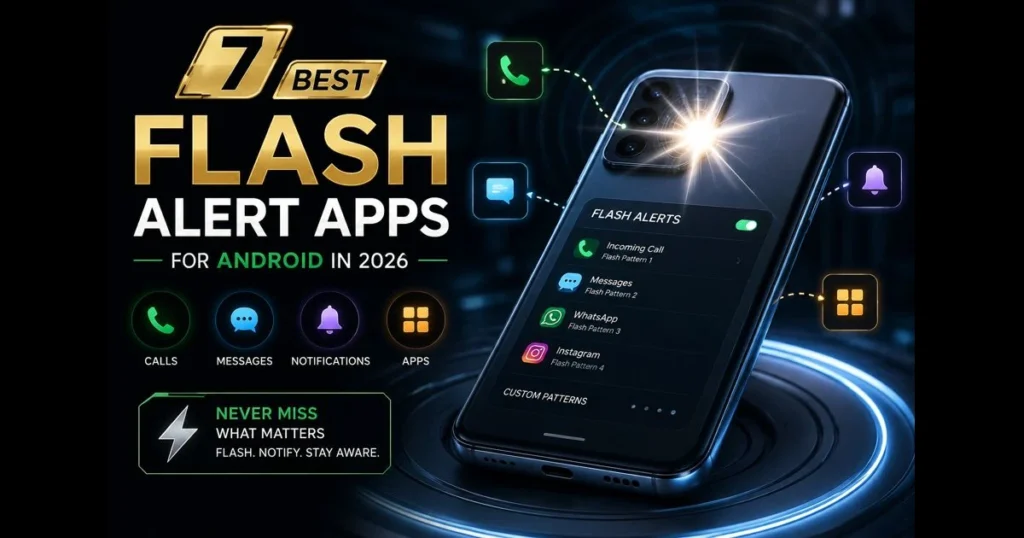
Life rarely offers a moment to notice every ping. That’s where flash alert apps come in. These Android apps utilize your phone’s camera flash (or a bright screen pulse) to signal incoming calls, texts, and app notifications, ensuring you catch what matters, even when you can’t hear or feel a buzz. Whether you work in noisy environments, keep your phone on silent, or seek accessibility-friendly cues, the right flash alerts app can significantly enhance your daily routine. Below, we break down the purpose of flash alert apps, the standout features, and seven top options worth trying in 2023. Related reading: flash notifications battery drain.
We also cover installation tips, common issues, and future trends in flash notification technology. Our aim is to help you choose quickly, set up confidently, and avoid pitfalls that lead to missed alerts or unnecessary battery drain. Let’s ensure you never miss a signal. Related reading: flashlight app permissions.
- What Are Flash Alert Apps?
- Benefits of Using Flash Alert Apps
- Key Features to Look for in Flash Alert Apps
- Top 7 Flash Alert Apps for Android in 2023
- Comparing the Best Flash Notification Apps
- How to Install and Set Up Flash Alert Apps
- Common Issues and Troubleshooting Tips
- Future Trends in Flash Alert Technology
1. What Are Flash Alert Apps?
Flash alert apps are mobile notification tools that use your device’s rear camera LED or a screen flash to notify you of incoming alerts. Instead of relying solely on sound, your phone blinks a bright light in a customizable pattern, allowing you to spot notifications across a room, in crowded venues, or during silent meetings. (See: Ready.gov.)
In essence, these apps translate digital interruptions into visual cues. The best flash notification apps elevate this concept with notification customization—think per-app rules, distinct blink patterns for calls versus texts, and schedules that respect quiet hours.
If you’ve used built-in Android flash notifications, these apps offer more extensive control and compatibility across various devices.
2. Benefits of Using Flash Alert Apps
First, they enhance awareness. In loud environments—workshops, concerts, or sports events—the camera LED is hard to miss. A quick strobe can succeed where vibration fails.
Second, they provide flexibility. With per-contact and per-app controls, you can customize which alerts trigger a flash. For instance, your team chat might get a short burst, while family calls use a longer pattern. This tuning is ideal if you keep your phone face down or at arm’s length.
Accessibility is another advantage. Visual alerts support individuals who are hard of hearing, offering a reliable, visible signal that complements existing accessibility tools. Many user-friendly alert apps include bright screen flashes, not just relying on the camera LED.
3. Key Features to Look for in Flash Alert Apps
Compatibility is crucial. Camera LEDs and notification systems function differently across brands (Samsung, Google, OnePlus, Xiaomi) and Android versions. Ensure the app supports your device and Android release, along with an in-app test mode to verify your setup.
Next is control. Quality apps allow you to choose which applications trigger flash notifications, adjust blink speed and duration, set quiet hours, and determine whether alerts activate only on the lock screen or while the screen is on. An override option for high-priority contacts can be invaluable.
Design also matters. A clean layout simplifies daily adjustments. Extra features like quick toggle tiles, per-profile presets (Work, Driving, Sleep), and auto-pause during low battery are advantageous. Be mindful of permission prompts—quality apps explain access needs, usage, and how to revoke permissions later.
4. Top 7 Flash Alert Apps for Android in 2023
1) Built‑in android flash notifications (Android 14+)
Before installing anything extra, check your system settings. Recent Android versions include a “Flash notifications” feature that triggers a rear camera flash or a bright screen flash for notifications. It’s simple, private, and free, avoiding additional background processes. If you only need a straightforward on/off toggle with minimal tuning, start here.
Unique angle: tight integration with Do Not Disturb and fewer permissions to grant. Limitation: less per-app customization than dedicated tools.
2) FlashOnCall — LED Alerts for Calls & Apps
A long-standing favorite, FlashOnCall focuses on reliability. It supports calls, SMS, and third-party apps, featuring adjustable blink rates and logic to prevent flashing when the screen is on. You can set contact-specific patterns for VIP callers.
Why it’s notable: dependable performance across devices and thoughtful scheduling options for nighttime and meetings. The straightforward interface makes it an excellent choice for those valuing simplicity over experimental features.
3) Flash Alerts 2 — Custom Patterns & Schedules
Flash Alerts 2 emphasizes notification customization. You can define unique patterns for calls, texts, and apps; set battery thresholds to pause alerts; and enable pocket detection to prevent unnecessary cycles when the phone is face down or in a bag.
This app is ideal for users who want granular control without diving into full automation tools. Its test mode and per-app toggles make setup straightforward.
4) Flash Notification for All Apps — Per‑App Control
This app prioritizes app-by-app rules. You can allow banking apps and calendar events to flash while muting social notifications, or limit flashes to high-priority Android channels. It also offers a screen flash fallback when the camera LED is busy or disabled.
A good pick if your workflow depends on a few critical services and you want their notifications to stand out.
5) Call & SMS Flash Alerts — Simple and Lightweight
If you only need alerts for calls and texts, this lightweight option focuses on the basics: quick toggles for calls and SMS/MMS, simple speed controls, and a tile shortcut for fast enable/disable. It uses minimal storage and works well with battery savers.
Ideal for older or budget phones, or anyone wanting a straightforward tool that just works.
6) Smart Flash Alerts: Call & App — Smarter Quiet Hours
Smart Flash Alerts adds context. It can pause flashing when you’re on another call, when media is playing, or when your screen is unlocked. There’s a driving mode to reduce intensity and a meeting profile that narrows alerts to calendar events and designated contacts.
If you’ve ever been bothered by a flash at the wrong moment, these features help prevent false positives without manual management.
7) Tasker (Advanced: Build Your Own Flash Rules)
Not a typical flash alerts app—yet a powerhouse for those wanting ultimate control. With Tasker, you can create automations that monitor specific notifications and then blink the camera LED in custom patterns, only under selected conditions (after 9 p.m., when connected to work Wi-Fi, etc.).
It involves a learning curve, but if you need niche logic—like flashing only for a stock watchlist trigger—Tasker is unmatched.
5. Comparing the Best Flash Notification Apps
Here’s how these options differ in features and pricing. Verify details on the Play Store before deciding, as offerings can change with updates.
- Depth of control: Tasker and Flash Alerts 2 offer the richest rule sets; Built‑in Android and Call & SMS Flash Alerts keep it simple.
- Per‑app filtering: Flash Notification for All Apps excels here; Smart Flash Alerts also performs well with context-aware filters.
- Ease of use: Built‑in Android and FlashOnCall are among the most user-friendly alert apps for beginners.
- Battery awareness: Look for options with low-battery auto-pause and “no flash when screen is on” logic to reduce battery drain.
- Pricing: Most apps are free with ads, with optional one-time purchases or subscriptions to remove ads and enable advanced features. Check the current listings for specifics.
User sentiment is consistent: people praise reliability and clear setup guides; they criticize intrusive ads and over-permissive defaults. Aggressive battery management on some devices can lead to missed flashes until you whitelist the app—this theme frequently appears in reviews.
6. How to Install and Set Up Flash Alert Apps
You can go from download to operational flashes in minutes if you follow this checklist.
- Install from a trusted source: Open Google Play, search the app name (or locate the built‑in setting on Android 14+), and install.
- Grant core permissions: Most apps need Notification Access to recognize alerts and Camera permission for the LED. You may also need Do Not Disturb access to respect or override DND rules, and “Ignore Battery Optimizations” to ensure the service runs in the background. Read prompts carefully—this is crucial.
- Run a test: Use the app’s Test Flash button. If nothing happens, confirm permissions, then disable any system battery savers and try again.
- Tune patterns and filters: Set blink speed, duration, and per-app rules. Consider distinct patterns for calls and a shorter one for messages.
- Set quiet hours and conditions: Prevent flashing during sleep, meetings, or when the screen is on. Enable pocket detection if available.
- Add a quick toggle: Pin the app’s Quick Settings tile or a home screen widget for easy toggling.
For a smarter setup, tie flashes to Android focus modes or routine schedules. For instance, allow flashes for calendar events and family calls during work hours, then restrict to emergency contacts at night. With Android’s built-in flash notifications, you can also mix subtle screen flashes by day with brighter LED flashes at night.
7. Common Issues and Troubleshooting Tips
Missed flashes often relate to power management, not the app itself. Many manufacturers aggressively pause background services. Whitelist the app under Battery settings, and if possible, disable adaptive battery just for that app.
Another issue could be DND conflicts. If nothing flashes during Do Not Disturb, check whether your app is set to obey DND fully or only for alarms/priority contacts. Align the app’s rules with your system DND exceptions.
Camera access can interfere with photography or scanning apps. If you’re recording video, most flash alert tools will defer to the camera and won’t blink; that’s by design. Choose “no flash when screen is on” to avoid strobing during active use.
If you experience inconsistent behavior, try these steps:
- Confirm all required permissions are granted, then reboot the device.
- Disable duplicates by ensuring only one flash tool (system or third-party) is active.
- Reduce blink rate or duration to ease the load on older LEDs and minimize heat.
- Position the phone with the LED facing out on a desk; fabric or cases can muffle light output.
Concerned about battery life? Camera LEDs do draw power. Sensible defaults—short patterns, per-app filters, no flashing while the screen is on—help minimize impact. If your phone feels warm or drains faster, lower brightness where possible or rely on screen flash instead. Thoughtful tuning can prevent most battery drain complaints.
8. Future Trends in Flash Alert Technology
Visual alerts are transitioning from niche add-ons to essential features. Expect tighter OS-level integrations that make visual cues as flexible as ringtones: per-contact color flashes, adaptive brightness tied to ambient light, and profiles that adapt to your calendar or driving status.
Developers are also exploring context and on-device intelligence. Imagine a system that flashes only for genuinely urgent alerts—like a two-factor prompt or a high-priority work escalation—while muting routine notifications. The building blocks for this already exist in Android’s notification channels and priority modes.
Hardware advancements will play a role. With more devices featuring efficient dual-tone LEDs and higher-refresh screens, screen-based flashes can match LED clarity without needing camera access. Foldables and wearables may also contribute: a cover-screen pulse on a foldable, paired with a subtle watch vibration, could replace loud ringtones altogether.
This evolution points to a cleaner, more respectful Alert system—one that keeps you informed without constant noise. The best flash notification apps will blend visual signals with your habits, enhancing your experience rather than disrupting it.
Wrap‑up: Flash alerts are a small tweak with a significant impact. Start with the built-in option; if you need finer control, install a dedicated flash alerts app from this list and refine your rules over a few days. Prioritize clear patterns, sensible quiet hours, and minimal permissions. When your phone blinks only for what truly matters, you’ll feel the difference. Ready to begin? Choose an app, run the test flash, and set a pattern for your most important contact today.
Frequently Asked Questions
What are flash alert apps?
Flash alert apps are mobile applications that provide instant notifications or alerts using visual or audible signals. They are particularly useful for individuals who may have hearing impairments or those who want to stay informed without relying solely on sound.
How do I set up a flash alert app on my smartphone?
To set up a flash alert app, download the application from your device’s app store, grant necessary permissions, and customize the alert settings according to your preferences. Most apps allow you to choose specific notifications and the type of alert you want.
Are flash alert apps available for both iOS and Android devices?
Yes, flash alert apps are available for both iOS and Android devices. You can find various options in the Apple App Store or Google Play Store, each offering different features and customization options.