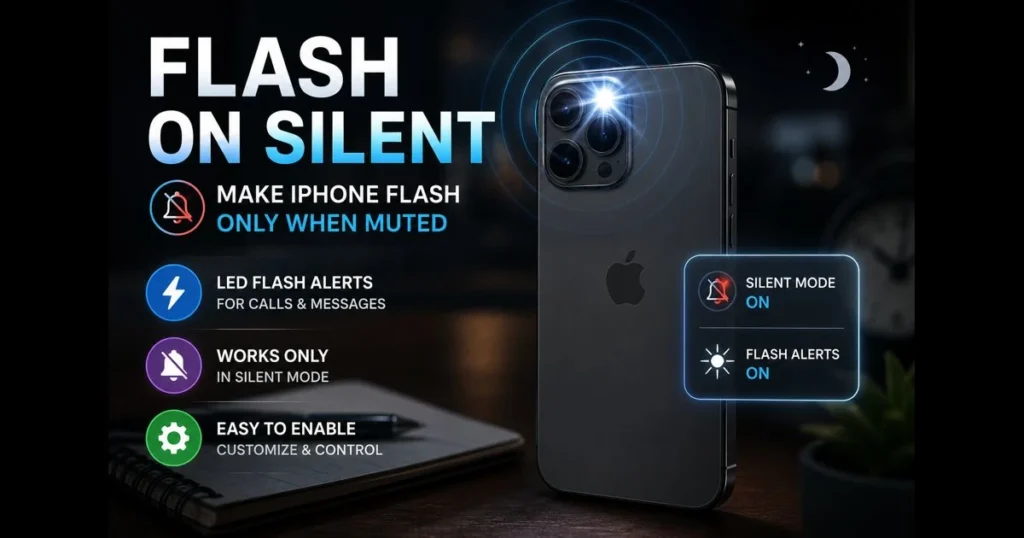
When your phone is muted during a meeting, class, or movie, missing a critical call can be frustrating. Many people seek flash on silent iPhone settings—using the camera’s LED as a discreet visual cue. This guide explains flash alerts, how to enable them so your iPhone flashes only when muted, and ways to customize them to ensure you never miss important notifications. You’ll also find troubleshooting tips, ideas for pairing alerts, and alternatives like custom vibrations. By the end, you’ll know how to make iPhone flash silent mode work for you without the constant chime of sound-based notifications.
- Understanding Flash Alerts on iPhone
- How to Enable Flash Alerts on Your iPhone
- Customizing Flash Alerts for Specific Contacts
- Troubleshooting Flash Alerts Issues
- Using Flash Alerts with Accessibility Features
- Alternatives to Flash Alerts
- User Experiences and Tips
- Conclusion: Enhancing Your Notification Experience
1. Understanding Flash Alerts on iPhone
What are flash alerts and how do they work?
Flash alerts utilize the rear camera’s LED to blink when a call, message, or app notification arrives. It acts as a visual bell. When enabled, the light pulses in sync with incoming alerts, and you can choose whether it flashes while the phone is locked, unlocked, or only when the ringer switch is set to silent. This feature connects to system-level alerts, and most apps that deliver notifications can trigger it—provided the app is allowed to notify you—but individual app compatibility can vary; check the app’s notification settings for specifics. (See: iPhone – Wikipedia.)
The benefits of using flash alerts over sound notifications
Not everyone prefers sound alerts. Visual notifications are discreet in quiet spaces and more noticeable in noisy environments where a ringtone may be missed. They’re also useful if your iPhone is across the room, face down on a desk, or inside a bag. For users with hearing loss, flash alerts provide a strong visual signal without altering app behavior.
2. How to Enable Flash Alerts on Your iPhone
Step-by-step guide to accessing the settings menu
You’ll find the control for LED-based alerts in Accessibility. Menu names can vary slightly by iOS version; if something looks different, search for “LED Flash” in Settings and check for updates under Settings > General > Software Update. The path generally remains consistent:
- Open Settings.
- Tap Accessibility.
- Tap Audio/Visual.
- Choose LED Flash for Alerts.
In recent iOS versions, you’ll find options to activate the feature and specify when it operates (for example, while locked or unlocked). Some versions offer a toggle to flash only when the ringer is set to silent—ideal for visual alerts during silent mode.
Activating flash alerts for calls and messages
Once LED Flash for Alerts is on, your iPhone can flash for calls, texts, and supported third-party apps. To ensure calls and messages trigger the light:
- Go to Settings > Notifications > Phone and confirm Allow Notifications is enabled, with alerts permitted on the Lock Screen.
- Do the same for Messages (and for apps like WhatsApp, Signal, or Telegram if used).
- Test with a call from another phone. If your screen is unlocked and you don’t see a flash, check for a “while locked” setting under LED Flash for Alerts and adjust as needed.
If you want the flash only when muted, enable the option labeled Flash on Silent (if available) or keep flashing enabled only for the locked state and set your ringer switch to silent. This way, the light serves as your discreet alert method without sound.
3. Customizing Flash Alerts for Specific Contacts
How to set up individual flash alerts for important contacts
There’s no native per-contact switch for the camera LED, but you can approximate this effect using Focus:
- Create a Focus (Settings > Focus) for work, sleep, or “VIP.”
- Under People, Allow Notifications From only the contacts you don’t want to miss.
- Keep LED Flash for Alerts turned on. When that Focus is active, the LED will flash only for allowed contacts, as other alerts won’t come through.
For essential contacts, open a person in Contacts, tap Edit, then Ringtone or Text Tone, and enable Emergency Bypass. This ensures alerts from that person come through with sound and vibration, providing a strong visual cue as well.
Managing settings for different messaging apps
Per-chat controls in apps like WhatsApp and Telegram allow you to mute group threads while keeping one-on-one conversations active. Combine this with your Focus and system flashing to ensure only the conversations you care about trigger the light. Remember: the LED follows system-level delivery. If an app’s notifications are disabled or silenced by your Focus, you won’t see flash notifications from that app.
4. Troubleshooting Flash Alerts Issues
Common issues users face with flash alerts
Several quirks can make the LED seem unreliable:
- Your iPhone is unlocked, but settings only flash while locked.
- An Apple Watch is on your wrist and unlocked, potentially directing notifications to the watch.
- A Focus mode like Sleep or Driving is filtering notifications from people or apps you expect to see.
- Your case or finger is obstructing the camera area, blocking the LED.
- The flashlight is already on, or the camera is in use—both reserve the LED.
Tips for resolving flash alert problems on your iPhone
Work through this quick checklist:
- In Settings > Accessibility > Audio/Visual > LED Flash for Alerts, turn the feature off and back on, then confirm related toggles like Flash While Locked and Flash on Silent (names may vary by iOS) are set as intended; test with a call.
- In Settings > Notifications, check that the specific app is allowed on the Lock Screen.
- Open Control Center and turn off Focus modes that might be filtering alerts, or add your contact/app to the Focus allowlist.
- Remove the case briefly to rule out obstruction near the camera.
- Use the search bar in Settings to find “LED Flash” if menu names look different on your iOS version, and install any available software updates under Settings > General > Software Update.
- Restart your iPhone if the LED remains unresponsive after testing.
If nighttime flashes disturb your sleep, quickly turn off flash notifications by searching “LED Flash” in Settings before bed, then re-enable it in the morning.
5. Using Flash Alerts with Accessibility Features
How flash alerts can aid users with hearing impairments
Flash alerts are part of the broader accessibility features iPhone provides. For individuals who may not hear tones clearly, the bright, unmistakable cue of a camera LED is effective without being disruptive to others nearby. It pairs well with strong haptics, allowing the phone to both light and vibrate.
Exploring additional accessibility settings related to notifications
Consider these complementary tools:
- Sound Recognition (Settings > Accessibility) can listen for alarms or doorbells and provide alerts.
- Announce Notifications with Siri can read alerts through supported headphones.
- Per-App Settings (within Accessibility) allow you to tweak display and motion for specific apps you use most often.
- Attention Aware Features can reduce some alerts when you’re looking at the screen; if you suspect conflicts, test with it off.
Mix and match these with LED flashing to create a setup that’s both quiet and unmistakable.
6. Alternatives to Flash Alerts
Other innovative notification methods available on iPhone
If the camera LED seems too bright or conspicuous, consider these alternatives:
- Create custom vibration patterns under Settings > Sounds & Haptics. Assign different patterns for calls and texts, so vibration alerts let you know who’s calling without light or sound.
- Use an Apple Watch for subtle wrist taps that avoid lighting up a room.
- Set crucial apps to persistent banner style to keep alerts visible when you next glance at the screen.
- Allow Critical Alerts for apps that support them, so life-safety notifications can break through your Focus and silent settings.
- Use Do Not Disturb (a Focus) to temporarily silence sounds and flashes while allowing priority people and apps. For example, schedule Do Not Disturb for nightly quiet hours with only family calls allowed, or enable it during meetings so alerts are delivered quietly.
- Set up a vibration schedule by combining Focus schedules with Sounds & Haptics. Keep Play Haptics in Silent Mode on, assign custom vibration patterns, and schedule a Focus (e.g., weekdays 9–5) so your phone relies on vibrations only—no sound or flash—during those times.
Comparing flash alerts to vibration and sound notifications
Flashes are excellent for visibility in loud spaces, while vibration is private and reliable in a pocket. Sound carries across a room but can be intrusive. The best approach often combines all three: quiet hours with visual and haptic cues, daytime with sound and haptics, and a Focus that limits which apps and people can interrupt.
7. User Experiences and Tips
Real-life experiences from users who rely on flash alerts
A wedding photographer leaves the phone face down on the prep table; the rear camera LED softly reflects every time a text arrives from the coordinator. A night-shift nurse keeps the phone in a scrub pocket with the camera end up; the brief pulse is far less disruptive than a ringtone during med rounds. A parent at a school performance activates LED flashing and a custom Focus that only allows calls from the babysitter—no other alerts break the moment.
Expert tips for maximizing the effectiveness of flash alerts
- Angle the camera end toward you when the phone is on a desk or tucked in a bag sleeve.
- Use a matte or light-colored case interior; it can diffuse the light for easier peripheral detection.
- Create a “Meetings” or “Theater” Focus that allows just a few contacts and apps, ensuring the LED only flashes for what’s critical.
- If you share a dark room, schedule a Focus for sleep hours and temporarily turn off flash notifications to avoid waking others.
- Remember that flash notifications and iphone flash notifications refer to the same feature. If a guide mentions either phrase, you’re in the right spot in Settings.
8. Conclusion: Enhancing Your Notification Experience
Recap of the benefits of enabling flash alerts
Flash alerts provide a bright, unmistakable signal without sound—perfect for meetings, theaters, and noisy environments. With a few custom notification settings, you can make the LED pulse only when your iPhone is muted, limit flashing to a select few contacts, and combine light with haptics for a reliable silent-mode setup.
Encouragement to customize settings for personal preferences
Start with LED Flash for Alerts, test a call while muted, and fine-tune settings with a Focus so only priority contacts and apps can light up your phone. If your needs change, adjusting or turning off flash notifications is just as easy before bedtime or for a quiet weekend. Your notification system should work for you—subtle when needed, undeniable when it counts.
Frequently Asked Questions
How can I enable flash notifications on a silent iPhone?
To enable flash notifications on a silent iPhone, go to Settings > Accessibility > Audio/Visual and toggle on ‘LED Flash for Alerts’. This will allow your iPhone’s camera flash to blink whenever you receive notifications, even when the phone is on silent mode.
Will the flash work for all types of notifications?
The flash feature will work for notifications from apps, calls, and messages. However, it may not function for certain third-party applications unless they are specifically configured to use the LED flash.
Can I customize the flash settings for different contacts?
Unfortunately, iOS does not currently allow customization of flash settings for individual contacts. The LED flash setting applies universally to all alerts and notifications when enabled.