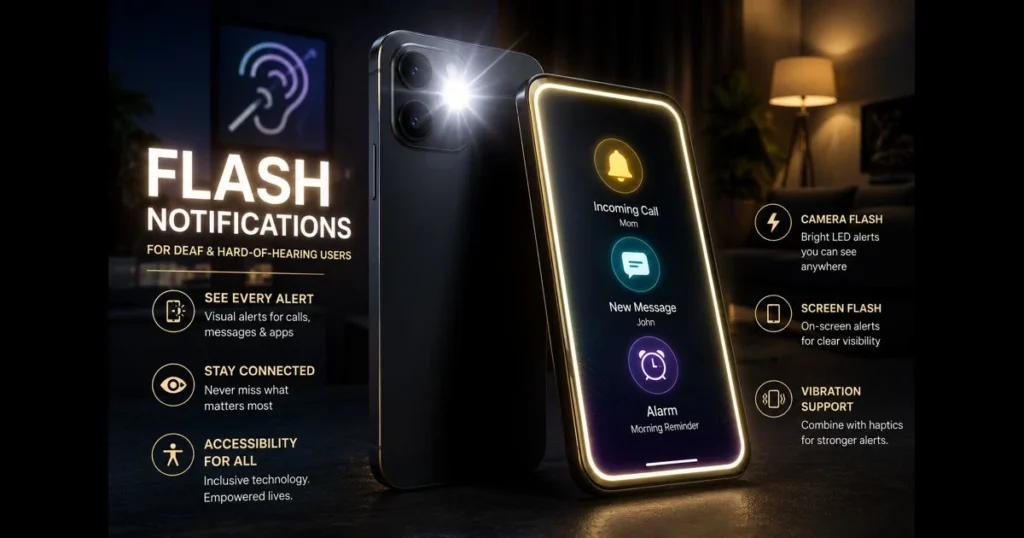
When sound isn’t an option, light steps in. Flash notifications provide deaf and hard-of-hearing users a fast, visible way to catch calls, messages, alarms, and app notices. Instead of relying on ringtones or beeps, a camera LED or screen pulse becomes the alert. It’s simple, effective, and often overlooked in discussions about smartphone accessibility features. This guide explains flash notifications, their significance, and how to activate them. We’ll also cover technical basics, developer best practices, and the future of AI and on-device detection. Whether you’re setting up a hearing accessibility phone for yourself or a family member or building communication tools that work for everyone, you’ll find practical advice here.
- Understanding Flash Notifications
- Importance of Accessibility for Deaf Users
- How Flash Notifications Work
- Setting Up Flash Notifications on Your Device
- Benefits of Flash Notifications for Users
- Challenges and Limitations of Flash Notifications
- Exploring Additional Accessibility Features
- Best Practices for Developers
- Future Trends in Accessibility Technology
1. Understanding Flash Notifications
Definition and purpose of flash notifications
Flash notifications are visual alerts that use your phone’s camera LED or on-screen pulses to signal incoming activity—calls, messages, timers, and app notifications. They exist to ensure that individuals who can’t rely on sound still receive timely, unmistakable cues. (See: Accessibility – Wikipedia.)
Consider them deaf flash alerts: quick, bright bursts that cut through a noisy café or a hushed library without drawing attention to sound. For many, they pair with vibration patterns; for some, they replace audio entirely.
How flash notifications differ from traditional sound alerts
Sound rides on speakers, while light operates through the camera flash or display. This distinction is crucial; light can be seen across a room and doesn’t intrude on quiet spaces.
Unlike ringtones, flash notifications remain visible even when background noise would drown out sound. They’re also more directional: a phone on a desk may light the surface or nearby wall, becoming a beacon. While vibrations can be missed in a coat pocket, a bright pulse is hard to ignore.
2. Importance of Accessibility for Deaf Users
Statistics on the deaf and hard-of-hearing population
The scale is significant. The World Health Organization has reported that over a billion people live with some degree of hearing loss globally, with hundreds of millions experiencing disabling levels that affect daily communication. In the U.S., many adults report having “some trouble hearing.” These figures vary by age and setting, but the takeaway is clear: hearing accessibility isn’t a niche feature—it’s a mainstream necessity.
Phones are lifelines. Visual notifications and mobile alerts for deaf users reduce missed information, support independence, and create parity in fast-paced digital spaces.
Legal requirements for accessibility in technology
Accessibility has a regulatory backbone. In the U.S., the Americans with Disabilities Act (ADA) and the 21st Century Communications and Video Accessibility Act (CVAA) mandate accessible communication technologies and services for consumers. While Section 508 of the Rehabilitation Act primarily governs federal agencies’ procurement of accessible ICT (not general consumer devices), its criteria often inform design and enterprise requirements; in practice, providing visual alternatives to audio—such as flash notifications—aligns with those expectations. In the EU, EN 301 549 sets accessibility requirements for public ICT. The W3C’s WCAG 2.2 addresses flashing content and seizure safety, restricting flash frequency (see Success Criterion 2.3.1).
These frameworks don’t explicitly state “use the camera LED,” but they do require perceivable alternatives to audio. Flash notifications meet that standard when implemented correctly.
3. How Flash Notifications Work
Technical overview of flash notification systems
Two common mechanisms are:
- Camera LED pulses: The rear LED toggles in short bursts, making it effective in various environments.
- Screen flashes: The display rapidly illuminates or inverts colors to create a visible cue, helpful when the phone is face-up.
Behind the scenes, the OS listens for events on the notification or call stack. When matching rules are met—specific apps, priority channels, or system alerts—it triggers the LED or screen animation for a defined duration and cadence. Users can usually select which events trigger a flash and whether to flash when the screen is unlocked.
Battery impact is modest for brief pulses, but long or frequent flashes consume more power. Device makers often throttle brightness or duration to balance visibility and energy use.
Integration with mobile operating systems
On iOS, flash support is found in Accessibility settings and links to the notification framework and telephony stack. When enabled, a call, text, or app notification on supported channels can activate the LED, even if the phone is silenced.
On Android, implementations vary by device. Some manufacturers offer both camera flash and screen flash options, while others provide only one. Newer system builds present “flash notification” toggles in Notifications or Accessibility settings, allowing individual apps to integrate via notification channels so users can decide which alerts can flash.
4. Setting Up Flash Notifications on Your Device
Step-by-step guide for iOS devices
To enable flash notifications on an iPhone:
- Open Settings.
- Tap Accessibility.
- Tap Audio/Visual.
- Turn on LED Flash for Alerts.
- Choose whether to enable Flash While Unlocked for light pulses during active use.
Helpful daily tips:
- Test quickly by setting a short timer or having someone call you.
- If you use Focus or Do Not Disturb, allow important contacts or apps to trigger visual notifications.
- Consider placing the phone face-down for camera LED alerts; face-up for screen flashes from other apps.
Step-by-step guide for Android devices
The path can differ, but typically you can enable flash notifications on Android in these ways:
- Open Settings and search for “flash” or “accessibility.”
- Look under Accessibility for Hearing or Advanced settings to find “Flash notifications.”
- Choose Camera flash, Screen flash, or both. Adjust which calls, messages, or selected apps can trigger the flash.
For Google Pixel and many recent Android builds, you may also find “Flash notifications” under Settings > Notifications. On Samsung phones, it’s often labeled as samsung flash notification under Settings > Accessibility > Advanced settings > Flash notification, where you can toggle the camera LED and/or screen flash.
If your device lacks a built-in toggle, third-party apps can provide similar functionality. Grant notification access cautiously, review privacy disclosures, and verify that the app respects Do Not Disturb and scheduling preferences.
5. Benefits of Flash Notifications for Users
Enhanced safety and awareness
Quick, bright cues lead to fewer missed calls from doctors, fewer overlooked deliveries, and greater awareness of time-sensitive messages. In emergencies, even a single pulse can prompt a quick check of the screen.
When paired with vibration patterns, flash notifications become hard to miss—whether in a bag, on a nightstand, or across a room. For some households, smart bulbs that blink when the phone rings extend this safety net into shared spaces.
Improved communication and connectivity
Missed alerts can isolate individuals; reliable cues reconnect them. Visual notifications facilitate real-time conversations in messaging apps, help users join meetings on time, and respond to two-factor prompts before they expire.
For those relying on assistive technologies for hearing, the consistency of a light pulse alleviates anxiety. It harmonizes with wearables—wrist vibrations complemented by a brief flash create a layered, accessible communication system.
6. Challenges and Limitations of Flash Notifications
Potential drawbacks in certain environments
Brightness can be a double-edged sword. In bright sunlight, a camera LED can be hard to see, while flashing in dark theaters or bedrooms may disturb others. Repeated flashes at night can also be jarring.
Placement is another practical concern. Face-down on a soft surface can mute screen flashes, while face-up might hide the LED. Brief pulses are energy-efficient, but prolonged or frequent bursts will drain battery more quickly.
User preferences and accessibility customization
No single setting works for everyone. Some users want every alert to flash, while others prefer only calls and priority messages. Color-inverted screen flashes may be more comfortable for some, while others might favor dimmer, longer pulses.
This is why combining features is beneficial: adjust vibration intensity, set app-specific rules, and schedule quiet hours. The best hearing accessibility phone setup is personalized and tested in the actual environments you frequent—office, classroom, bus, and home.
7. Exploring Additional Accessibility Features
Complementary features for hearing accessibility
Flash is just one tool in a broader toolkit. Consider:
- Sound recognition features that listen for doorbells, baby cries, or alarms and convert them into on-screen and wearable alerts.
- Live captioning for calls and media, transforming speech into text and complementing flash cues for incoming calls.
- Custom vibration patterns to distinguish contacts or apps by feel.
- Real-time text (RTT) for calls when spoken audio isn’t practical.
- Direct streaming to compatible hearing aids, reducing reliance on loud speakers.
Mobile alerts for deaf users are most effective when layered: a flash to grab attention, a haptic to confirm, a banner to explain, and captions or text to convey details.
The role of visual alerts beyond flash notifications
Visual communication extends beyond the phone. Smart displays can pulse or show banners; smart lights can blink in specific rooms; laptops and tablets can mirror phone notifications for redundancy.
In work or school settings, clear desktop banners and subtle taskbar cues ensure nothing slips through while respecting shared spaces. This broader constellation of visual notifications integrates with flash notifications to create reliable, low-friction awareness.
8. Best Practices for Developers
Guidelines to ensure effective implementation
Make it visible, safe, and respectful:
- Use system notification channels so users can choose which alerts may flash. Avoid bypassing global settings.
- Offer both camera LED and screen flash options where possible, with controls for duration and intensity. Provide toggles per app or event.
- Respect Focus/Do Not Disturb, but allow users to whitelist critical contacts or categories.
- Follow W3C guidance on flashing content: keep flashes brief and below three per second to comply with WCAG’s seizure safety recommendations.
- Design for dim environments: add “dim flash” modes and avoid harsh whites; consider subtle edge glows or status bar pulses.
- Expose settings in your app and in system menus with clear labels, not just icons.
- On Apple iPhone (iOS) and Samsung Galaxy (One UI), integrate with the built-in flash notification settings (for example, iOS “LED Flash for Alerts”/“Flash While Unlocked” and Galaxy “Flash notification” for camera/screen) via system notification categories/channels so users’ global choices are honored.
Testing is equally crucial. Evaluate behavior in bright sunlight, dim rooms, and with the phone face-up and face-down. Test with cases that might obstruct the LED. Ensure low-power mode and battery savers don’t silently disable flash functionality.
User feedback and continuous improvement
Establish feedback loops. Include an in-app survey, conduct usability sessions with deaf and hard-of-hearing participants, and monitor opt-in diagnostics to learn when flashes fail or irritate. A simple “Was this alert noticeable?” prompt after critical flows can surface issues quickly.
Adopt a powerful habit: ship with conservative defaults—short flashes for priority events—and provide a guided setup for users who want more. Document your approach so support teams can troubleshoot confidently.
9. Future Trends in Accessibility Technology
Emerging technologies in accessibility for deaf users
Ambient awareness is evolving beyond single devices. Anticipate tighter synchronization between phones, watches, and smart lights so that a call triggers a coordinated light-haptic pattern across nearby devices. Ultra-wideband and presence signals can dictate which device flashes—desk light at work, phone at home—reducing duplication.
Computer vision and sensors may play a role too. A phone on a stand could assess the room’s brightness and choose screen flash over LED automatically, or slow the cadence at night to be less disruptive.
The impact of AI on hearing accessibility solutions
AI is already powering on-device sound classification for doorbells, alarms, and more. The next step is context: distinguishing relevant sounds and escalating only those, potentially blending captioning with a subtle flash to indicate both “something happened” and “what happened.”
For developers, accessible-by-default SDKs could soon expose higher-level “attention cues” that combine haptics, banners, and light based on user profiles. This keeps the promise of assistive technology for hearing impaired: less friction, more agency, and alerts tailored to the moment.
Before you wrap up your setup, a practical reminder: different devices label these features differently. Don’t be surprised to see terms like flash notifications, iphone flash notifications, samsung flash notification, or android flash notifications in settings screens and help articles. They all point to the same core idea—making alerts visible.
One takeaway stands out: visual alerts aren’t an extra—they’re a baseline. Turn them on, tune them, and let those who rely on them lead the way in determining what works best.
Call to action: If you’re a user, enable flash notifications today and test them in the places you live and work; pair them with vibration and captions for reliable coverage. If you’re a developer or IT admin, audit your app or fleet for accessible alert pathways, adhere to WCAG guidance on flashing, and invite deaf and hard-of-hearing users into your feedback loop. Small changes can make communication significantly more inclusive.
Frequently Asked Questions
What are flash notifications and how do they work?
Flash notifications are visual alerts that appear on a user’s screen to convey important information or updates. They are designed to be easily noticeable and can be particularly helpful for users with hearing impairments.
How can I ensure my flash notifications are accessible to all users?
To make flash notifications accessible, ensure they have sufficient contrast, are accompanied by text descriptions, and allow users to customize their settings. This helps accommodate users with varying levels of visual ability.
Are there any guidelines for implementing flash notifications in web design?
Yes, following the Web Content Accessibility Guidelines (WCAG) is essential when implementing flash notifications. This includes ensuring that notifications are perceivable, operable, and understandable for all users, including those with disabilities.