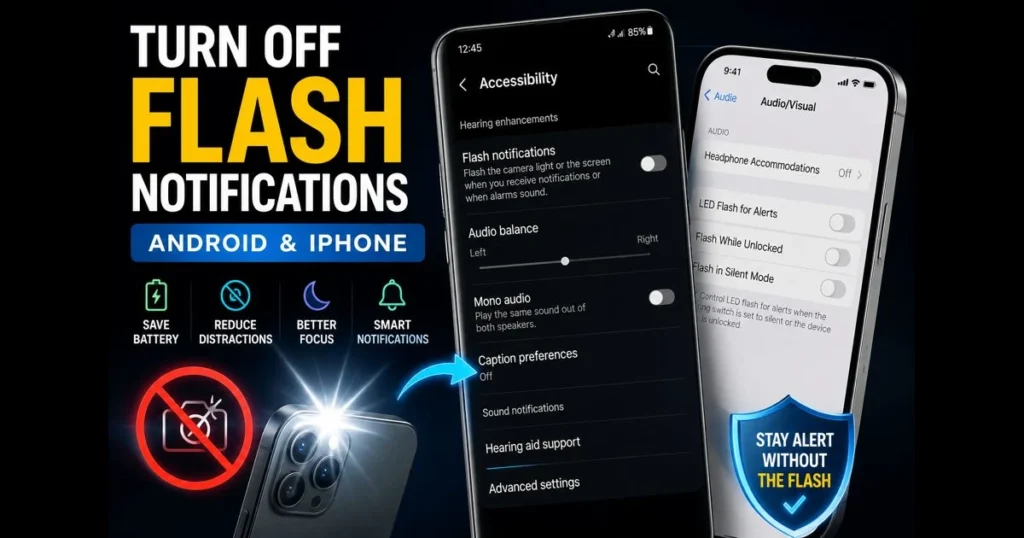
Camera-flash alerts can be useful for visual cues, but they become disruptive in dark theaters, meetings, or at bedtime. If you’re looking to turn off flash notifications to prevent your phone from strobing with every alert, this guide provides a clear path. We’ll explore what flash alerts are, why they exist, and how to disable them on Android and iPhone, along with tips for older Windows Phones and tablets. We’ll also address common issues if the light persists after disabling it and suggest smarter alternatives to ensure you don’t miss important notifications. Effective smartphone notification management can significantly enhance your focus and maintain harmony in shared spaces. Related reading: samsung flash notification.
Your experience may vary based on your device model or software version, but the menu names provided will help you find your way. If you’re unsure, use the Settings search bar and type “flash,” “LED,” or “accessibility” for a quick solution. (See: Notification – Wikipedia.)
- 1. Understanding Flash Notifications
- 2. Why You Might Want to Disable Flash Alerts
- 3. Turning Off Flash Notifications on Android Devices
- 4. Disabling Flash Notifications on iPhones
- 5. Managing Flash Notifications on Other Operating Systems
- 6. Common Issues and Troubleshooting
- 7. Alternatives to Flash Notifications
- 8. Conclusion
1. Understanding Flash Notifications
Definition of flash notifications and their purpose.
Flash notifications utilize your phone’s rear camera flash (or sometimes a screen flash) to signal calls, messages, and alerts. Designed primarily as an accessibility feature, they help those who prefer visual cues or cannot rely on sound in noisy environments. Most Android devices and iOS include a single toggle that controls this feature for incoming alerts.
You may encounter the term flash notifications in some menus, while others refer to it as “LED Flash for Alerts” or “Flash alert.” Regardless of the label, the function remains the same: a bright flash when something demands your attention.
Common scenarios where flash notifications are used.
- Loud work environments where vibration goes unnoticed.
- Settings where sound must be silenced but alerts still need to be noticed.
- Support for individuals with hearing loss who require a visual prompt.
- Customized setups where third-party apps offer additional blinking patterns.
2. Why You Might Want to Disable Flash Alerts
Impact on focus and productivity.
A sudden flash is designed to grab attention, which can disrupt your focus during concentrated work. If you aim for a calmer notification approach, disabling the strobe is a straightforward solution. Consider switching to gentler signals—like vibration or banner alerts—allowing you to manage essential notifications without losing your focus.
Potential for disturbance in quiet environments.
In dimly lit spaces, a flash can be more disruptive than a ringtone. It may disturb others nearby, wake a partner, or distract students in a classroom. Turning off flash alerts while relying on quiet mode settings or Focus/Do Not Disturb can help maintain decorum while ensuring you don’t miss critical calls.
3. Turning Off Flash Notifications on Android Devices
Step-by-step guide for stock Android.
While menu names can vary, most Pixel and stock-like phones house the control under Accessibility. Here’s how to disable flash notifications:
- Open Settings.
- Tap Accessibility.
- Locate the Audio & visual or Hearing section.
- Find the toggle labeled “Flash notifications” or similar.
- Switch it off to disable the flash alerts.
Most apps adhere to this system toggle. If a specific app continues to flash, check its settings for any “flash alert” options or go to Settings > Notifications > [App] to turn off notifications entirely from that source.
Instructions for popular manufacturer skins (Samsung, Huawei, etc.).
Manufacturers often include their own flash alert settings. Here are common paths:
- Samsung: Settings > Accessibility > Advanced settings > Flash notification. Turn off “Camera flash notification” and “Screen flash” if available. Use the search bar for quick access.
- Huawei/Honor: Settings > Accessibility (or Smart assistance) > Flash alerts. Toggle off.
- OnePlus: Settings > Accessibility > Hearing enhancements > Flash notifications. Switch off.
- Xiaomi/Redmi/POCO (MIUI/HyperOS): Settings > Accessibility > Hearing > Flash notifications, or Settings > Apps > System app settings > Phone > Incoming call settings. Disable any flash indicator.
- Motorola/Nokia: Typically follow stock Android: Settings > Accessibility > Audio/Visual or Hearing > Flash notifications.
- Google Pixel: Settings > Accessibility > Hearing or Audio & visual > Flash notifications. Turn off “Camera flash” and/or “Screen flash.”
- LG: Settings > Accessibility > Hearing > Flash alerts (on some models: Settings > General > Accessibility > Hearing, or Settings > Sound > Notification). Toggle off.
If you want to disable flash alerts only for calls, check the Phone app’s settings for “Incoming call flash” and turn it off, while leaving other alerts active. For messaging apps with their own flash options, adjust the notification settings within the app.
4. Disabling Flash Notifications on iPhones
How to access notification settings on iOS.
Apple categorizes the flash as an accessibility alert. To disable iphone flash notifications system-wide:
- Open Settings.
- Tap Accessibility.
- Select Audio/Visual.
- Turn off LED Flash for Alerts. If you see options for “Flash While Unlocked” or “Flash in Silent Mode,” disable those as well.
This single toggle controls the flash for calls, messages, and app notifications—no restart required.
Steps for turning off flash alerts for different apps.
iOS lacks a per-app flash toggle. To keep the flash active but prevent one app from triggering it, adjust that app’s notifications:
- Go to Settings > Notifications > [App].
- Toggle off Allow Notifications or choose Deliver Quietly to limit interruptions.
- Modify Sounds and Badges as needed to balance alerts without the flash.
If calls are a primary concern at night, set a Focus (Do Not Disturb) schedule so your phone stays quiet while allowing important contacts through.
5. Managing Flash Notifications on Other Operating Systems
About legacy Windows Phones.
Windows Phone and Windows 10 Mobile are discontinued platforms and are no longer supported or relevant to today’s smartphone market. If you still use one, options varied by model; you may find any available controls under Settings (often in Ease of Access). For current devices, refer to the Android and iPhone sections above.
Tips for disabling flash notifications on tablets.
iPad follows the same path as iPhone: Settings > Accessibility > Audio/Visual > LED Flash for Alerts. For Android tablets, check Settings > Accessibility > Hearing/Audio & visual for the flash toggle. In classrooms or libraries, combining this with quiet mode settings ensures a calm environment.
6. Common Issues and Troubleshooting
Flash notifications still appearing after disabling.
If the flash persists, restart your device; this simple step often resolves stubborn settings. Check for third-party apps like “Flash Alerts” or “Call Flash”—if one is installed, disable its feature or uninstall it. Also, verify that your system’s Do Not Disturb/Focus settings aren’t allowing exceptions that might reactivate the flash. On Android, review per-app settings; some apps might trigger screen flashes even when the camera flash is off.
How to reset notification settings.
- Android: Settings > Apps > three-dot menu > Reset app preferences. This resets notification defaults without erasing data. Revisit your flash settings afterward.
- iPhone: If issues persist, go to Settings > General > Transfer or Reset > Reset > Reset All Settings. This won’t delete your content, but it resets system preferences (Wi‑Fi, Focus, Accessibility). Reconfigure LED Flash for Alerts after.
Lastly, ensure that no case is reflecting screen light, which can appear as a flash—especially with clear or glossy cases in dim rooms.
7. Alternatives to Flash Notifications
Other notification methods available on smartphones.
You can stay responsive without relying on flash alerts. Consider using tailored vibration patterns for key contacts, banner-only alerts, or summary features that consolidate less urgent notifications. Many Android devices offer edge lighting or Always On Display, providing subtle alerts. Smartwatches can deliver discreet notifications through gentle taps, while Focus modes and explicit Do Not Disturb settings (Android: Settings > Sound & vibration > Do Not Disturb; iPhone: Settings > Focus) help filter distractions during work or sleep, ensuring only priority alerts come through.
Apps that can replace flash notifications.
If you prefer a visual cue without the harsh strobe, explore screen-edge lighting apps on Android or utilize Shortcuts automations on iOS to modify alert styles based on the time of day. Automation tools like Tasker (Android) allow for flexible notification customization without the need for a camera flash. Popular vibration and alert-management options include BuzzKill (Android) for custom vibration patterns and filters, MacroDroid (Android) for rule-based haptic cues, and Light Flow (where supported) for per-app alert control. Pair these with your device’s Do Not Disturb/Focus schedules to replace flash alerts with quiet, filtered notifications.
8. Conclusion
When light becomes a distraction, a quick trip to your phone’s accessibility menus can resolve it. Whether you’re managing android flash notifications, adjusting iPhone settings, or tweaking Samsung configurations, you can disable flash alerts while remaining reachable through sound, vibration, or filtered banners. Take a moment to review your settings, adjust per-app behaviors, and establish a Focus or Do Not Disturb schedule that aligns with your daily routine.
Spend a few minutes now to turn off flash notifications, streamline your apps, and establish quiet times. Your concentration—and those around you—will appreciate it.
Frequently Asked Questions
How can I turn off flash notifications on my smartphone?
To turn off flash notifications on your smartphone, go to the ‘Settings’ menu, select ‘Accessibility’, then find ‘Hearing’ or ‘Flash Notifications’ and toggle the option off.
Are flash notifications available on all devices?
Flash notifications are not available on all devices. They are commonly found on smartphones and tablets, particularly those running Android or iOS, but the option might vary based on the manufacturer.
What are the benefits of disabling flash notifications?
Disabling flash notifications can help reduce distractions, conserve battery life, and prevent interruptions during meetings or quiet times, allowing for a more focused and peaceful environment.