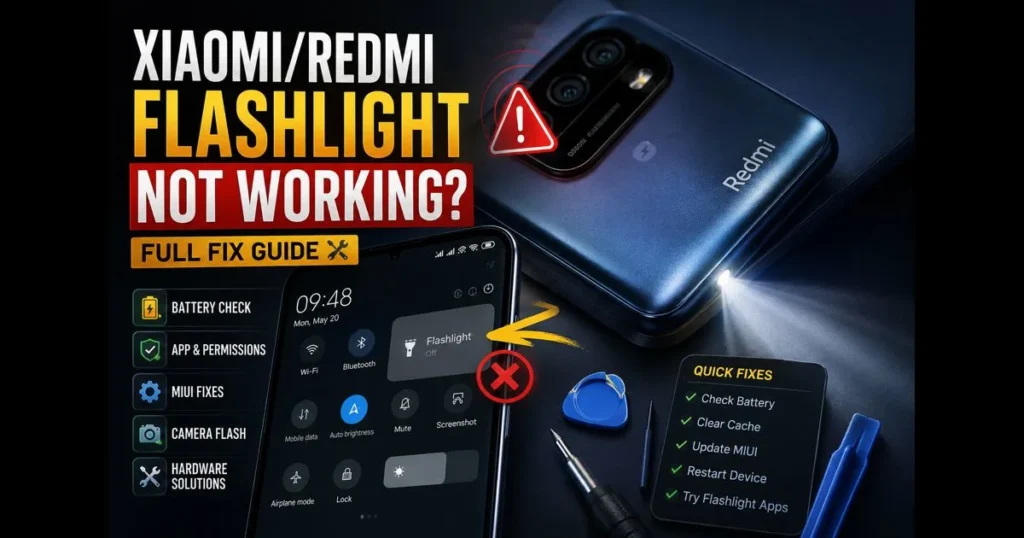
If your Xiaomi or Redmi flashlight won’t turn on, you’re not alone. The flashlight function is linked to both hardware and MIUI software, so issues can arise from either. Fortunately, most problems stem from simple settings, a stubborn app, battery saver rules, or a worn-out battery. This troubleshooting guide outlines the necessary checks and fixes — from quick toggles and permissions to cache resets and MIUI updates — as well as advice on when to seek repairs. Related reading: allow flash access android.
Whether your Quick Settings tile is unresponsive, the flash won’t activate in the Camera app, or you see “redmi flash not working” errors, we have solutions for you. Grab your charging cable and set aside ten minutes for these checks. If the flashlight remains stubborn, we’ll help you decide between DIY fixes and professional service options. (See: Xiaomi Official Website.)
- Common Reasons Why Xiaomi/Redmi Flashlight Is Not Working
- How to Check and Replace the Battery
- Troubleshooting Software Issues with MIUI Flashlight
- Resetting Your Xiaomi/Redmi Device
- Using Alternative Flashlight Apps
- When to Seek Professional Help
- Preventative Measures for Future Issues
1. Common Reasons Why Xiaomi/Redmi Flashlight Is Not Working
Battery issues
A very low battery can disable the flashlight. MIUI’s Battery Saver and Ultra Battery Saver modes restrict high-drain features, and the LED flash is often one of the first to go. If your phone is below 15–20% or in saver mode, charge it and turn off those modes before trying again.
Age plays a role too. Lithium-ion batteries degrade over time, so severe issues can manifest as random shutdowns or sudden drops in power. If the phone can’t provide a stable current, the flash may fail or flicker.
Software glitches
MIUI connects the flashlight to Quick Settings and the Camera app. If the Camera is using the flash or a third-party app has locked the resource, the toggle might be unresponsive. Permissions can also create problems: if an app requires camera access for the LED, you may need to allow it when prompted.
Corrupted cache, buggy themes, or recent updates can render the flashlight nonresponsive. Sometimes, a simple cache clear or installing a stable MIUI update can resolve the issue.
- MIUI updates or recent software bugs: After certain MIUI releases, users have reported the torch not toggling, only working inside Camera, or briefly flashing and turning off. If the issue began right after an update, check for a follow-up patch in Settings > About phone > MIUI version, review community reports for your exact model, and use the built-in Feedback app to report the bug so Xiaomi can push a fix.
2. How to Check and Replace the Battery
Step-by-step: check battery health and status
Start by plugging in the phone for 10–15 minutes, then try the flashlight. If it works while charging but not on battery, the issue may be voltage sag from a worn cell.
Next, review usage and saver settings:
- Open Settings > Battery. Disable Battery Saver and Ultra Battery Saver, then test the flashlight again.
- Tap Battery usage to check for abnormal drain or problematic background apps.
- Some Xiaomi models provide deeper battery health stats through a service code (like *#*#6485#*#*); if unavailable, use built-in Support tools or a trusted battery health app.
If the flashlight still fails, check for swelling. Place the phone face up; if it rocks or the back looks lifted, stop using it and seek service — a swollen battery poses a safety risk.
How to safely replace the battery if needed
Most modern Xiaomi/Redmi phones have non-removable batteries. While home replacement is possible, it’s risky without the right tools. If you’re under warranty or inexperienced, professional service is recommended.
If you decide to DIY on an out-of-warranty device, proceed cautiously:
- Power off the phone and remove the SIM tray.
- Warm the back cover edges with a low-heat source to soften the adhesive, then use plastic picks to lift it — avoid metal tools around the battery.
- Disconnect the battery connector first after removing any protective brackets. Do not pry on the cell.
- Release battery pull-tabs or soften adhesive with isopropyl alcohol, then lift the old battery gently while keeping it flat.
- Install the new OEM-quality battery, reconnect, re-seat brackets, and close the phone with fresh adhesive.
If the flashlight works reliably after replacement, the issue was likely power delivery. If not, the LED module or camera board may need attention.
3. Troubleshooting Software Issues with MIUI Flashlight
Clear cache and data for the flashlight-related apps
On many Xiaomi phones, the “Flashlight” function is part of System UI and Camera. Clearing their caches often revives a stubborn flashlight.
- Go to Settings > Apps > Manage apps.
- Search for Camera, tap it, then select Storage or Clear data, and choose Clear cache. Avoid clearing all data unless you’ve backed up camera settings.
- Search for System UI or “Torch/Flashlight” if listed on your model, and clear cache there too.
- Reboot your phone and test the Quick Settings flashlight toggle.
While you’re at it, check permissions. If a third-party app controls the LED, it may need permission to access the flash. Open Settings > Apps > [Your app] > Permissions and ensure Camera/Flash is granted. This is what’s meant by “allow flash access android.”
If nothing changes, try removing and re-adding the Quick Settings tile: swipe down twice > edit tiles > drag Flashlight out, then back in to reset a glitched toggle.
Update MIUI to resolve bugs
Bug fixes for system features often come with a **MIUI update**. Before updating, back up important files.
- Open Settings > About phone > MIUI version.
- Tap Check for updates and install if available. Ensure you have enough free storage to avoid installation errors.
- After updating, restart the device and test the flashlight from Quick Settings and in Camera mode.
If the camera flash still won’t activate, search for your model with the phrase “camera flash not working android” to see if others report a model-specific bug. Official builds are the safest option to avoid instability.
4. Resetting Your Xiaomi/Redmi Device
Soft reset without losing data
A soft reset can fix temporary glitches.
- Hold Power and select Restart. If the device is frozen, hold Power for about 10–15 seconds until it reboots.
- Test the flashlight immediately after the restart.
- Try Safe mode to rule out third-party conflicts: hold Power > touch and hold “Power off” until Safe mode appears > OK. If the flashlight works in Safe mode, uninstall recently added apps that interact with the camera or battery settings.
Factory reset as a last resort
Only proceed after backing up your data. A factory reset removes apps and data but can clear persistent system corruption.
- Back up with Settings > Additional settings > Backup & reset (or use your preferred cloud service).
- Charge to at least 50%.
- Go to Settings > About phone > Factory reset and follow the prompts.
After setup, test the flashlight before restoring apps. If it works clean and fails later, an app or setting you reintroduced may be the cause.
5. Using Alternative Flashlight Apps
Reliable flashlight apps on MIUI
If the system toggle is unresponsive, consider a reputable flashlight app. Choose one that is simple, frequently updated, and transparent about permissions. For LED control, Camera permission is necessary; avoid apps requesting unrelated permissions like Contacts or Location. Not all third-party flashlight apps work perfectly with MIUI on every device and version, so check recent reviews and the app description for MIUI compatibility before installing.
- Look for apps with clear privacy policies and minimal ads. Open-source options from trusted repositories are a bonus.
- Minimal utilities like “Icon Torch” (which toggles from a home screen icon) can be effective, but always review permissions first.
- If you only need screen light, opt for an app that uses the display without asking for Camera access.
Popular, reputable options for Xiaomi/Redmi include: Flashlight by Curbside — lightweight with a clean UI and minimal permissions; Tiny Flashlight + LED — a long-standing app offering home screen widgets and a screen-light mode; Simple Flashlight (Simple Mobile Tools) — open-source, ad-free, and privacy-focused; Icon Torch — a minimal launcher icon that toggles the LED without extra frills; Color Flashlight — uses the screen for brightness and patterns when the LED is unavailable. Always confirm they’re up to date and compatible with your MIUI version.
When launching a new flashlight app, you may see a permission prompt. Granting it allows flash access. If you denied it, revisit Settings > Apps > [App] > Permissions and enable Camera.
Uninstall and reinstall the default flashlight app
While the default torch is a system component and typically can’t be fully uninstalled, you can simulate a reset:
- Settings > Apps > Manage apps > three-dot menu > Reset app preferences. This restores disabled apps and notifications without deleting personal data.
- In Manage apps, open Camera and System UI, then clear cache (and if needed, clear data for a deeper reset).
- If your model allows disabling a “Flashlight” or “Torch” system item, disable it, reboot, then enable it again.
Advanced users might use ADB to disable/enable system components, but this is risky if you’re unfamiliar, as it can disrupt other features.
6. When to Seek Professional Help
Signs of a hardware issue
Some symptoms indicate hardware problems:
- The LED never lights — not in Quick Settings, not in Camera, not with third-party apps, even after a factory reset.
- Visible physical damage near the camera cluster or after a drop or water exposure.
- Camera focus or switching between lenses fails alongside the flash issue.
- The torch flickers or overheats when it activates, then shuts off.
Any of these signs suggest an LED module, camera board, or connector issue. Continued attempts won’t resolve a disconnected or shorted component.
Contacting Xiaomi support for warranty or service
If your device is under warranty or covered by extended protection, reach out to Xiaomi support before attempting hardware fixes. Use the Support section in Settings to run diagnostics and initiate a repair ticket, or visit the official Xiaomi website for a service center locator.
Bring proof of purchase, describe the steps you’ve taken, and note when the failure occurs. If you recently installed a screen protector or case that partially covers the flash, remove it before your appointment; thick cases can cause glare resembling a flashlight issue.
7. Preventative Measures for Future Issues
Maintain battery health
Keep charge levels moderate; frequent deep discharges to 0% and constant 100% top-ups accelerate wear. Avoid exposing the phone to heat — leaving it on a hot dashboard or gaming while charging stresses the battery.
Use quality chargers and cables, as cheap or faulty accessories can cause unstable current and odd behaviors, including a nonresponsive flashlight.
Minimize software glitches and keep MIUI stable
- Install system updates during stable periods after a full backup. Skipping minor patches can stack bugs, while rushing to install immediately may lead to instability.
- Maintain ample free storage (at least a few gigabytes) for smooth caching by system apps.
- Avoid aggressive “cleaner/booster” apps that kill background services; they can interfere with the flashlight tile or camera.
- Grant permissions thoughtfully. If an app needs the LED, you’ll be prompted to allow flash access. Granting permission once is better than repeatedly denying it.
- Periodically reboot your phone to clear minor conflicts that can accumulate over time.
If your Redmi or Xiaomi flashlight refuses to cooperate, don’t panic. Work through the power checks, clear caches, confirm permissions, and ensure you have a stable update. Most flashlight issues resolve without a service desk visit, and if they don’t, you’ll know it’s time to seek professional help.
Ready to restore your flashlight functionality? Start at the top of this guide, follow each step in order, and — if the LED still won’t activate — book a diagnostic with an authorized Xiaomi technician. Until then, keep a couple of flashlight alternatives on hand so you’re never left in the dark.
Frequently Asked Questions
Why is my Xiaomi flashlight not turning on?
Your Xiaomi flashlight may not be turning on due to a dead battery, a faulty switch, or software issues. Ensure the battery is charged and try restarting your device.
How can I troubleshoot my Xiaomi flashlight?
To troubleshoot, check the battery connection, clean the flashlight’s contacts, and try using it in different modes. If the problem persists, consider resetting the device.
What should I do if the flashlight flickers or dims?
If your Xiaomi flashlight flickers or dims, it could indicate a low battery or a problem with the LED. Replace the battery and test again; if the issue continues, seek professional repair.