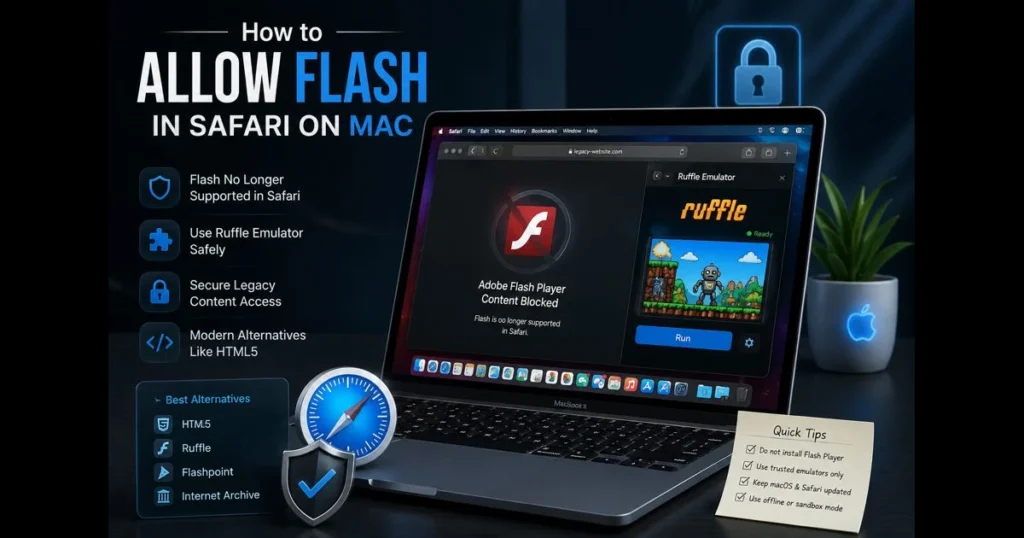
If you’re searching for how to enable Flash in Safari, you’ve likely encountered an outdated website, museum archive, or a legacy app reliant on Adobe’s technology. This guide outlines your options on a Mac as of 2023, including how to check your Safari version and where to find the relevant settings. We’ll also suggest safer workarounds and modern alternatives to help you access the content without enabling Flash in Safari or compromising your system. Related reading: allow flash in browser.
To be clear: modern Safari no longer supports Flash, but there are organized ways to handle legacy content and avoid malware traps masquerading as updates. If you must enable Flash on older machines, we’ve included essential steps, troubleshooting tips, and smarter alternatives.
- Understanding Adobe Flash and Its Relevance Today
- Checking Your Safari Version
- Enabling Flash in Safari Preferences
- Adding Flash Websites to Safari’s Allow List
- Troubleshooting Common Flash Issues in Safari
- Alternatives to Flash for Modern Browsing
- Best Practices for Safe Flash Usage
- Conclusion
1. Understanding Adobe Flash and Its Relevance Today
Brief overview of Adobe Flash technology and its historical significance
Adobe Flash Player once powered interactive web experiences — from browser games to animated sites and e-learning modules. For over a decade, it served as the standard for embedding rich media online before technologies like HTML5 and CSS3 eclipsed it. Designers cherished its timeline animations and ActionScript, allowing for entire entertainment portals built on SWF files. (See: Apple Support.)
However, this success came with drawbacks. Flash required a plug-in, hindered accessibility, and carried significant security risks. As open standards advanced, the industry collectively shifted towards native browser features, leaving Flash behind.
Current status of Flash support across different browsers, including Safari
Support for Flash has officially ended. Adobe discontinued it on December 31, 2020, and later disabled Flash content from running at all. Apple removed plug-in execution pathways in Safari; Chrome, Edge, and Firefox did the same. No version of Flash can run in modern browsers, and many sites that relied on it have either migrated or disappeared. If you’re trying to enable Flash content on a current Mac, you won’t find a toggle in Safari because the plug-in model is obsolete.
2. Checking Your Safari Version
Instructions on how to check your Safari version on a Mac
To check your Safari version, open Safari and select Safari > About Safari from the menu bar. A small window will display your version number. If you need to update Safari, go to Apple menu > System Settings > General > Software Update to install the latest macOS and browser updates.
This process takes mere seconds and saves you from searching for settings that no longer exist.
Why the latest Safari can’t run Flash (and what to do instead)
Here’s the catch: there is no “optimal” Flash support on a modern Mac—Flash cannot be enabled on modern versions of Safari. Newer Safari versions block Flash entirely for your safety. Keeping your system updated protects you from fake installers and drive-by downloads masquerading as “Safari Flash Player” updates. If you need to interact with a legacy SWF, opt for a safer alternative (see section 6) instead of downgrading your system or hunting old plug-ins.
3. Enabling Flash in Safari Preferences
Step-by-step guide on accessing Safari preferences
On current macOS, open Safari and navigate to Safari > Settings… (older versions label this Safari > Preferences…). The panels here—Tabs, AutoFill, Privacy, Websites, Advanced—replaced the old plug-in controls. You’ll still use these for site permissions, content blockers, and privacy settings.
Locating and enabling the Flash Player settings
Reality check for 2023: you won’t see Flash in Safari’s settings because the plug-in architecture has been removed. On much older Macs that haven’t been updated (pre–Big Sur), you would have found it under: Safari > Preferences > Websites > Plug-ins > Adobe Flash Player. There, you could enable the plug-in and set per-site behavior.
If your aim is to access Flash content today, replicate that behavior with modern tools instead of trying to revive a blocked plug-in. The next sections will guide you on controlling site access and which tools can safely mimic Flash.
4. Adding Flash Websites to Safari’s Allow List
How to add specific websites that require Flash to the allow list
In the legacy flow (when plug-ins still existed), you’d head to Safari > Preferences > Websites, select Adobe Flash Player in the sidebar, and set each domain’s dropdown to Ask or On. A global “When visiting other websites” control defined the default setting. That’s how you managed an allow list.
Since current Safari versions don’t load Flash, use the Websites panel to grant only the specific permissions a site genuinely needs—such as camera access, microphone, and autoplay. Run legacy Flash content via an emulator or archival player on a per-site basis. The principle of a narrow allow list remains relevant, even if the mechanism has changed.
Tips for managing and updating the allow list effectively
- Keep it minimal. Remove any site that no longer requires special treatment from Safari > Settings > Websites.
- Prefer “Ask” over always-on behavior to ensure you approve each session explicitly.
- If using an emulator, bookmark it and document which sites you’ve successfully tested.
- Review permissions quarterly; legacy exceptions tend to linger longer than necessary.
5. Troubleshooting Common Flash Issues in Safari
List of common issues users face when trying to enable Flash
- “Install/Update Flash Player” prompts on a site, even after attempts to enable it.
- A blank area or puzzle-piece icon where media should play.
- Settings refer to Flash in a tutorial, but your Safari has no Flash option.
- Content partially loads, then errors with security or blocked messages.
- Conflicts with content blockers or privacy extensions.
Solutions for resolving issues, including clearing cache and cookies
Start with the basics. In Safari, go to Settings > Privacy > Manage Website Data, search for the troublesome domain, and remove its data to clear stale cache and cookies. If you have the Develop menu enabled (Settings > Advanced > “Show Develop menu”), try Develop > Empty Caches and reload the page.
Temporarily disable extensions that might interfere (Settings > Extensions). Some content blockers aggressively filter embedded media, which can mimic Flash failures. If a site uses an emulator, you might need to allow scripts from that domain.
If a page instructs you to install “Flash Player,” stop. Genuine Flash cannot run in current Safari. That prompt is likely outdated or a lure. The solution is to use an emulator or archival player outside the browser. For most users, “troubleshooting Flash in Safari” now means replacing Flash dependency rather than forcing a blocked plug-in to load.
One last sanity check: if you’re attempting to enable Flash in any modern macOS browser, the outcome will be the same—plug-ins are blocked. Don’t pursue “allow flash in chrome” tutorials from years past; the underlying support was removed across all engines.
6. Alternatives to Flash for Modern Browsing
Overview of modern technologies that replace Flash, such as HTML5
Today’s websites utilize HTML5 video and audio, CSS animations, JavaScript frameworks, Canvas 2D, WebGL, and WebAssembly to deliver rich experiences without plug-ins. Live streams use HLS/DASH, while multiplayer games leverage WebSockets and WebRTC. If you manage a website, migrating to these standards is essential—not just for compatibility but for accessibility and performance.
Recommendations for websites and applications that no longer use Flash
- Ruffle: The ruffle flash emulator re-implements parts of Flash in Rust and WebAssembly, allowing many SWFs to run without the original plug-in. Some sites integrate Ruffle directly, and users can also access its desktop builds. It performs well with older ActionScript 1/2 content.
- BlueMaxima’s Flashpoint: A preservation project featuring a launcher and curated library to play archived Flash content offline. Excellent for games and animations that have disappeared from live sites.
- Internet Archive: Many SWFs are playable via in-browser emulation on archive.org item pages.
- Standalone projectors: Adobe’s “Flash Projector” was a desktop app for opening SWF files without a browser. If obtained from a reputable source, it can be run offline and sandboxed.
- GreenSock (GSAP): A widely used JavaScript animation library for timeline-based motion similar to Flash’s animation model, working with CSS, SVG, Canvas, and WebGL. See: greensock.com.
- D3.js: A powerful library for data-driven documents and interactive visualizations using SVG/Canvas. See: d3js.org.
- Three.js / PixiJS / Phaser: Three.js enables 3D in the browser via WebGL; PixiJS offers high-performance 2D rendering; Phaser is a popular framework for building 2D games—strong replacements for Flash-based games and interactive canvases.
- Lottie: Render After Effects animations as vector animations on the web and mobile—ideal for interface animations that once depended on SWF assets. See: Lottie.
- Video.js / hls.js: Modern, accessible HTML5 video players with streaming support to replace legacy Flash media players.
If you maintain a site, replace the Flash player with a modern HTML5 media library or a canvas/WebGL port. If you’re a user, try the emulator approach first—no plug-ins, no shady installers, and usually just one click to play.
7. Best Practices for Safe Flash Usage
Safety tips for using Flash content online
Treat any prompt to install or update Flash as suspicious. The brand is often used to disguise adware and trojans. Use emulators or offline tools from trusted sources, avoiding broad permissions to unknown sites.
Prefer alternatives over legacy plug-ins. If you need to view an SWF, use a trusted emulator or archival player (for example, Ruffle desktop or Flashpoint) rather than attempting to run the original Flash Player. Consider running these tools in a non-critical user account or a virtual machine, keep them offline when feasible, and ensure your backups are current.
Importance of keeping your Flash Player updated
There are no updates for Flash anymore. The only “updates” that matter are your macOS and Safari security updates, along with current versions of any emulator you choose. If you encounter a page insisting you update the plug-in, consider it a red flag.
When in doubt, seek Flash alternatives instead of lowering your defenses. A modern replacement is often available and will likely perform better than a legacy SWF.
8. Conclusion
You sought to allow Flash in Safari on a Mac. The reality is two-fold: modern Safari won’t run Flash, but you can still access most legacy content through safer, maintained routes. Check your Safari version, stop chasing non-existent plug-in toggles in Safari preferences, and—if you’re using a truly old Mac—understand that any historical Flash player settings you find are limited and blocked by design.
The practical path is straightforward. Use an emulator for archived media, ensure your browser is up to date, and confine any legacy tools to offline or sandboxed environments. If you run a site, migrate away from Flash now; if you’re a user, choose Ruffle or Flashpoint over outdated attempts to enable Flash in the browser. If you still need to compare methods on another platform, remember that enabling Flash in Chrome faces the same hard stop.
Ready to move forward? Identify the specific SWF or page you need, test it with Ruffle or a reputable archive, and update your bookmarks to reflect the working, modern options. This way, you can access what matters—without compromising your Mac to chase a plug-in that the web has left behind.
Frequently Asked Questions
How do I enable Flash in Safari?
You can’t enable Flash in modern Safari. Adobe ended Flash in 2020 and Apple removed the plug-in architecture. To view legacy content, use an emulator or archival tool such as Ruffle, Flashpoint, or the Internet Archive. On very old Macs that haven’t been updated, Safari once exposed plug-in toggles, but those paths are deprecated and unsafe.
Is Flash supported in the latest version of Safari?
No, Flash is no longer supported in the latest version of Safari as Adobe officially ended support for Flash Player on December 31, 2020. Users are encouraged to use alternative technologies like HTML5.
What should I do if a website requires Flash in Safari?
No modern browser (Safari, Chrome, Edge, Firefox) runs Flash as of 2023. Check whether the site offers an HTML5 version, contact the site owner, or use an emulator/archival solution to access the content outside the native plug-in.