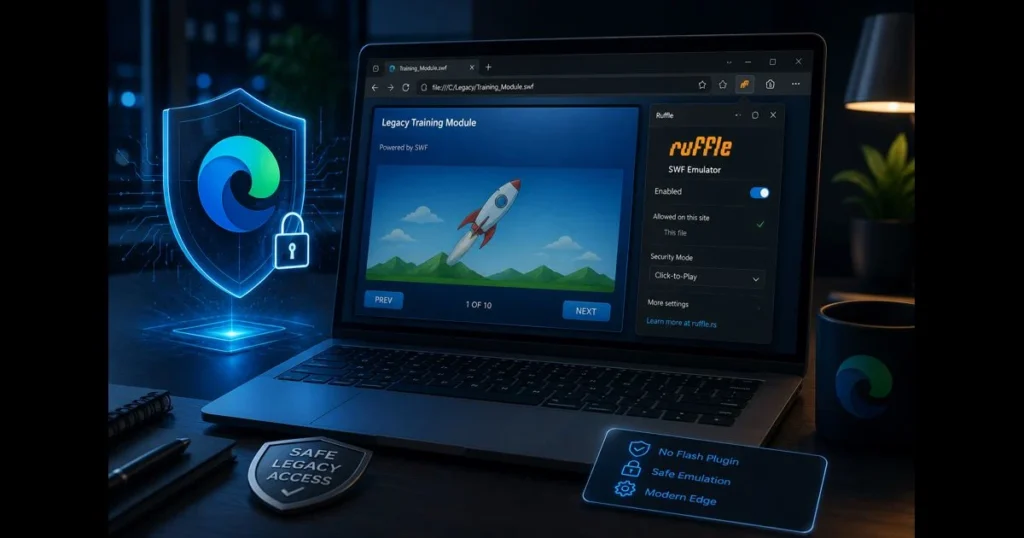
As of December 2020, Adobe Flash Player is fully retired and blocked in all modern browsers, including Microsoft Edge. You cannot re-enable the old plugin. Yet many legacy training modules, dashboards, and museum archives still rely on SWF files. If you need to access Flash-era content for a specific task or to maintain a legacy workflow, the goal is to use safe methods—such as emulators or controlled offline tools—rather than enabling Flash itself. This guide outlines what has changed, why the classic toggle is absent, and effective, security-conscious ways to view Flash-era content in Microsoft Edge—or through safer alternatives—without compromising critical protections. Related reading: ruffle flash emulator.
- Understanding Flash and Its Legacy
- Current Status of Flash Support in Edge
- Why Enable Flash in Edge?
- Safe Methods to Allow Flash in Edge
- Troubleshooting Common Issues
- Alternatives to Flash for Modern Browsing
- Staying Safe While Using Flash
- Conclusion
1. Understanding Flash and Its Legacy
For over a decade, Adobe Flash Player powered animated websites, browser games, and e-learning modules. If you’ve ever clicked “Skip Intro,” you’ve encountered Flash, a technology that introduced vector animation and interactivity on the web long before modern standards emerged. (See: Adobe Flash – Wikipedia.)
Flash was phased out as the open web evolved. Browsers standardized video, audio, and graphics without requiring plugins. Security concerns also fueled this shift—plugins like Flash expanded the browser’s attack surface. Adobe announced the end-of-life for Flash and collaborated with major players like Microsoft and Google to remove built-in support, urging creators to modernize their content. Related reading: ruffle not working. Flash support in Microsoft Edge ended in December 2020 and cannot be restored.
Many institutions archived their SWF content instead of rewriting it, leaving a legacy of “works on Flash” references, particularly in education and government intranets. This is why you may still need a careful approach to access or preserve old files.
2. Current Status of Flash Support in Edge
The Chromium-based Microsoft Edge no longer loads the legacy plugin and lacks a native toggle for re-enabling it. Windows has also removed the built-in Flash component via an update (often referred to as KB4577586). Attempting to restore the original Flash support is both unsupported and unsafe.
When visiting a site with SWF files, you will typically see a blank area, a blocked plugin icon, or a message indicating that Flash is required. The browser is functioning correctly by preventing an obsolete runtime from executing code on your machine.
For users needing access to old SWFs, this situation can be frustrating. It’s a cue to change strategies. Instead of trying to toggle a defunct setting, consider using emulation or controlled offline viewing tools designed for this transitional period.
3. Why Enable Flash in Edge?
You cannot enable Flash in Edge. If you must access legacy SWF content—such as compliance training, archival visualizations, or research artifacts—use safe alternatives like emulators, offline projectors, or sandboxed virtual machines to view the material without restoring the deprecated plugin.
However, risks are significant. Flash has a history of vulnerabilities, and old SWFs can load external assets or execute logic that’s hard to inspect. Using Flash regularly on a primary browser profile can lead to security issues. The safest approach is narrow: run the necessary file or app in a controlled manner, then close access. This is Flash content security 101.
If you only require playability for media or simple animations, emulation often suffices. For complex ActionScript 3 apps, results can vary, requiring an offline tool or a dedicated migration plan.
4. Safe Methods to Allow Flash in Edge
Step-by-step guide to enabling Flash in Edge settings (the safe, modern way)
There’s no longer an “on/off” Flash switch in Edge. The safe approach is to use an emulator extension that interprets SWF content without the vulnerable plugin. Here’s how to mimic the “enable Flash” behavior using an emulator:
- Verify the source: Confirm you’re working with a trusted site or a known-good SWF file. If possible, obtain a local copy to avoid executing unknown code from the open web.
- Install a Flash emulator extension in Edge:
- Open Edge and go to Settings > Extensions.
- If needed, enable “Allow extensions from other stores.”
- Visit the official Ruffle site (ruffle.rs) and follow the link to its browser extension from a verified store. Ruffle is a Flash emulator that runs many SWFs without the original plugin.
- Add the extension to Edge and pin it to your toolbar for quick access.
- Control where it runs: In the extension’s options, limit operation to specific sites or click-to-play. This mirrors the old “ask first” behavior while reducing exposure.
- Test your page or file:
- Open the page that previously served Flash. If you have a local SWF, drag it into a new Edge tab or use a local HTTP server.
- Click the Ruffle icon if needed, then reload. Some content will work immediately; complex ActionScript may not.
- Document what loads: If audio, buttons, or timelines don’t behave as expected, note the specifics—you may need an alternative method.
This is the cleanest way to access Flash-like content in Edge without restoring the deprecated plugin. It’s also reversible: disable or remove the extension when done.
Alternative methods for accessing Flash content without enabling it
If the emulator doesn’t meet your needs, consider these safer alternatives rather than pursuing the old plugin:
- Use a standalone projector (offline):
- Adobe historically offered a “Flash Player Projector” that opened SWFs without a browser. If your organization has a legitimate copy, you can view files entirely offline in a quarantined folder.
- Run it on a non-admin account and disconnect from the network while viewing. This approach minimizes exposure but still carries some risk.
- Emulation via preservation projects:
- BlueMaxima’s Flashpoint is a notable preservation launcher that bundles vetted SWFs and playback technology for offline use. It’s valuable for public-archive content and known titles. Always verify authenticity before installation.
- Virtual machine sandbox:
- Create a VM (e.g., using Hyper-V, VirtualBox, or VMware) with no shared clipboard or internet access. Use it strictly to open trusted, internal SWFs.
- Do not attempt to re-enable system-wide Flash in your host OS. Keep the VM disposable and frequently revert to snapshots.
A quick note: the classic “click the lock icon and allow Flash” flow no longer exists. Attempting to sideload the historical Flash player or uninstall security updates is not just unsupported—it’s a security gamble.
5. Troubleshooting Common Issues
Emulation isn’t always perfect. If you encounter issues with Flash in Edge, take a methodical approach.
- “It’s blank or says plugin required.”
- Confirm the emulator extension is installed, enabled, and permitted on that site.
- Open the browser’s DevTools console for errors—missing fonts, cross-origin blocks, or unsupported APIs often reveal themselves here.
- “Audio plays but buttons don’t work.”
- Many emulators support ActionScript 1/2 and partial ActionScript 3. Complex UI code may fail. Note the SWF’s version and test another emulator build if available.
- “It worked yesterday; today it doesn’t.”
- Extensions update automatically. Roll back to a prior version if your workflow allows, or pin a known-good build in a test profile.
- “The site is internal and behind SSO.”
- Some enterprise login pages block extension execution. Try opening only the SWF asset URL in a separate tab after signing in, or request an exported SWF from your administrator.
If you encounter issues with the emulator, provide details about the Edge version, emulator build, and a minimal example file. This information accelerates troubleshooting. For persistent problems, consider using the offline projector or a VM while disconnected from the network.
One more note: IE mode in Edge does not restore Flash support; it assists with Trident-based intranet apps, not plugin runtimes removed at the OS level.
6. Alternatives to Flash for Modern Browsing
The most effective long-term solution is to replace Flash content. This can range from exporting animations to video to re-platforming an application. The benefit: modern browser APIs are capable and widely supported.
HTML5 vs. Flash isn’t a close contest anymore. With Canvas, WebGL, WebAudio, and media elements, modern sites achieve or surpass Flash-era interactivity without plugins. Frameworks like PixiJS or Phaser can create game-like experiences; for e-learning, authoring tools can publish to standard-compliant HTML.
When exploring Adobe Flash alternatives, align your needs with the right stack:
- For animation: Lottie (JSON + Canvas/SVG) or export pipelines from After Effects to web-native formats.
- For interactive training: SCORM/xAPI packages deployed to an LMS with HTML5 output.
- For dashboards: Rebuild in a modern web framework (React/Vue/Svelte) using standard charts and secure data APIs.
If you manage legacy web applications that cannot be rewritten immediately, plan a staged migration. Identify critical SWFs, emulate only what’s needed, and create a roadmap for their retirement. This ensures “temporary” doesn’t become “forever.”
7. Staying Safe While Using Flash
Safety hinges on isolation and verification. A few disciplined practices make a significant difference.
- Use a separate browser profile: Create an “Archive” profile in Edge for the emulator, keeping your main profile clean. This also segregates cookies and extensions.
- Keep it click-to-play: Only allow the emulator on specific sites or files. Global allow lists increase your attack surface.
- Stay offline when possible: Disable Wi-Fi/Ethernet during playback if you’re opening a local SWF.
- Prefer known-good sources: Never run arbitrary SWFs from file-sharing links. Request checksums or provenance, especially in research contexts.
- Update tools on your terms: Emulators evolve. Test updates in a lab profile before deploying them to a team that relies on a specific behavior.
Maintain OS hygiene by keeping Windows and Edge fully updated. The temptation to uninstall protections to “make it work” can lead to incidents. If a vendor suggests rolling back the Flash removal update, that’s a red flag regarding Flash content security.
Finally, document your process. If colleagues need access, a one-page SOP covering your emulator version, allowed sites, and safety steps saves time and errors.
8. Conclusion
You cannot simply flip a switch to restore the old plugin in Microsoft Edge, and that’s by design. However, you can still access many SWFs safely using an emulator, a standalone viewer, or a sandboxed VM, all without compromising essential security updates. Treat the browser as a modern runtime and Flash as legacy content that requires guardrails, not everyday use.
If you oversee archives or mission-critical modules, start reducing your dependence now: audit which SWFs still matter, prototype a migration path, and adopt web-native replacements whenever possible. For those one-off cases where Flash must be accessed in Edge, keep it controlled, reversible, and well-documented. Need assistance in building a sustainable path away from Flash? Start with a limited emulator pilot, then gather stakeholders to outline HTML5 replacements and set a deadline for retirement.
Related transitions often arise across teams. If you must allow flash in chrome for a specific workstation, apply the same emulator-first, limited-profile mindset. When evaluating Adobe Flash alternatives for production, test with real users, not just feature checklists. That’s how you replace the past without compromising the present.
Before you close this tab: bookmark this guide for your team, create that separate Edge profile, and test one target SWF with the emulator today. Small, safe steps are always better than rushed fixes.
Keywords in context for reference: troubleshooting Flash Edge requires careful scoping; if you ever need to allow flash in browser workflows for legacy web applications, do so with an emulator and strict controls.
Frequently Asked Questions
Can I enable Flash in Microsoft Edge?
No. Adobe ended Flash Player support on December 31, 2020, and Microsoft Edge removed the plugin shortly thereafter. You cannot re-enable Flash. To view legacy SWF content, use a Flash emulator extension, a standalone projector, or a sandboxed VM as described above.
Is Flash support still available in Edge?
No. As of January 12, 2021, Adobe has officially ended support for Flash Player, and Microsoft Edge no longer supports Flash content. It cannot be re-enabled. Use emulation or alternative methods to access legacy SWFs.
What should I do if a website requires Flash to function?
Ask the site owner for an updated, Flash-free version, or access the content using safer alternatives: a Flash emulator (e.g., Ruffle), an offline projector in a quarantined environment, or a sandboxed virtual machine. Modern browsers do not support Flash.