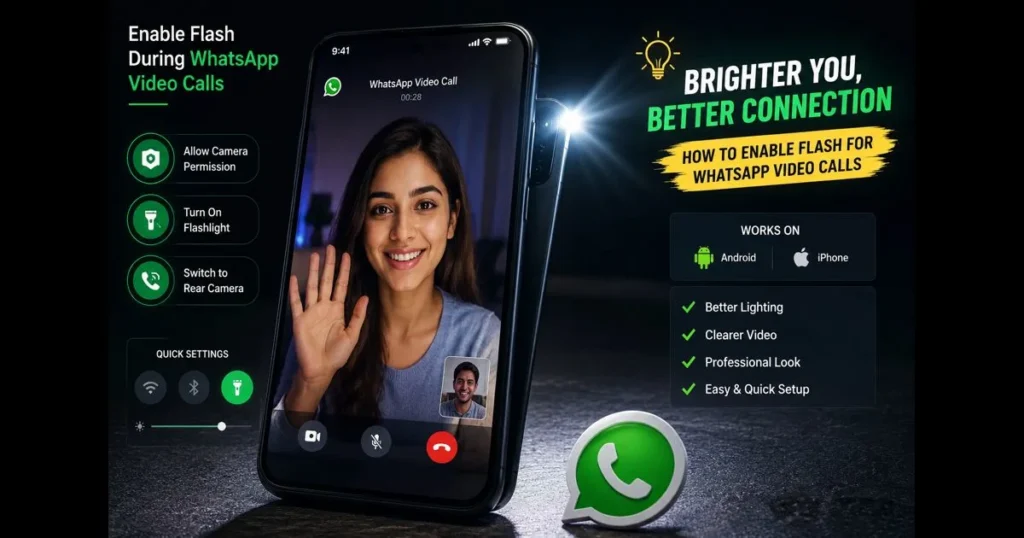
Whether you’re catching up with family at night or taking a quick call from a dim home office, lighting makes all the difference. If you’ve been looking for a straightforward guide on using flash for WhatsApp video calls, you’re in the right place. Here, you’ll discover the function of the flash during a live call, how to grant necessary permissions, and practical techniques to illuminate your face without blinding yourself. We’ll cover both Android and iPhone, along with troubleshooting tips when the torch doesn’t cooperate. Plus, you’ll find simple lighting strategies to enhance your video presence, even from a dark corner. Related reading: allow flash access android. This guide is current as of mid-2026 and applies to recent WhatsApp versions on Android and iPhone.
Step-by-step clarity is key. Not every phone displays the same flash toggle in the WhatsApp call screen, but reliable workarounds exist. A little setup can significantly enhance your video call quality without the need for new equipment. (See: WhatsApp – Wikipedia.) UI elements can shift with app or OS updates; where behavior differs by version or device, alternatives are noted below.
- Understanding WhatsApp Video Calls
- What is the WhatsApp Camera Flash?
- How to Enable Flash for Video Calls on WhatsApp
- Adjusting Flash Settings on Your Device
- Troubleshooting Common Flash Issues
- Best Practices for Video Calls with Flash
- Privacy and Security Considerations
- Conclusion
1. Understanding WhatsApp Video Calls
Overview of WhatsApp video calling features
WhatsApp supports one-on-one and group video calls, quick camera switching, mute options, and screen-filling portrait or landscape modes. The in-call interface may show extra icons such as a camera flip or a torch/flash indicator when using the rear camera. Since the app relies on your device’s native camera capabilities, the interface can differ by manufacturer and operating system. Related reading: allow flash access iphone.
Importance of lighting during video calls
While great audio keeps a conversation flowing, lighting is crucial for visibility. Poor lighting forces your camera to boost sensitivity, resulting in grainy and blurry images. A steady light source—be it a flash, lamp, or window—allows the camera to use a faster shutter speed, producing a clearer and more natural image.
2. What is the WhatsApp Camera Flash?
Definition and purpose of the camera flash feature
In the context of video calls, the “flash” typically refers to the LED torch next to the rear camera, which remains on continuously. WhatsApp does not have a unique flash system; when users mention the camera flash, they are usually referring to toggling the device’s built-in torch during calls. For the front camera, there’s no physical LED, but some apps simulate light by brightening the screen (similar to how Snapchat uses flash for selfies). WhatsApp can utilize these device features even without a dedicated in-app switch.
How camera flash enhances video call quality
A consistent light source improves skin tone, reduces shadows, and maintains detail. By providing more light to the sensor, the camera can avoid aggressive noise reduction and motion blur. This is the foundation of enhancing video call quality—clean light trumps filters.
3. How to Enable Flash for Video Calls on WhatsApp
Step-by-step guide to access camera settings
If your flash toggle doesn’t appear in WhatsApp, check permissions and system settings. While the exact paths may vary, here’s what works on most devices:
- Android: Go to Settings > Apps > WhatsApp > Permissions > enable Camera and Microphone. Then, during a video call, switch to the rear camera and pull down Quick Settings to tap the Flashlight tile. Many phones keep the torch on throughout the call.
- iPhone: Go to Settings > WhatsApp > enable Camera and Microphone. Start a video call, switch to the rear camera, then open Control Center and tap the Flashlight icon. If it turns off automatically, toggle it after activating the rear camera.
Upon first use, WhatsApp may prompt you for camera and mic access. If you see a request for flash access, accept it to enable the app’s full capabilities. Some devices may phrase it as “allow flash access,” so be sure to approve these settings to ensure your torch functions properly.
Instructions for enabling flash permission for WhatsApp
There typically isn’t a separate “flash” permission within WhatsApp. Instead, granting Camera access allows control over the flash. On Android, this permission is listed under App Info; once granted, the app can interact with the torch on supported devices. On iPhone, Camera permission also governs flash use, as there’s no standalone toggle for the LED.
If your device has a customized Android interface, check Settings for “flash,” “torch,” or “Quick Settings edit” to ensure the Flashlight tile is enabled. This tile is often the most reliable way to access light during a call.
4. Adjusting Flash Settings on Your Device
How to manage your device’s camera flash settings
The system flashlight shortcut provides the most reliable control. Keep it easily accessible:
- Android: Pull down Quick Settings, tap the pencil/edit icon, and drag Flashlight into the first row. This way, your flash settings are a single swipe away while using WhatsApp.
- iPhone: Go to Settings > Control Center > include Flashlight. Press-and-hold the Flashlight tile to adjust intensity before joining a call.
Some phones may display a torch icon in the WhatsApp call interface when the rear camera is active. If it appears, use that option; otherwise, the Quick Settings/Control Center method is just as effective.
Tips for optimizing flash use for video calls
A bright LED close to the lens can be harsh. Here are some effective lighting tips that don’t require additional gear:
- Angle the rear camera so the torch reflects off a wall or ceiling instead of shining directly into your face for softer light.
- Position the phone a bit farther away and zoom in slightly to minimize glare. Small adjustments can greatly enhance your appearance.
- For front-camera calls, increase screen brightness and load a white page to simulate a screen glow, akin to the snapchat flash for selfies.
- Combine the torch with a warm desk lamp for a more natural tone, then adjust the torch intensity (on iPhone) or increase distance (on Android).
- Avoid mirrors and glossy backgrounds; the torch will reflect and overexpose.
5. Troubleshooting Common Flash Issues
Common problems when using flash during video calls
Common issues include a greyed-out Flashlight tile during active calls, the torch turning off when switching to the front camera, battery saver disabling the LED, or the phone overheating and dimming the light. Conflicts can arise if another app is using the camera; your phone won’t allow simultaneous access.
Solutions for troubleshooting flash-related issues
To quickly troubleshoot flash issues, start with these basic steps:
- End the call, force-close WhatsApp, and reopen it. This releases the camera for torch access.
- Turn on the torch from Quick Settings/Control Center after switching to the rear camera. Expect the LED to turn off when switching to the front camera.
- Disable Battery Saver/Low Power Mode and charge your phone; power constraints can block the LED.
- Close other camera-related apps that may reserve the flash.
- Restart the device to clear any camera service issues. If problems persist, consider updating WhatsApp and your operating system.
- On Android, clear WhatsApp’s cache (Settings > Apps > WhatsApp > Storage > Clear cache). Avoid clearing data unless you’ve backed up your chats.
If these solutions don’t resolve the issue, your device may restrict torch use during third-party video calls. In this case, rely on ambient lamps or small clip lights instead.
6. Best Practices for Video Calls with Flash
Tips for ensuring optimal lighting during calls
The torch is useful, but it’s not your only lighting tool. For optimizing video calls, combine a gentle front light (like a bright screen or desk lamp) with the rear torch if necessary. Sit near a window during the day, facing it at a slight angle to avoid squinting. A simple paper shade on a lamp can soften the light effectively.
Consider the white balance. Warm lamps tend to flatter skin tones better than harsh blue light. If your phone allows color temperature adjustments in display settings, nudging it warmer can improve your on-screen appearance.
Advice on positioning and camera angle
Positioning the camera at eye level is crucial. Tilt slightly downward to reduce shadows under the chin and avoid lighting from below, which can distort features. If using the rear camera for quality and the torch for light, stabilize the phone on a stand, framing yourself from mid-chest up. These small adjustments can enhance your professionalism more than any filter.
7. Privacy and Security Considerations
Understanding WhatsApp flash permission settings
WhatsApp employs end-to-end encryption for calls, and there isn’t a specific “flash permission” within the app. The key permissions are Camera and Microphone access at the OS level. If Camera is granted, WhatsApp can request the device’s torch when supported. Most modern devices show indicators when the camera or mic is active.
Revoking Camera access will disable the torch for WhatsApp calls. Regularly review permissions. If prompted to allow flash access, confirm the request only if you initiated the action. On shared devices, use Face ID, fingerprint, or a strong passcode to secure app access.
Best practices for maintaining privacy during video calls
- Use a neutral background and avoid reflective surfaces that could reveal private information under bright lighting.
- Turn off the torch immediately after ending the call to avoid accidentally lighting up your pocket.
- On Android, restrict screen overlays from other apps to prevent interference with permission prompts.
- Keep WhatsApp updated to benefit from ongoing security improvements and permission handling enhancements.
8. Conclusion
Good lighting transforms a grainy feed into a confident presence. By confirming camera access, mastering system torch controls, and employing simple diffusion techniques, you can effectively utilize WhatsApp video call flash—even without a dedicated in-call toggle. Combine the rear LED with subtle front lighting, and focus on practical video call tips over filters.
Your next step is straightforward: open WhatsApp, make a test call, and experiment with three setups—rear camera with torch bounce, front camera with bright screen, and a lamp angled at a wall. Compare the results, choose your favorite, and save that setup. A brief experiment now will enhance every meeting that follows.
Frequently Asked Questions
What is the WhatsApp video call flash feature?
During a WhatsApp video call, “flash” refers to using your phone’s camera LED as a continuous torch to illuminate the scene, typically when the rear camera is active. It is not a flash notification for incoming calls.
How can I enable the video call flash on WhatsApp?
Start or join a video call, switch to the rear camera, then tap the torch/flash icon if it appears in the call interface. If you don’t see that option, open your device’s Flashlight control (Android Quick Settings or iPhone Control Center) and turn it on after switching to the rear camera. For front-camera calls, increase screen brightness or display a white screen to simulate a soft fill light.
Is the video call flash feature available for both Android and iOS?
Yes. Both Android and iPhone can use the camera’s LED as a continuous light during calls. The presence and behavior of an in-call torch toggle vary by device model, OS version, and WhatsApp build; when no toggle is shown, the system Flashlight control is the reliable fallback.