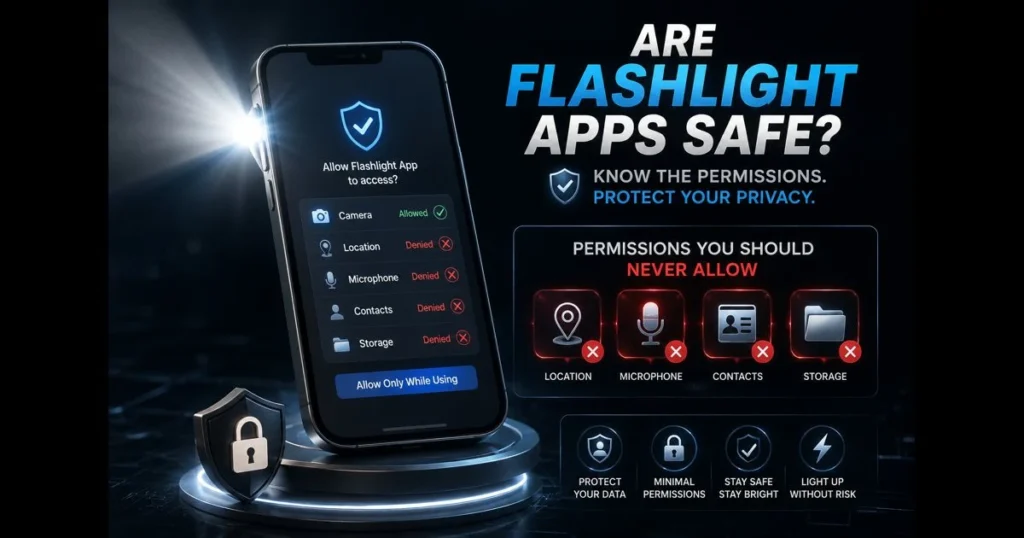
Flashlight apps are undeniably useful: tap, light, done. However, the tradeoff often involves Flashlight app permissions that might surprise you. Some permissions are essential for the LED to function; others facilitate unnecessary data collection. If you’re questioning whether a flashlight app is a flashlight app safe choice, the answer is “sometimes”—provided you understand which permissions are crucial and which ones pose flashlight app risks. This guide clarifies app permissions, highlights red flags on both Android and iPhone, and offers smart strategies for ensuring flashlight app safety and privacy.
- Understanding Flashlight App Permissions
- Essential Permissions for Flashlight Apps
- Permissions to Avoid for Your Safety
- How to Evaluate the Safety of a Flashlight App
- Best Practices for Using Flashlight Apps Safely
- Alternatives to Flashlight Apps
- The Future of Flashlight Apps and Privacy
1. Understanding Flashlight App Permissions
What app permissions are and why they exist
Permissions empower you to control what apps can access. Before using sensitive hardware or data—like the camera or location—apps must request your consent. These requests typically appear as system prompts or in the app’s listing on Google Play or the App Store. The principle is straightforward: only grant access for features you intend to use.
Here’s the catch: permissions can be overly broad. An app that activates your LED might need to interact with the camera hardware, but it shouldn’t require access to your contacts or precise location. In short, camera access is typically required for torch control; contacts, microphone, or precise location are unnecessary for a basic flashlight. (See: FTC on app permissions.)
Common permissions flashlight apps ask for
- Camera: Essential for controlling the rear LED/torch.
- Location: Often requested for ads or “weather-based brightness” features—unnecessary for basic lighting.
- Microphone: Sometimes tied to clap-to-toggle or strobe features; generally not needed and poses privacy risks.
- Contacts: Irrelevant for a flashlight; a significant red flag.
- Storage/Photos: Only necessary if the app includes a photo capture feature; for a flashlight-only app, it’s excessive.
- Network access: Common in ad-supported apps, but not needed for a simple flashlight. Offline operation is safer.
2. Essential Permissions for Flashlight Apps
Camera access for LED flash functionality
Both Android and iOS integrate the LED “torch” with the camera module. This is why many flashlight apps request camera permission: they need it to activate the light. Prompts may read “allow flash access” on various platforms—essentially allowing the app to control the torch via camera APIs.
Two key points matter here. First, a flashlight app can be built to access the torch without recording video. A reputable developer will clarify that camera access is solely for toggling the LED. Second, you should be able to disable camera permission when not using the app. If the app demands constant camera access, reconsider its necessity.
To verify, check your phone’s permission settings for the flashlight app. If camera access is listed as “Allow only while using the app,” that’s a safer choice than “Always allow.” A genuinely secure flashlight app won’t push for broader access.
Location services for additional features and advertising
Location services are not needed to produce light. Some apps request location to serve tailored ads or offer features like “nearby emergency alerts.” If you don’t use such extras, there’s no reason to enable location. Even if you do, consider using approximate location settings and restricting access to “allow while using.”
Ask yourself: if the app’s main function is to illuminate, why does it need to know your whereabouts? For most users, it simply doesn’t. Keeping location access off diminishes data trails and reduces profiling risks.
3. Permissions to Avoid for Your Safety
Microphone access and potential privacy risks
Some flashy flashlight apps offer features like clap-to-switch or beat-synced strobes. While appealing in theory, microphone access allows the app to listen. Even if it doesn’t record, an app that keeps the mic active invades your privacy at home and elsewhere. Unless you need an audio-triggered feature and trust the developer, deny mic access.
Tip: If you grant it temporarily to test a feature, revoke access afterward. Many phones allow you to enable a system-level indicator for microphone use, so you always know when it’s active.
Access to contacts and storage: why it’s unnecessary
Contacts are irrelevant for a flashlight app. If an app asks for them, that’s a glaring warning sign. The same applies to broad storage or photo library access. A basic flashlight should never need to read, modify, or upload your files. While a camera-and-flash app may require limited storage, a flashlight-only tool should not.
Here’s a simple guideline: if the permission doesn’t directly relate to turning the light on or off, it’s optional at best and a privacy risk at worst. Treat it accordingly.
4. How to Evaluate the Safety of a Flashlight App
Read reviews and ratings for security clues
Look beyond the star ratings. Pay attention to reviews that mention unexpected permission requests, intrusive ads, crashes, or battery drain. Phrases like “too many ads,” “won’t work without location,” or “runs in the background” indicate bloat and unnecessary data collection.
Quick checks help: Is the most recent review current and from verified users? Do multiple reviews highlight the same privacy issues? If so, heed the warning.
Check the developer’s credibility and update history
Tap the developer name. Do they have a website with a clear privacy policy? Are there reputable apps linked to their account? Is the flashlight app updated regularly to reflect modern permission practices, or has it been neglected?
On Google Play, check the app’s “Data safety” section to see what data is collected and if it’s shared with third parties. On the App Store, examine the “App Privacy” labels for usage data and identifiers. If an app claims to collect no data but requests broad permissions, that should raise a red flag.
5. Best Practices for Using Flashlight Apps Safely
Limit permissions to what’s necessary
Your phone offers robust permissions management. Keep access tight:
- Grant Camera access only when actively using the flashlight app. Prefer “Allow only while using the app.”
- Keep Location, Microphone, Contacts, and broad Storage off unless essential features depend on them—and you’re comfortable with the tradeoff.
- Disable background activity if the app tries to keep services running when the screen is off. A flashlight shouldn’t linger.
For Android, go to Settings → Privacy (or Security & privacy) → Permission Manager to review and adjust access. On iPhone, navigate to Settings → Privacy & Security to manage app permissions.
Use built-in flashlight features on smartphones instead
Sometimes, the simplest solution is the best. Most smartphones include a native flashlight feature accessible in Quick Settings (Android) or Control Center (iPhone). These built-in tools do not display ads, do not require network access, and are tightly integrated with your device.
If you only need an LED to turn on and off, using your phone’s native tools avoids third-party tracking, simplifies updates, and minimizes privacy concerns with apps that are unnecessary.
6. Alternatives to Flashlight Apps
Built-in flashlight features on smartphones and their benefits
Native torch features come free with the operating system. They’re designed to work seamlessly with your device’s power management, camera, and brightness controls, without extra permissions. For most users, that’s sufficient—no ads, no surprise prompts.
Another advantage? Reliability. When your hands are full in a dark space, accessing Control Center or a Quick Settings tile is faster than searching for another app.
Other reliable apps that prioritize user privacy
If you prefer a dedicated app for additional features like widgets or strobe lights, choose a minimalist option. Look for:
- No network permission or offline-by-default design.
- Only camera permission requested, with a clear explanation for its use.
- Open-source code available for audit and a small install size.
- A transparent privacy policy and responsive developer support.
Privacy-focused options to consider:
- Simple Flashlight (Simple Mobile Tools) — open source, offline, and requests only camera permission.
- Privacy Friendly Flashlight (SECUSO) — open source with minimal permissions and no tracking.
- Open Camera (Mark Harman) — an open-source camera app with a torch toggle; when used for light, it needs only camera access.
- Torch (LineageOS, via F-Droid) — lightweight, open source, and limited to camera permission for torch control.
A secure flashlight app should never require sign-in, contact access, or precise location. If an app requests flash access alongside unrelated data collection, it’s best to avoid it. Often, the built-in option is the safest choice.
7. The Future of Flashlight Apps and Privacy
Emerging trends in app permissions and user privacy
Platform makers are tightening control over sensitive permissions: one-time access, approximate location options, and privacy dashboards are becoming standard. Expect more granularity, such as separate toggles for background access and clearer prompts explaining why an app requests certain permissions.
For flashlight tools, this means fewer justifications for excessive permissions. If an app’s sole purpose is to activate the torch, there are established ways to do so with minimal access. As users become more discerning, apps that demand unnecessary permissions will struggle.
The role of regulations in enhancing app safety
Global privacy regulations promote data minimization and transparency. While rules may differ, the trend is toward collecting less data, providing clearer explanations, and giving users control. App stores are reflecting this shift with clearer disclosures and enforcing actions against developers who overreach.
Still, your judgment is paramount. Policies and labels provide guidance, but your choices—what you install, permit, and delete—remain your best defense against flashlight app risks.
Practical walk-throughs: saying yes or no the smart way
When a permission prompt appears, take a moment to think. On Android 13 and 14, you’ll typically see a prompt like “Allow [App] to access the camera?” or “Allow [App] to take pictures and record video?” Consider: do you need its additional features, or is the built-in toggle sufficient? If you proceed, set it to “Only while using” and deny any requests for location or microphone access. A similar approach applies on iPhone—grant temporary access when possible, and review settings afterward.
These quick checks transform a reflexive tap into a thoughtful decision. Spend a few seconds today to prevent weeks of unintentional data sharing.
Common permission prompts, translated
Permission language can be vague; here’s a straightforward translation:
- “Use camera to control the flash” = necessary to toggle the LED; should not involve video recording.
- “Access device location to improve experience” = likely for advertising or secondary features; not needed for light.
- “Record audio to enable clap or music sync” = microphone stays active; consider the privacy implications.
- “Read contacts” or “Access photos/media/files” = unrelated to flashlight functions; treat as a red flag.
If an app pressures you to “enable all permissions” just to open, that indicates a priority on data collection over usability.
iPhone and Android specifics you should know
The phrasing of prompts varies. Some Android devices may say “allow flash access android,” while iPhone prompts might echo “allow flash access iphone.” Both generally refer to camera-level control of the torch. When uncertain, choose the narrowest option: allow flash access only when the app is in use, not in the background or “always.”
And remember: you can always revisit your permissions. If you allowed something during setup and have second thoughts, adjust it in Settings. Your device won’t mind.
Bottom line: keep the light, ditch the data creep
A flashlight app should be straightforward. To maintain that simplicity, grant camera access only as needed, deny location, microphone, contacts, and storage for a flashlight-only tool, and favor built-in features whenever possible. This habit preserves flashlight app privacy without sacrificing functionality.
Ready to take action? Audit your device: uninstall any unfamiliar flashlight apps, review permissions for the one you keep, and try your phone’s native torch for a week. If you still want extras, choose a minimalist app that asks for the least. You’ll stay bright, safe, and set a smart default for every future app requesting flash access.
Frequently Asked Questions
Why do flashlight apps require camera permissions?
Flashlight apps often require camera permissions to access the device’s LED flash, which is typically integrated with the camera hardware. This allows the app to turn on the flashlight feature effectively.
What other permissions might flashlight apps ask for?
In addition to camera permissions, flashlight apps may request access to storage or location services to offer additional features, such as saving flashlight settings or providing location-based functionalities.
Are there risks associated with granting permissions to flashlight apps?
Yes, granting unnecessary permissions can pose privacy risks, as some flashlight apps may collect data or misuse permissions. It’s important to review the permissions requested and only download apps from reputable sources.