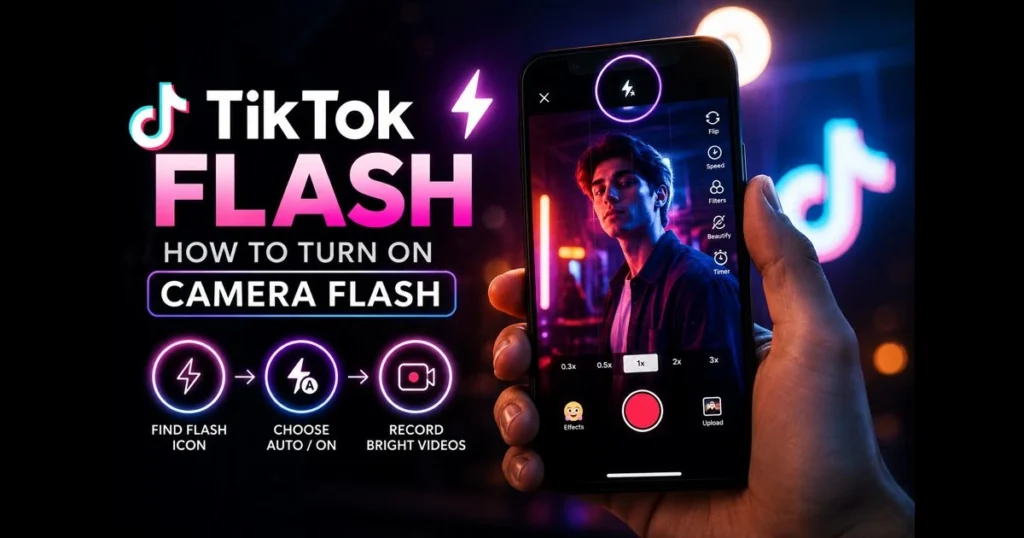
Low light shouldn’t ruin a great idea. The TikTok flash can brighten a dim room, sharpen faces at night, and add a crisp sparkle to your clips when the sun goes down. This guide shows you how to enable the TikTok camera flash, locate the control within the app, and ensure device permissions won’t interfere. You’ll also find practical tips to balance light, avoid harsh glare, and use creative effects that feel intentional rather than overexposed. Small tweaks in TikTok camera settings can noticeably improve your video lighting. Let’s get you set up and filming with confidence.
- Understanding TikTok Flash Feature
- How to Access the TikTok Camera
- Enabling the TikTok Camera Flash
- Managing TikTok Flash Permissions
- Tips for Using Flash in TikTok Videos
- Common Issues with TikTok Flash
- Alternatives to TikTok Flash
- Conclusion
1. Understanding TikTok Flash Feature
Definition of TikTok flash and its purpose.
The TikTok flash feature allows you to brighten a scene using your phone’s rear LED (like a flashlight) or a screen-based flash for selfies that momentarily illuminates the display. Look for the lightning-bolt icon in the camera interface to toggle flash modes. Related reading: snapchat flash.
Use it to fill shadows, enhance texture, and make faces pop against darker backgrounds. Some phones also offer a continuous light mode—often called a Torch—that stays on while you record. (See: CDC Youth Risk Behavior Surveillance.)
Benefits of using flash in TikTok videos.
Good lighting means clearer details and steadier exposure, enhancing TikTok video quality without needing new gear. Flash can add glossy highlights to eyes, clarify murky indoor scenes, and help maintain a lower ISO, making footage less grainy. When you’re short on time or equipment, the built-in TikTok camera flash is a quick solution. Related reading: instagram camera flash.
2. How to Access the TikTok Camera
Step-by-step guide to opening the TikTok app.
- Open TikTok on your phone.
- Sign in if prompted.
- Tap the + button at the bottom center to open the camera.
This plus button is your gateway to recording, whether capturing a quick Story or a full-length post. If the camera doesn’t open, you may need to update the app or address a permission prompt.
Navigating to the camera interface.
Once the camera is open, you’ll see the record button, effects tray, and several icons along the right side. This stack typically includes flip camera, speed, filters, timer, and the lightning-bolt for flash. If the flash icon is missing, switch to the rear camera or explore simple/advanced TikTok camera settings—some models hide the control until the rear lens is active.
3. Enabling the TikTok Camera Flash
Instructions for turning on flash in the camera settings.
- Open the TikTok camera (tap +).
- Switch to the lens you want:
- Rear camera: Look for the lightning-bolt. Tap to cycle between On, Auto, and Off. Some phones show a Torch icon for continuous light while recording.
- Front camera: Tap the lightning-bolt to enable a screen “flash” that brightens the display at the start of the clip or during capture.
- Record your video with your selected flash mode.
If you can’t find the flash icon, try switching lenses, removing certain effects, or updating the app. Flash may be disabled in modes that heavily manipulate lighting.
Tips for adjusting flash settings for optimal results.
- Use Auto for scenes with varying light conditions.
- Select Torch for steady light in dim settings to avoid exposure jumps.
- Step back 0.5–1.5 meters to prevent blown-out highlights on faces.
- Diffuse the light: a thin white tissue over the LED (without blocking vents) can soften harshness.
- Balance with ambient light by using a lamp behind your phone to reduce stark shadows.
4. Managing TikTok Flash Permissions
How to check if TikTok has the necessary permissions to use your device’s camera flash.
Most phones don’t have a separate “flash” permission—flash access is tied to camera permission. If the flash icon is grayed out or inactive, confirm that TikTok can use your camera and that system settings aren’t restricting flashlight access.
On iPhone: Go to Settings > TikTok > Camera and ensure Camera is toggled on. Low Power Mode or an overheated device can temporarily disable the LED.
On Android (paths may vary): Settings > Apps > TikTok > Permissions > Camera. Also review Battery/Power Saver and Special access for “Flashlight” if applicable. Choose to allow flash access where prompted.
Steps to grant or modify TikTok flash permission settings.
- Close TikTok completely.
- Open your phone’s Settings and find TikTok.
- Open Permissions and enable Camera (and Microphone if you plan to record audio).
- Turn off extreme battery saver modes that may limit hardware like the LED.
- Reopen TikTok and test the flash toggle in the camera.
If permission prompts persist, accept them and test again. Reinstalling the app may also reset permission settings and clear any cache issues blocking hardware access.
5. Tips for Using Flash in TikTok Videos
Best practices for using flash in different lighting conditions.
- Very dark scenes: Use Torch on the rear camera and add a second lamp to fill the background.
- Indoor evening: Bounce light off a wall by angling the phone to soften faces and reduce shine.
- Selfie mode: Dim your screen brightness if the screen flash creates an oily look; a matte compact or blotting paper can help too.
- Mixed lighting: Turn off harsh overheads that cast deep eye shadows; rely on the phone flash plus a side lamp.
Creative ways to incorporate flash effects in your TikTok content.
Experiment with quick flash bursts for rhythm in dance or fashion reveals. Use shadow play—hold a patterned object between the flash and the subject for added texture. For comedy or reaction clips, toggle the flash on and off between lines to enhance timing. If comparing approaches across apps, Snapchat and Instagram’s flash behave similarly to TikTok’s screen-based flash, allowing you to test concepts before bringing them to TikTok.
6. Common Issues with TikTok Flash
Troubleshooting tips if the flash does not work.
- Restart your phone; hardware flags for the LED can get stuck.
- Close other apps that might be using the flashlight.
- Cool the device; overheating can disable the LED.
- Charge above low-battery thresholds; power-saving features can restrict flash.
- Remove conflicting camera effects/filters.
If the flash icon is missing, switch to the rear camera, update TikTok, and clear the cache (on Android: Settings > Apps > TikTok > Storage > Clear cache). Save drafts first. For persistent issues, a full reinstall can refresh app components that interact with the camera.
How to resolve permission issues related to TikTok flash.
Verify Camera permission and toggle it off and back on to force a reset. On Android, check App permissions for “Nearby devices” or similar settings that may control flashlight access. On iPhone, confirm Camera access and disable any Screen Time restrictions. If prompts reappear, accept them and test immediately in the camera view. When seeking support, screen-record your steps to show the missing or unresponsive flash icon.
7. Alternatives to TikTok Flash
Other lighting options for TikTok videos.
Natural window light is the easiest option—face the window, position the phone slightly above eye level, and enjoy soft, clean illumination. A small ring light or portable LED panel can replace flash entirely, offering finer control over direction and intensity.
Using external lights and filters to enhance video quality.
Clip-on phone lights, RGB LED tubes, and practical lamps (like a shaded desk lamp) can create a better mood than a bare LED. Diffuse light with a softbox, parchment paper, or a white shower curtain to spread illumination. If you prefer shooting with your native camera app for more advanced controls, record there with flash, then upload to TikTok—the app handles imported clips well and can still enhance video quality with filters and color tweaks.
8. Conclusion
TikTok’s built-in flash is a quick, effective tool for brighter, cleaner videos—no studio kit required. You’ve learned where to find the toggle, how to tailor modes like Auto or Torch, and how to resolve common blockers from permissions to battery settings. By adopting a few simple habits—stepping back, diffusing, and balancing ambient light—you’ll transform harsh glare into a flattering glow.
Open the app now, find the lightning-bolt, and shoot a 10-second test. Tweak one setting at a time, compare clips, and keep the version that looks best. Master the TikTok flash feature today, and your next post will look more intentional, more watchable, and distinctly you.
Frequently Asked Questions
What is TikTok Flash?
TikTok Flash is a feature or trend on TikTok that allows users to create quick, engaging videos with dynamic transitions and effects. It often involves rapid editing techniques to enhance viewer engagement.
How do I create a TikTok Flash video?
To create a TikTok Flash video, start by selecting a catchy sound, then use the app’s editing tools to add quick cuts and effects. Experiment with different transitions and timing to achieve the desired impact.
Why is TikTok Flash popular?
TikTok Flash has gained popularity due to its ability to capture attention quickly and entertain viewers with fast-paced content. The trend encourages creativity and allows users to showcase their editing skills.