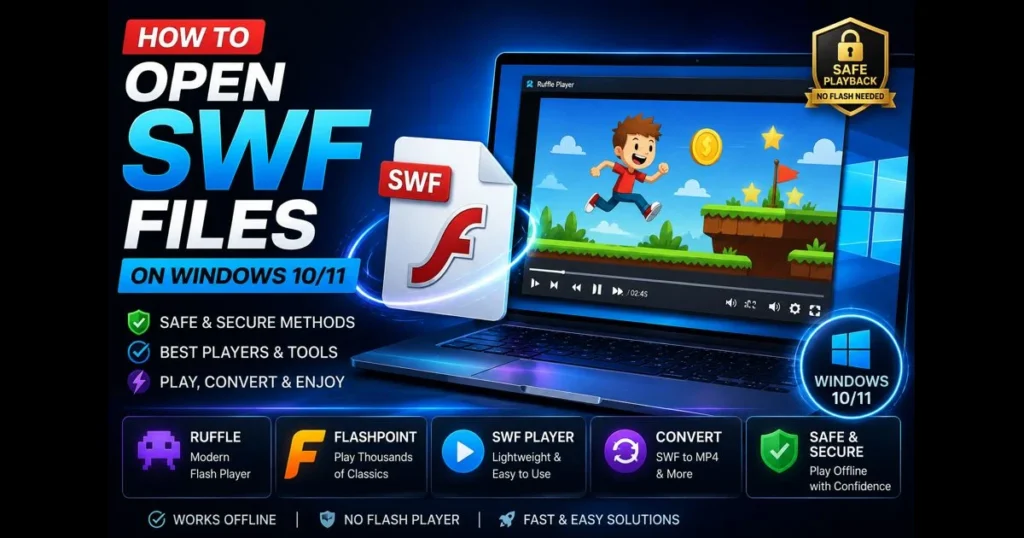
Opening SWF files on a modern PC can feel outdated. SWF (Small Web Format) once powered a variety of animations, mini-games, and interactive tutorials, but native support has diminished over time. Fortunately, there are effective ways to play these files on Windows 10 and 11. This guide explores what SWF files are, the reasons behind the decline in support, and the most practical tools available today—from dedicated players to legacy options and conversion methods. Whether you need a straightforward SWF player, prefer to run content in a browser, or want to convert SWF files to modern formats, you’ll find the right steps below.
Security is crucial. SWFs can embed code, so we’ll focus on safe environments and reliable tools. The goal is to choose the method that fits your file type—be it video-only, interactive animation, or a full game—and get it running smoothly. Related reading: allow flash in browser.
- Understanding SWF Files
- Why SWF Files Are Less Common Today
- Methods to Open SWF Files on Windows 10/11
- Popular SWF File Players
- Adobe Flash Player (Legacy, Not Recommended)
- Alternative Software to Play SWF Files
- Converting SWF Files to Other Formats
- Troubleshooting Common Issues
- Conclusion
1. Understanding SWF Files
SWF is a compiled file format originally associated with Adobe Flash. It serves as a container for vector graphics, bitmaps, audio, video, and code (ActionScript). SWFs are compact and efficient at rendering vector shapes, making them ideal for smooth animations that remain crisp at various sizes. (See: Adobe SWF Documentation.)
Beyond cartoons and banner ads, SWFs powered interactive lessons, product demos, and browser games. A single file could bundle graphics and logic, simplifying deployment as users embedded it on web pages or opened it with desktop players. That’s why you’ll still find legacy training modules and kiosk experiences preserved as .swf today. Related reading: ruffle flash emulator.
2. Why SWF Files Are Less Common Today
Adobe retired Flash Player due to security risks and a shift toward open standards. Major browsers eliminated Flash support, leading to the disappearance of click-to-play prompts. For everyday users, even legitimate SWF content became challenging to launch.
Developers transitioned to HTML5, CSS, and JavaScript for animations and interactivity, which don’t require plugins. Video pipelines shifted to formats like MP4 and WebM. Consequently, SWFs now reside in archives, old project folders, and educational libraries—still useful but no longer prominent in modern software.
3. Methods to Open SWF Files on Windows 10/11
Using Dedicated SWF File Players
The most reliable way to play SWFs offline is through a desktop player designed for them. This avoids the now-defunct browser plugin route and offers predictable behavior on Windows 10/11. A good SWF player handles vector animations smoothly and can interpret ActionScript for interactive content when needed.
- Ruffle (desktop): This actively developed project re-implements Flash features. It plays many ActionScript 1/2 SWFs effectively, with ongoing work for ActionScript 3. Ruffle is popular because it doesn’t rely on Adobe’s discontinued runtime.
- Standalone “projector” players: These self-contained executables open SWFs without a browser. While they represent a legacy option, they remain useful in controlled, offline environments.
- VLC and similar media players: These can render simple, video-only SWFs, but interactivity and advanced scripting typically won’t function.
If your goal is to quickly play SWF files, a dedicated desktop app is the fastest and least complicated choice.
Opening SWF Files in Web Browsers
Modern browsers no longer support the old Flash plugin, so you can’t simply enable Flash like before. Instead, a practical browser-based solution is to use a compatible extension or emulator that interprets SWF content without Flash.
Here’s a straightforward process that works on Windows 10/11:
- Install the Ruffle browser extension from its official site for your browser (Chrome, Edge, or Firefox).
- Open a local or hosted page that embeds the SWF. Many AS1/AS2 files will run automatically under the extension; AS3 support varies.
- For best results, host the SWF locally through a simple server to avoid local file security restrictions or use an archive project that packages compatible metadata.
If you prefer a curated, point-and-click experience, projects like the flashpoint archive bundle web games and animations with the appropriate player settings, allowing you to launch content without hassle.
4. Popular SWF File Players
There isn’t a single “best” player due to the wide variety of SWFs. Here are some of the most practical SWF players for Windows today:
- Ruffle (desktop app): Actively developed and easy to install, it’s great for many classic animations and games relying on ActionScript 1/2. The interface is simple: open the SWF, press play, and resize as needed. It’s open-source and runs natively on Windows 10/11.
- BlueMaxima’s Flashpoint: A preservation launcher that includes thousands of curated titles. You search, click, and play; it uses safe methods and emulation to run content. Best when you have a library of SWFs to explore.
- SWF File Player (freeware): A lightweight utility that opens standalone SWFs and auto-resizes to the movie’s dimensions. Good for quick previews and simple playback.
- VLC Media Player: Works for basic, timeline-driven SWFs containing video streams. Interactivity and scripting won’t carry over, so treat it as a viewer for linear content.
- SWF & FLV Player (Eltima): A dedicated player with playback controls and playlists for SWF/FLV files; handy for standalone content on Windows.
- Eluvio: A third-party option occasionally used to package or host legacy media experiences; compatibility varies, so for local SWF playback Ruffle or Flashpoint are generally more reliable.
For Windows 10/11 compatibility, Ruffle and Flashpoint are the most user-friendly starting points and serve as solid Adobe Flash alternatives in many scenarios.
5. Adobe Flash Player (Legacy, Not Recommended)
Safer Alternatives to Adobe Flash Player
Adobe Flash Player is discontinued and should not be installed or enabled in browsers. Instead, use actively maintained solutions that emulate Flash content without the deprecated runtime.
- Use Ruffle (desktop): Download the desktop build from the official project site, open Ruffle, then drag-and-drop your SWF. Ruffle handles many AS1/AS2 files and is under active development for broader support.
- Use Flashpoint: Install BlueMaxima’s Flashpoint. Search the curated library and launch content with one click. Flashpoint applies the correct emulator/configuration automatically.
- For video-only SWFs, a media player like VLC may suffice, though interactivity will not work.
These approaches deliver the closest experience to classic Flash content without relying on the unsafe, unsupported Flash Player.
Running SWF Files Safely Without Flash Player
Even with emulators, treat unknown SWFs cautiously. Prefer offline playback, avoid untrusted downloads, and consider a virtual machine or Windows Sandbox for testing large or unvetted collections. Keep your tools updated, verify file integrity, and never install old browser plugins from unofficial sources.
6. Alternative Software to Play SWF Files
Overview of Alternative Applications
Several older Windows apps were built for SWF playback, such as SWF Opener and Swiff Player. While simple and lightweight, many haven’t seen recent updates. The Newgrounds Player is another niche option focused on legacy game playback.
For a seamless experience, Flashpoint’s launcher stands out. It packages entries so you can click once to load the right emulator, configuration, and file together—perfect for when you don’t want to troubleshoot ActionScript features.
Comparison of Features and Usability
- Ruffle: Modern codebase, clean interface, quick for AS1/AS2 content, with partial AS3 coverage.
- Flashpoint: Library-driven experience focused on preservation; ideal for exploring classics.
- SWF File Player / SWF Opener: Minimalist viewers for quick tests; limited support for advanced interactivity.
- VLC: Good for linear video inside SWF; no scripting.
If you’re deciding where to start, choose Ruffle for personal files and Flashpoint for discovery. Both options simplify playing SWF files still kept in archives or training folders.
7. Converting SWF Files to Other Formats
Tools and Methods for Conversion
Conversion is the optimal long-term solution for sharing content without interactivity. It’s also essential for teams standardizing on universally compatible formats.
- Swivel (by Newgrounds): A reliable tool for rendering SWF animations to MP4 with high quality and audio sync controls. Ideal for timeline-based projects.
- FFmpeg plus a player: If a SWF is view-only, play it in a projector or Ruffle and capture to MP4 using a screen recorder or virtual capture device—this is a fallback when direct export isn’t possible.
- JPEXS Free Flash Decompiler: Useful for extracting assets (images, sounds) from a SWF when planning to rebuild or edit content elsewhere.
- Authoring tools: If you have the source FLA, modern animation software can export to video or canvas.
What about interactive content? While you can’t convert buttons and scripts to video, you can record a walkthrough to capture key paths. For web delivery, some teams attempt to convert swf to html5 using canvas-based frameworks or rebuilds; success varies based on complexity and available source assets. In many cases, the Ruffle emulator is the more practical choice for archival playback.
Benefits of Conversion for Accessibility
Once converted to MP4, SWF files can be streamed anywhere, embedded in presentations, or archived alongside transcripts. MP4 is hardware-accelerated on most devices, ensuring smooth, future-proof playback. For searchable documentation and training, video outshines legacy SWF formats.
8. Troubleshooting Common Issues
Resolving Playback Issues
Encountering a black screen, no audio, or a frozen UI? Start by matching the file to the right tool. If the SWF relies on ActionScript 3 and advanced APIs, a basic viewer or early emulator may not work. Try a desktop Ruffle build first; if it fails, switch to a sandboxed projector to confirm the file’s integrity.
Audio glitches often indicate codec or timing issues during capture—adjust the player’s quality setting, disable hardware acceleration if available, and during conversion, lock your screen refresh and recording frame rate. For protected SWFs, some extractors may not read assets; playback-based capture is preferable.
If a file won’t open at all, right-click the SWF in Windows, select Properties, and click Unblock if the file came from another PC. Confirm file associations, and test from a simple directory like C:SWFsample.swf to avoid issues with odd characters in folder names.
Ensuring Compatibility Across Software
Not all emulators interpret fonts, filters, or network calls uniformly. If text appears off, try embedding fonts during export or switch to a projector for one-time recording. If a SWF expects external files (XML, images), place them in the same folder or mirror the original directory structure.
When troubleshooting SWF playback across tools, keep a checklist: ActionScript version, reliance on external data, need for right-click menus, and whether interactivity is essential or if video capture suffices. This helps narrow down the best approach on Windows 10/11.
9. Conclusion
You have three reliable routes on Windows 10/11: utilize a modern player like Ruffle, rely on curated preservation via Flashpoint, or run a legacy projector in a safe sandbox. Browser plugins are gone—rather than trying to enable Flash in browsers, lean on emulation or offline tools that protect your system. For long-term access and easy sharing, convert SWF files to MP4, and when interactivity matters, test with the Ruffle emulator or a contained legacy player. Preservation projects like Flashpoint help you rediscover content that would otherwise be lost.
Choose a sample SWF and try this: open it in Ruffle, verify what works, then decide whether to record a clean MP4 or keep it interactive in a sandbox. If your end goal is web delivery, explore converting SWF to HTML5 through a rebuild or canvas export, and document the process for your team. Ready to get started? Select your method—player, sandbox, or conversion—and revive that legacy file on Windows 10/11 today.
Frequently Asked Questions
What is an SWF file?
An SWF file is a multimedia file format used for vector graphics, animations, and interactive content. It was originally developed by Macromedia and is commonly used for web applications and games.
How can I open an SWF file?
You can open SWF files using tools like Ruffle (desktop or browser extension), BlueMaxima’s Flashpoint, or standalone SWF players, or by converting them to more accessible formats like MP4. Avoid the discontinued Adobe Flash Player and old browser plugins.
Are there any security concerns with SWF files?
Yes, SWF files can pose security risks as they may contain malicious code. It’s important to only open SWF files from trusted sources and ensure your security software is up to date.