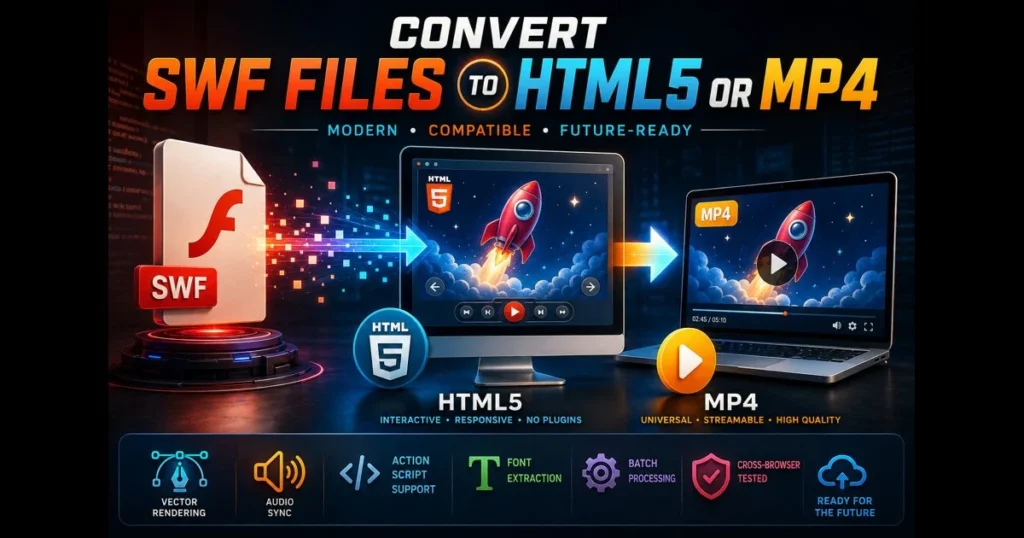
Flash is absent from mainstream browsers, yet many teams still have training modules, banner ads, product tours, and mini-games trapped in .swf format. If you need to convert SWF to HTML5 or republish as MP4 for viewing on modern devices, this guide is for you. We’ll explore what SWF files are, why migration is essential, and the tools and workflows that are effective as of 2023. You’ll learn when direct export is feasible, when emulation is the smarter choice, and when a careful rebuild is necessary. We’ll also cover quality settings, testing, and common issues like fonts, audio sync, and interactivity, along with straightforward fixes. Related reading: allow flash in browser.
The goal: advance your content without losing fidelity or wasting time on dead ends. (See: SWF on Wikipedia.)
- Understanding SWF Files
- Why Convert SWF to HTML5 or MP4?
- Choosing the Right SWF Converter
- Step-by-Step Guide to Convert SWF to HTML5
- Step-by-Step Guide to Convert SWF to MP4
- Post-Conversion: Testing and Optimization
- Common Issues and Troubleshooting
- Future of SWF and Flash Content
1. Understanding SWF Files
Definition and Purpose of SWF Files
SWF (Small Web Format) is a compiled container for vector graphics, timeline animations, audio, and ActionScript code. It was designed for efficient playback in the Flash Player plugin and standalone projectors. Think of SWF as a packaged presentation: it can be pure animation, interactive software, or a wrapper that embeds video. Related reading: ruffle flash emulator.
Common Uses of SWF in Multimedia and Web Applications
SWF files have been used for e-learning modules, marketing microsites, interactive infographics, kiosk loops, and casual games. Some play through a linear timeline, while others rely on ActionScript 2/3 for interactivity. This distinction affects the conversion process significantly.
2. Why Convert SWF to HTML5 or MP4?
Benefits of Using HTML5 for Web Content
With modern browsers dropping Flash support, telling users to enable Flash is no longer an option. Rebuilding or exporting to HTML5 places your content on a standards-based foundation that operates without plugins, scales on high-DPI screens, and works seamlessly on phones and tablets. You can leverage Canvas, WebGL, and the DOM, utilize JavaScript for interactivity, and incorporate accessibility features that were cumbersome in legacy Flash.
Advantages of MP4 in Video Playback and Compatibility
When interactivity isn’t necessary, MP4 is the simplest delivery format. It plays in the native HTML5 video element and in nearly every media player and LMS. MP4 is easy to host on a CDN, supports streaming, and allows control over bitrate, resolution, and captions. For kiosk loops, social posts, training recaps, and archival purposes, MP4 is effective.
3. Choosing the Right SWF Converter
Features to Look for in a SWF Converter
Select an SWF converter tailored to your file’s complexity. Key features include:
- Accurate vector rendering (gradients, masks, blend modes) mapped to Canvas or SVG.
- Support for ActionScript 2/3 or graceful fallbacks for interactivity.
- Audio synchronization across frame rates and timeline scenes.
- Font extraction/substitution (WOFF/WOFF2) and text-as-shapes when necessary.
- Batch processing, command-line control, and logging capabilities for large libraries.
It’s crucial that the tool exports clean, maintainable HTML/JS instead of being a black box. If you plan to iterate on the result, code quality is as vital as visual fidelity.
Overview of Popular SWF Converter Tools
No single “magic” SWF to HTML5 converter handles every file type perfectly, but several tools cover most scenarios:
- Ruffle: A Rust/WebAssembly emulator that runs many SWFs directly in browsers without plugins. It’s effective for timeline content and a growing subset of ActionScript.
- JPEXS Free Flash Decompiler: This open-source decompiler allows inspection of SWF internals, exporting vectors/bitmaps/audio, and sometimes reconstructing FLA-like structures. It’s ideal for asset recovery before a rebuild.
- SWFTools: Utilities to extract embedded media or render frames to image sequences, useful for linear SWFs.
- Adobe Animate: If you have the original FLA, Animate can export to HTML5 Canvas via CreateJS. This is the cleanest path, but importing SWFs back into Animate may be limited and lossy.
- swf2js: A JavaScript library that interprets SWF at runtime and renders it via HTML5 APIs. Results may vary, but it can be effective for simple banners.
- FFmpeg: While not a SWF parser, it’s essential for converting extracted sequences or screen captures into high-quality MP4.
- Google Swiffy: A discontinued Google tool that converted many SWFs to HTML5. The hosted service ended in 2016 and isn’t available for new conversions; existing Swiffy outputs can still be served; included here for historical context and legacy projects.
- Flash to HTML5 Converter (MIT App Inventor): A specialized utility aimed at migrating App Inventor Classic/Flash-based projects toward HTML5. It isn’t a general-purpose SWF-to-HTML5 converter, but can help if your content originates from App Inventor components.
- Reputable online SWF converter services: For occasional SWF to MP4 tasks, platforms like CloudConvert can transcode simple, non-interactive SWFs. Caution is advised with confidential content, and interactivity won’t survive.
For interactive content or complex ActionScript 3 applications, expect to combine emulation, asset extraction, and selective rebuild instead of a straightforward export.
4. Step-by-Step Guide to Convert SWF to HTML5
Preparing Your SWF File for Conversion
Begin with an assessment. Use JPEXS to examine the SWF files and determine if they primarily consist of timeline animation or logic-heavy components. Note stage size, frame rate, fonts in use, and whether any video is embedded. If you find a self-contained FLV/MP4 inside, consider the MP4 path instead of a full HTML rebuild.
Export necessary assets: vectors as SVG (or high-res PNG for complex filters), audio as WAV/MP3, and any spritesheets. Create a simple specification detailing what must remain interactive, where keyboard focus should go, and any accessibility needs (labels, captions, color contrast).
Using a SWF Converter to Export to HTML5
You have two practical options.
Route A: Emulate. Integrate the Ruffle emulator into your HTML page, reference the SWF, set width/height, and test across browsers. This approach doesn’t constitute a true conversion but allows for modern, plugin-free playback quickly. For many legacy training modules, this may be sufficient and preserves behavior accurately.
Route B: Rebuild. If long-term maintainability is essential—or if emulation falls short—use JPEXS to extract graphics and audio, then reconstruct using Canvas/WebGL with libraries like CreateJS, PixiJS, or Phaser. Maintain the original frame rate, convert text to web fonts or outlines, and implement interactions with JavaScript. Test incrementally: timeline first, then inputs, then audio. A lightweight SWF to HTML5 converter may help kickstart this process for simple banners, but expect manual adjustments.
5. Step-by-Step Guide to Convert SWF to MP4
Setting Up the Conversion Process for MP4
First, determine whether you can extract video directly or need to render it. Using swfextract, check for embedded FLV/MP4 streams; if present, extract the media and remux/transcode to MP4 with FFmpeg to preserve quality and sync without screen recording.
If the SWF contains vector animation or interactivity, render frames. Options include using swfrender to output a PNG sequence or playing the SWF through Ruffle/standalone player and capturing at the source resolution. For capturing, fix the stage size, disable OS scaling, and use a high-bitrate, lossless intermediate format (ProRes/DNxHR) before your final encode.
Adjusting Settings for Optimal Video Quality
Match the original frame rate to prevent motion judder. Choose a resolution that respects the SWF stage and aspect ratio; upscale cautiously to avoid soft edges on vector art. For encoding, select a widely compatible H.264 profile with a bitrate that maintains detail in gradients and text. Two-pass encoding can help manage file size.
Keep audio at a consistent sample rate (typically 44.1 or 48 kHz), check for pre-roll silence, and correct any offset before export. If the video is intended for the web, enable “fast start” so metadata is positioned at the front for quicker playback. Captions and burned-in overlays can be added at this stage if necessary.
6. Post-Conversion: Testing and Optimization
How to Test Your Converted HTML5 or MP4 Files
Conduct testing on real devices: a current iPhone, an Android phone, a Windows laptop, and a Mac. In browsers, verify functionality on Chrome, Safari, Edge, and Firefox. For HTML5 builds, ensure keyboard navigation, focus states, and screen-reader labels work properly. For MP4, check playback controls, captions, and smooth seeking on a standard HTTPS host with byte-range requests enabled. For broader coverage without a device lab, leverage cross-browser services such as BrowserStack or Sauce Labs to validate rendering and input behavior across OS and browser versions.
If your audience uses an LMS or intranet, upload a pilot file and validate autoplay policies, cross-origin settings, and caching headers in the actual environment.
Tips for Optimizing Performance and User Experience
- For HTML5 Canvas, combine small images into spritesheets and cache static layers.
- Replace heavy drop shadows and blends with prerendered assets if mobile performance declines.
- Serve MP4 from a CDN with sensible caching; create multiple renditions (1080p/720p) and select via media queries or player logic.
- Utilize web-friendly font formats and subset glyphs to minimize payload.
- Provide captions/transcripts for user benefit and improved searchability.
7. Common Issues and Troubleshooting
Frequent Conversion Errors and Their Solutions
If text appears incorrect, your original file likely used embedded fonts. Export outlines from JPEXS for logos and headings, and host web fonts for body text. Missing filters or masks indicate the converter didn’t map them; prerender those layers to bitmaps.
Audio drift typically arises from mismatched frame rates or variable frame capture. Lock your timeline FPS, record at that rate, and encode with a constant frame rate. For ActionScript-driven animations that don’t advance during headless render, trigger timeline events via emulation and capture in real time.
If buttons don’t respond after HTML5 export, map original mouse/key listeners to DOM/Canvas events and ensure proper z-order and hit areas. As a last resort, consider publishing an MP4 of the core sequence while maintaining a lightweight HTML overlay for necessary interactions.
For ActionScript-heavy projects that you’re rebuilding, be mindful of framework differences. With CreateJS (used by Adobe Animate’s HTML5 Canvas output), watch for event timing and text metrics that can differ from Flash. Map AS2/AS3 enterFrame and timer logic to requestAnimationFrame, replace Sound/Loader APIs with web equivalents, and consider libraries like GSAP for tweening. Build small parity tests for clips and interactions before porting whole scenes to catch discrepancies early.
Compatibility Issues with Various Devices and Browsers
Some mobile browsers block autoplay with audio. Start videos muted and unmute upon interaction, or provide a clear play button. Corporate environments may restrict codecs; deliver fallback renditions or let the player select the best available stream.
If offline distribution is necessary, package an HTML5 build with a local web server wrapper or provide an MP4 with a portable player. Remind stakeholders that simply allowing Flash in the browser is no longer an option, so plan rollouts and support documentation accordingly.
8. Future of SWF and Flash Content
The Decline of Flash Support and Implications
Adobe ended Flash Player support, and major browsers removed the plugin. Preserving content now requires conversion, emulation, or archival video. Institutions with archives—museums, schools, publishers—are adopting sustainable formats and documenting behavior alongside the files.
Emerging Technologies and Formats for Web Content
Modern animation and interaction thrive on Canvas, WebGL, and Web Components, often powered by libraries like PixiJS, Three.js, and GSAP. For projects that must maintain original behavior with minimal engineering, Ruffle and other Adobe Flash alternatives provide a bridge today while you plan a full rebuild.
For teams managing multiple titles, treat this as a product effort: audit, prioritize, choose between emulation and rebuild, and standardize your pipeline for SWF to MP4 conversion and HTML5 deployment.
One last note: if you need to open swf files quickly on a desktop to verify content, prefer sandboxed players or emulators over legacy installers. This approach will keep your environment safer while you work.
Wrap-up and Next Steps. Converting Flash content isn’t a simple task; it requires a series of choices. Use emulation (Ruffle) for speed, rebuild critical components for longevity, and export MP4 when interactivity isn’t essential. If you face a large library, start with a pilot: select one representative SWF, execute your planned conversion path (SWF to HTML5 converter or SWF to MP4), and document the steps and time involved. Ready to proceed? Gather your top three files, run an audit with JPEXS, and decide whether to emulate, rebuild, or record—then ship a test build to real users this week.
Frequently Asked Questions
What is the process to convert SWF files to HTML5?
To convert SWF files to HTML5, you can use various conversion tools and software available online. These tools typically allow you to upload your SWF file and then download the converted HTML5 file, which can be embedded in web pages.
Are there any online tools for converting SWF to HTML5?
Yes, there are several online tools that facilitate the conversion of SWF files to HTML5. Some popular options include CloudConvert, Swiffy, and Google Web Designer, which provide user-friendly interfaces for easy conversion.
Is it possible to convert complex SWF animations to HTML5?
While many tools can convert basic SWF animations to HTML5, complex animations may not convert perfectly due to differences in technology. It’s often recommended to manually recreate intricate animations in HTML5 for the best results.