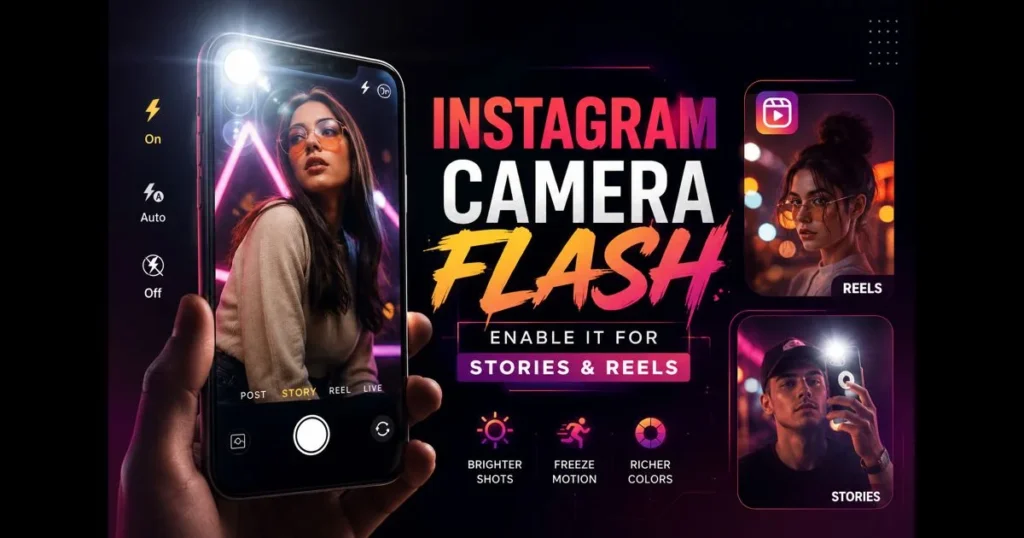
The Instagram camera flash is a small button with a significant impact. Use it well to brighten faces, freeze motion, and restore color lost in dim rooms or nighttime streets. Ignore it, and your Stories and Reels may appear grainy or out of focus. This guide explains what Instagram’s flash does, when it helps, and how to activate it for both Stories and Reels. You’ll also find practical tips for flash photography, alternatives for tricky scenes, and fixes if the flash doesn’t fire. By the end, you’ll know how to choose the right lighting for Instagram, improving your photos and videos without guesswork.
- What is Instagram Camera Flash?
- When to Use Instagram Flash for Stories
- When to Use Instagram Flash for Reels
- How to Enable Instagram Camera Flash
- Tips for Using Flash Effectively
- Alternatives to Using Flash on Instagram
- Common Issues with Instagram Flash
- User Experiences and Feedback
What is Instagram Camera Flash?
Definition of the Instagram camera flash feature
Instagram’s in-app camera includes a flash control that triggers a quick burst of light from your phone’s LED (rear camera) or simulates a bright screen flash (front camera) to brighten the subject. This feature is available in the Story and Reel capture screens, working similarly to the default camera app on your phone. The goal is simple: add light when there isn’t enough. (See: Camera flash – Wikipedia.)
Differences between the flash and natural lighting
Natural light is broad, soft, and directional, varying with the time of day. Phone flash is compact and close to the lens, producing a harder, more contrasty look with sharper shadows. While this can be flattering for glam or nightlife shots, it’s less subtle than window light or shade. Think of the Instagram flash as a tool to control exposure and sharpness when ambient light fails, not a universal solution for every mood.
When to Use Instagram Flash for Stories
Best scenarios for using flash in Instagram stories
Stories are about immediacy. Use the Instagram story flash when indoors at dinner, capturing a quick selfie in a dim hallway, or panning across a birthday cake in a dark room. It’s also useful for text-heavy slides where you want the background readable and not a noisy blur. Street snaps at dusk, backstage moments, and close-ups of products or food benefit from a crisp flash.
How flash can improve low-light story quality
Low light forces your phone to slow the shutter and raise ISO, introducing blur and grain. A brief burst from the flash lifts exposure, allowing the camera to use faster shutter speeds. The result? Cleaner skin texture, brighter eyes, and reduced motion blur when you’re talking to the camera. Even a front-screen flash can enhance your face and keep text overlays legible.
When to Use Instagram Flash for Reels
Situations where flash enhances reel performance
Reels amplify movement and detail. Use flash for quick cuts at concerts, hand transitions in beauty content, or macro shots of textures where micro-contrast matters. It’s also beneficial for behind-the-scenes footage in warehouses, clubs, or kitchens with mixed lighting. If you’re matching beats, consistent exposure from a flash keeps the rhythm clean across clips.
Impact of flash on video clarity and detail
Short video clips benefit when flash freezes tiny motions—hand gestures, fabric flicks, and sparkles on jewelry. Highlights become defined, edges crisper, and autofocus has an easier job locking onto your subject. Just remember: too much direct flash can flatten depth. Balance is key, refined through targeted tests and tips applied in real scenes.
How to Enable Instagram Camera Flash
Step-by-step guide to enable flash for stories
Here’s a reliable workflow (interface as of October 2023; placement and labels may vary by device and app version):
- Open Instagram and swipe right to access the Story camera.
- Select your camera (front or rear). Position your subject close—phone flash is strongest within arm’s length.
- Look for the lightning bolt icon. Tap to cycle through Off, Auto, or On. Some devices show a screen-flash icon for the selfie cam.
- If prompted, tap OK to allow flash access so the app can control the LED or screen.
- Tap and hold to record video, or tap once to take a photo. Review, then post.
Tip: If the lightning bolt doesn’t appear, check the capture mode—you need Photo or standard Video/Hands-Free within Stories, not effects that override exposure.
Step-by-step guide to enable flash for reels
Reels use the same core control with a few extra toggles (interface as of October 2023; placement and labels may vary by device and app version):
- Tap the plus icon and select Reel, or swipe to the Reel camera.
- Choose your lens (rear for scenes, front for talk-to-camera). Compose tightly if relying on flash.
- Tap the lightning bolt to set On, Auto, or Off. On many phones, the front camera uses a momentary screen flash at the start of each clip.
- Set other camera settings like frame rate or timer if available.
- Press and hold to capture segments. Keep subjects within effective flash distance for consistent brightness.
If an effect dims the scene, toggle the filter off to check exposure, then reapply. Some effects intentionally limit flash to maintain their look.
Tips for Using Flash Effectively
Adjusting settings for optimal flash usage
- Bounce when possible: Angle the phone slightly so light skims across a face rather than shining straight-on. A few degrees make a difference.
- Use Auto smartly: Auto can prevent overexposed faces in borderline ambient light. It’s a good default for quick content creation.
- Lower exposure before firing: Drag on-screen exposure down a touch, then let the flash fill. This prevents highlights from blowing out.
- Diffuse the light: A thin tissue over the LED or stepping back and zooming slightly can soften harshness. Be safe and avoid covering sensors entirely.
- Prioritize the eyes: Aim the frame so catchlights land in the eyes; it brings instant life to portraits.
Avoiding common mistakes with flash photography
- Too far from the subject: Phone flash falls off quickly. Stay within a few feet.
- Shiny surfaces: Direct flash on glass, chrome, or glossy food can create hotspots. Change your angle to reduce glare.
- Flat backgrounds: Add depth by stepping away from walls to avoid hard shadows behind your subject.
- Mismatched color: Tungsten lamps look warm; phone flash is cooler. If colors clash, turn off nearby lamps or switch to all-ambient lighting.
- Overusing it: Not every scene needs flash—sometimes grain and mood win.
Alternatives to Using Flash on Instagram
How to enhance lighting without flash
Window light is a classic fix. Face the window, keep the phone between you and the glass, and watch skin tones even out. A clip-on ring light or small LED panel can create soft, wraparound illumination you can adjust. Shooting at blue hour outdoors often yields better results than any artificial burst.
Popular apps and tools for better lighting
Third-party camera apps with manual controls allow you to lock exposure and ISO, then finish inside Instagram. Portable LEDs with adjustable color temperature help match indoor bulbs. Creators who also post on other platforms often compare Instagram flash to Snapchat and tiktok flash, switching tools depending on the desired look.
Common Issues with Instagram Flash
Note: Instagram updates can change the location, labels, or behavior of flash controls. If something looks different, update the app to the latest version and consult Instagram’s in-app Help resources for current instructions.
Troubleshooting flash not working on Instagram
- Permissions: Ensure Camera permissions are enabled for Instagram. If you previously denied access, revisit settings and allow flash access when prompted.
- Battery saver: Power-saving modes can limit LED brightness or disable it. Turn battery saver off temporarily.
- Overheating: If your phone is hot, the system may block flash until it cools down.
- Third-party cases: Thick or opaque cases can block the LED. Test without the case.
- Mode conflicts: Some AR effects or multi-capture modes disable flash. Switch to plain Photo/Video inside Stories or Reels.
Understanding flash limitations in different devices
Not all LEDs are equal. Some phones have brighter diodes or multi-tone flashes; others rely on the screen for the front camera. Ultra-wide lenses often don’t pair well with flash because light doesn’t spread effectively to the corners. Expect subtle differences between brands—understand your phone’s sweet spot by shooting the same subject at various distances and angles.
User Experiences and Feedback
Real-life user testimonials about using flash
Creators often note that flash enhances late-night selfies and detail shots of jewelry, nails, and desserts, making them look intentional. Wedding planners use it for behind-the-scenes moments where reception lighting is low but faces still need to be visible. Food bloggers lean on a slight angle to avoid glare, while stylists combine a cool flash with a warm lamp to create contrast, balancing color in-app.
Comparison of flash usage among different user demographics
Teens and college creators often embrace high-contrast, on-camera flash for Y2K aesthetics in Stories. Small business owners use it more practically for product close-ups and label legibility. Travel accounts prefer ambient light, switching to flash for night markets or interiors. Whatever your niche, the choice to use flash is both stylistic and technical: employ it when it enhances your story, not just because it’s available.
Wrap-up: Treat flash like any creative tool—purposeful, not automatic. Practice controlled tests, compare frames with and without flash, and retain what works as references. The fastest way to improve Instagram photos and videos is to control light first. Try one Story and one Reel tonight using the steps provided, observe what changes, and adjust. Your next post deserves clear, confident light—open the camera, tap the bolt, and shoot.
Frequently Asked Questions
What is the purpose of the Instagram camera flash?
The Instagram camera flash is used to illuminate subjects in low-light conditions, enhancing the quality of your photos. It helps to reduce shadows and improve overall visibility when taking pictures.
How can I enable or disable the camera flash on Instagram?
To enable or disable the camera flash on Instagram, simply tap the flash icon located at the top of the camera screen. You can choose between ‘Auto’, ‘On’, or ‘Off’ modes based on your lighting needs.
Does using the camera flash on Instagram affect battery life?
Yes, using the camera flash can consume more battery power as it requires additional energy to operate. It’s advisable to use it sparingly, especially when your device’s battery is low.