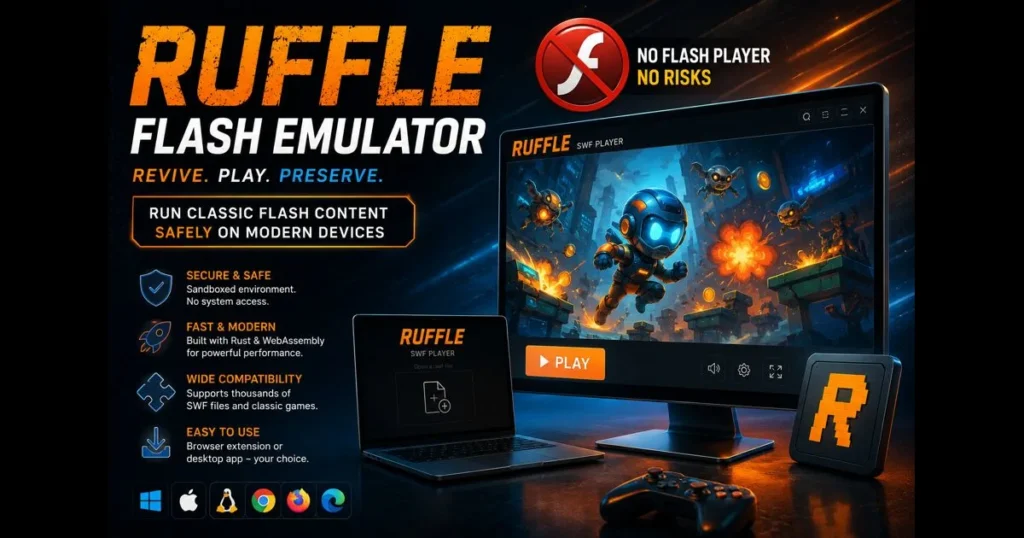
The Ruffle Flash emulator exists to keep classic Flash experiences alive without the outdated plug-in. Since Adobe ended support for Flash, countless games, cartoons, interactive toys, and educational modules risked disappearing. Ruffle offers a modern, secure way to run that content directly in your browser or on your desktop—no legacy Flash Player required. This guide provides a clear, step-by-step installation process for Ruffle on Windows, macOS, and Linux; usage instructions for both browser and desktop app; and troubleshooting tips for common issues. If you’re eager to emulate Flash games or revive projects reliant on SWF files, you’re in the right place. Let’s breathe new life into those archives without compromising security or relying on unsupported software. Related reading: allow flash in browser.
- 1. Understanding Ruffle Flash Emulator
- 2. Benefits of Using Ruffle
- 3. How to Install Ruffle Flash Emulator
- 4. How to Use Ruffle Flash Emulator
- 5. Troubleshooting Common Issues with Ruffle
- 6. Future of Flash Content with Ruffle
- 7. Alternatives to Ruffle Flash Emulator
- 8. Conclusion
1. Understanding Ruffle Flash Emulator
What is Ruffle and its purpose?
Ruffle is an open-source Flash Player emulator primarily written in Rust, designed to run legacy SWF files securely using modern technologies like WebAssembly. In simpler terms, it allows you to play old Flash games, animations, and apps without the original, discontinued Flash plug-in. Think of it as a safer Flash Player that mimics Flash’s behavior while using today’s security model. (See: Ruffle (emulator).)
Ruffle operates in two main ways: as a browser extension or as a standalone desktop app. In the browser, it replaces old Flash embeds with a secure emulator. On the desktop, you can open .swf files directly. Its consistent purpose is clear: preserve Flash content without the risks associated with the original plugin.
The history and evolution of Flash content.
Flash fueled a creative boom across indie game portals, web cartoons, interactive content, and e-learning modules. If names like Newgrounds or Homestar Runner resonate with you, you understand how deeply Flash influenced internet culture. Related reading: allow flash in chrome.
When Adobe ended Flash support, browsers removed native plugin functionality. This rendered entire libraries inaccessible, even though the files remained intact. Emulation emerged as the sustainable solution, leading to Ruffle’s development as a community-driven project aimed at restoring those experiences without reverting to insecure software. Related reading: ruffle not working.
2. Benefits of Using Ruffle
Compatibility with existing Flash content.
Ruffle focuses on accurate playback for a broad range of SWF files, particularly those utilizing ActionScript 1 and 2, which are the foundation of many classic web games and animations. Most titles from the early 2000s run smoothly, allowing you to enjoy Flash games right in your browser or desktop. While ActionScript 3 support is improving, complex late-era projects may still face compatibility challenges.
For site owners, self-hosting Ruffle enables old embeds to come back to life with minimal changes—often just a script drop-in pointing to your SWF. This can transform a broken archive into a functioning showcase of your work.
Security advantages over traditional Flash Player.
The original Flash Player had extensive system access and a history of vulnerabilities. Ruffle takes a different approach, utilizing memory-safe Rust code and running SWFs in a sandbox that cannot access your operating system like the old plugin could. There’s no NPAPI or PPAPI plugin to install, no OS-level privileges required, and no confusing prompts about enabling Flash.
As an emulator, many historical exploit paths simply do not exist. Download it from the official site and keep it updated for safety, but the everyday risk is far closer to loading a modern web app than installing an outdated plugin.
3. How to Install Ruffle Flash Emulator
Downloading Ruffle from the official website.
Begin at the project’s home: ruffle.rs. Here, you’ll find the browser extension, desktop app, and self-hosting instructions. The linked GitHub repository publishes signed releases and nightly builds. Always rely on the official site and repository rather than third-party sources.
Before you proceed, decide how you want to use Ruffle:
- If you want to play .swf files on your computer, download the desktop application for your OS.
- To restore Flash on the websites you visit, use the browser extension.
- If you’re managing a site, opt for the self-hosted web build (the JavaScript/WASM “polyfill”).
This guide serves as a practical installation reference, so follow the path that suits your needs.
Installation process for different platforms (Windows, macOS, Linux).
Windows — Desktop app
- Download the Windows build from ruffle.rs (installer or portable zip).
- If using the installer, run it and follow the prompts. For the portable zip, extract it to a folder of your choice (e.g., DocumentsRuffle).
- Launch Ruffle, then open an SWF by dragging it into the window or using File > Open.
- Optional: Right-click an .swf file in Explorer > Open with > Choose another app > More apps > Look for another app on this PC, then select Ruffle to set it as the default.
Windows — Browser extension (Chromium-based and Firefox)
- From ruffle.rs, select the browser extension for your browser.
- Chrome/Edge/Brave: Go to chrome://extensions (or your browser’s Extensions page), enable Developer Mode, then “Load unpacked” and select the unzipped Ruffle extension folder. If a store listing is available, you can install from there; otherwise, use the unpacked method.
- Firefox: Install the .xpi from the official add-ons page linked on ruffle.rs, or load it temporarily for testing via about:debugging.
macOS — Desktop app
- Download the macOS build (usually a .dmg or .zip) from ruffle.rs.
- Open the .dmg and drag Ruffle to Applications, or extract the .zip into Applications.
- Upon first launch, you may need to approve the app in System Settings > Privacy & Security if macOS flags it as from an unidentified developer. Choose “Open Anyway” if you downloaded it from the official site.
- Open your .swf files directly from Ruffle or drag them onto the app icon.
macOS — Browser extension
- Follow the same steps as Windows: install via Firefox Add-ons or load the unpacked extension in a Chromium-based browser using the Extensions page.
Linux — Desktop app
- Download the Linux build (AppImage, tarball, or distribution package if available) from ruffle.rs or the linked GitHub releases.
- If using an AppImage, mark it executable (chmod +x) and run it. For tarballs, extract and run the binary.
- Launch Ruffle and load SWF files from the UI or command line (e.g., ./ruffle yourfile.swf).
Linux — Browser extension
- Install as you would on other platforms: Firefox Add-ons or load the unpacked extension in a Chromium-based browser via chrome://extensions.
Self-hosting Ruffle on your website
- From ruffle.rs, download the web build package (JavaScript and .wasm files).
- Upload the files to your site and include the Ruffle script on pages where SWFs are embedded.
- Replace old object/embed tags with a simple container and a snippet that points Ruffle to your SWF. The official docs provide copy-and-paste examples.
- Test across multiple browsers to ensure playback consistency and console cleanliness.
If restoring a large archive, stage the rollout: test a few representative SWFs (small animation, interactive game, and a complex app) before converting the entire collection.
4. How to Use Ruffle Flash Emulator
Running Flash content in a browser.
Once the extension is installed, visit a page with a Flash embed. Ruffle should automatically detect the SWF and replace the old plugin with its player. A simple “Play” button usually appears; click it to start.
If you manage a site, the self-hosted web build gives you greater control. By incorporating Ruffle’s script, you can maintain your original page layout, preload assets, and manage fallbacks for unsupported files. This route is ideal for museums, schools, and creators focused on content preservation.
One major perk: you no longer need to enable Flash in Chrome through a hidden settings panel. Ruffle operates like any modern web app, eliminating prompts to enable a deprecated plugin.
Using Ruffle as a desktop application.
Open Ruffle and drag an SWF into the window or use the file menu to select it. That’s all it takes to revive a single animation, mini-game, or e-learning module offline. The desktop app is particularly useful for creators reviewing old assets or for archivists without a stable internet connection.
Controls are straightforward: click to interact, press Escape to exit full screen, and access basic options through the right-click menu. If you’re looking to use Ruffle for a large folder of files, batch your testing: open a sample set first, note any rendering issues, and proceed with the rest when you’re confident in the results.
5. Troubleshooting Common Issues with Ruffle
Addressing performance issues.
Performance problems typically arise from rendering load or underpowered devices. Start with these checks:
- Update to the latest Ruffle build from the official site; nightly builds often include important fixes.
- Ensure your browser has hardware acceleration enabled. In Chrome/Edge/Brave, check the system settings; in Firefox, look for hardware acceleration in Preferences.
- Close other tabs using WebGL, WebGPU, or heavy video playback. Freeing up GPU and CPU resources helps immediately.
- Try the desktop app with the same SWF. It can outpace the browser on some systems, especially for full-screen games.
- If self-hosting, serve the .wasm and related assets with proper MIME types and enable HTTP compression; slow loads can mimic slow emulation.
If issues persist, test on a different browser or machine to determine if the problem is content-specific or environment-specific.
Fixing compatibility problems with specific Flash applications.
Some SWFs—especially larger ActionScript 3 projects—may use APIs that Ruffle is still developing. Symptoms can range from missing buttons or broken menus to total failure. Here’s a structured approach to troubleshoot:
- Open the browser console (F12 or right-click > Inspect > Console) and reload the page. Look for Ruffle warnings or errors regarding unsupported features.
- Test the same SWF in the latest nightly build. Regular updates may resolve your issue.
- Try the desktop app if you were testing in a browser; minor differences between web and desktop builds can affect results.
- Search the project’s GitHub issues for your SWF’s title or error message. You may find existing reports with workarounds.
- If you own the content, consider simplifying or republishing the SWF to eliminate problematic dependencies, or splitting large files into smaller parts.
- As a temporary access solution for users, consider curated collections like the flashpoint archive, which packages many titles with known-good configurations.
If no similar report exists, create a new issue on GitHub with a clear title, the SWF (or a minimal reproduction), browser/OS details, and console logs. This information speeds up the resolution process.
6. Future of Flash Content with Ruffle
Ongoing developments and updates to Ruffle.
Ruffle is actively developed, with continuous progress in audio, text rendering, filters and blends, and broader ActionScript 3 support. The team operates transparently: issue trackers document known gaps; pull requests outline upcoming features. Nightly builds deliver improvements quickly, ensuring users and archivists don’t wait long for fixes.
At its core, Ruffle relies on Rust and WebAssembly. This combination provides maintainers with a robust framework for memory safety and cross-platform consistency, essential traits for a project designed to endure across evolving operating systems and browsers.
Community support and contributions to the project.
Ruffle thrives through community engagement—testing content, reporting bugs, writing code, and enhancing documentation. You don’t need specialized programming skills to contribute. Testing educational materials, filing clear bug reports for museum collections, or translating the UI are all valuable actions.
Many cultural institutions and public archives have adopted Ruffle to maintain accessibility for their exhibits on the open web. If you’re planning a preservation project, observe how they structure their pages: embed SWFs with clear labels, provide context on creation dates, and include a small notice that playback is powered by emulation. This transparency helps set expectations and invites viewers to report issues.
7. Alternatives to Ruffle Flash Emulator
Overview of other Flash emulation options.
While Ruffle is the preferred choice for many focused on safety and openness, it isn’t the only option. Here are some notable alternatives:
- CheerpX for Flash (Leaning Technologies): A commercial solution tailored for enterprises. It can run complex ActionScript 3 applications in the browser without the original plugin, though licensing and hosting costs apply.
- Lightspark: An open-source player historically focused on ActionScript 3. It has limited compatibility with modern web standards and minimal browser integration, so it’s not a viable general-purpose alternative; at best, it may help with niche testing of certain late-era AS3 features.
- Gnash: An older open-source project for ActionScript 1/2 content. Development has slowed, and compatibility is limited by modern standards.
- Flashpoint (by BlueMaxima): Not an emulator itself, but a curated launcher and preservation platform that bundles tools (including Ruffle) to run a vast catalog offline. It’s ideal for users seeking a plug-and-play experience with known titles.
- Adobe Flash Player Projector (standalone): Adobe’s legacy, standalone player for opening SWF files without a browser. It is discontinued and unsupported, with security risks; if used, keep it isolated/offline for archival verification rather than general browsing.
- Legacy browsers with old Flash plugins: Running pre-EOL browsers or outdated plugins is strongly discouraged due to security risks. Emulation and sandboxing are preferred.
Comparative analysis of Ruffle and its alternatives.
Ruffle prioritizes safety, ease of deployment, and extensive ActionScript 1/2 support in modern environments. It’s free, open-source, and well-suited for websites seeking seamless playback without legacy plugin prompts. This model is particularly appealing for educational institutions, museums, and public archives.
CheerpX excels for organizations needing to maintain complex ActionScript 3 applications with minimal code changes while being willing to pay for support. Lightspark has limited compatibility with modern standards and minimal browser integration; it can occasionally aid developer testing of specific AS3 features but isn’t a viable general-purpose option. The Adobe Flash Player Projector can open SWFs offline for archival verification, but it’s discontinued and unsupported, so use it only in isolated, offline contexts. Flashpoint is a practical choice for consumers wanting a ready-made library of content that functions offline, backed by a passionate community.
If your goal is to emulate classic Flash games across devices with strong security, Ruffle stands out. However, if preserving a specific late-era app with advanced AS3 features is your focus, consider evaluating both Ruffle’s current capabilities and commercial solutions.
8. Conclusion
Flash shaped a generation of online creativity, and Ruffle gives that history a secure second life. By combining a straightforward setup with a modern sandbox, the project makes it feasible to restore classroom modules, beloved mini-games, and cultural artifacts without the risks of the old plugin. There’s no need to search for hidden toggles to enable Flash; simply install Ruffle and press play.
Ready to revive your library? Install the extension or desktop app from ruffle.rs, test a few representative SWFs, and expand from there. If something goes awry, the community is reachable, and fixes are implemented steadily—alongside alternatives like the Flashpoint archive for immediate access. Give Ruffle a try, share your restoration efforts, and help keep web history playable for the next generation of curious visitors.
Frequently Asked Questions
What is a ruffle flash emulator?
Ruffle is an open-source Flash Player emulator that allows users to run Flash content in modern web browsers without the need for the original Adobe Flash Player. It converts Flash applications into a more secure format, making them accessible even after Flash has been officially discontinued.
How do I install the ruffle flash emulator?
To install the Ruffle Flash emulator, you can either download the standalone desktop application or use the browser extension available for Chrome, Firefox, and other browsers. Simply follow the installation instructions provided on the Ruffle official website.
Is Ruffle compatible with all Flash content?
While Ruffle aims to support a wide range of Flash content, not all Flash applications and games may work perfectly due to differences in ActionScript versions and specific features. Developers are continually working to improve compatibility, so it’s best to check the Ruffle documentation for updates.