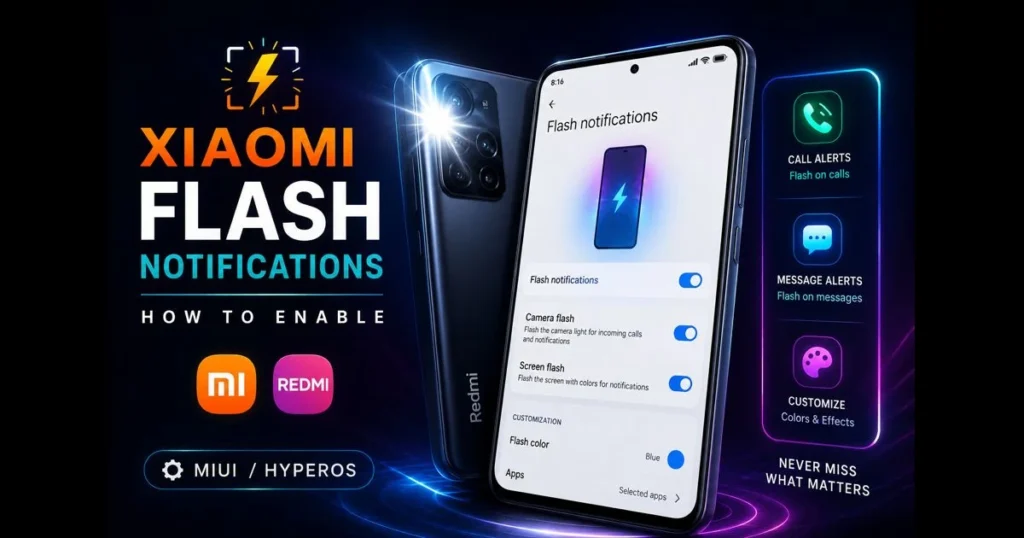
The term Xiaomi flash notification is popular in forums and how-to videos for a good reason: it transforms your phone’s camera flash or screen into a vivid alert. Instead of relying on vibrations you might overlook or a tone set to silent, flash notifications provide a clear visual cue for calls, messages, and app alerts. This guide covers what the feature does, why it’s beneficial, and where to find it on Xiaomi and Redmi phones for quick activation.
We’ll explore smart setup techniques within Xiaomi notification settings, app-specific controls, and troubleshooting tips for when the light won’t blink. You’ll also discover how MIUI enhances smartphone visual notifications with color options and schedules, showcasing when Redmi flash alerts outperform standard notifications.
- Understanding Flash Notifications
- Benefits of Using Xiaomi Flash Notifications
- How to Enable Flash Notifications on Xiaomi Devices
- Customizing Flash Notifications Settings
- Redmi Flash Alerts vs. Standard Notifications
- Using MIUI Flash Notification Features
- Conclusion
Understanding Flash Notifications
Flash notifications are visual alerts that utilize your device’s rear camera LED or screen to pulse when events occur — like an incoming call or message. They serve as a bright “tap on the shoulder” visible from across the room. Related reading: android flash notifications.
In contrast to traditional methods like tones and vibrations, flash notifications cut through ambient noise and distractions. They prove especially useful when your phone is silent during meetings, buried in a bag, or in loud environments where even strong vibrations can go unnoticed. (See: CNET.)
Benefits of Using Xiaomi Flash Notifications
Two clear advantages stand out:
- Increased visibility: A quick LED burst or bright screen flash is hard to ignore, even from a distance or when the device is face-down.
- Customization: MIUI allows you to choose between camera flash and screen effects, select colors (on supported models), and control which notifications trigger a flash.
For those who prefer or require visual cues, these alerts can be more accessible than sound. They also complement broader notification strategies, allowing you to mute noisy apps while keeping a bright signal for those that matter.
How to Enable Flash Notifications on Xiaomi Devices
Step-by-step setup
Menu names can vary across MIUI versions and HyperOS, but these steps will guide you. If a label appears different on your phone, use the Settings search bar and type “flash.”
Support spans most recent Xiaomi Mi, Redmi, and POCO phones running MIUI, though availability and menu paths may vary by region and build. Rather than list specific models, confirm on your device via its user guide or Xiaomi’s official resources: Xiaomi Support and the MIUI 14 overview (mi.com).
- Open Settings on your Xiaomi or Redmi device.
- Go to Notifications & Control center (on some models: Apps > Notifications).
- Look for Flash notifications. Common locations include:
- Notifications & Control center > Flash notifications
- Sound & vibration > Incoming calls > Flash when ringing
- Accessibility > Hearing > Flash notification
- Activate the master toggle. You’ll see separate switches for:
- Calls (flash when the phone rings)
- Notifications (flash for supported app alerts)
- Select your style if available:
- Camera LED flash for a bright back-of-phone blink
- Screen flash or edge lighting for a colored pulse on the display
Also, confirm the target apps are allowed to send notifications: Settings > Apps > Manage apps > [App] > Notifications > Allow.
Troubleshooting common setup issues
- No flash during calls: Check Do Not Disturb. If it’s enabled, either turn it off or add exceptions for calls from starred contacts.
- Flash works for messages but not other apps: On the Flash notifications page, look for a per-app list. If absent, open Settings > Apps > Manage apps > [App] and ensure relevant notification categories are enabled.
- Battery saver interfering: Ultra battery saver or aggressive optimization can block background alerts. Temporarily disable them or whitelist critical apps under Battery & performance.
- Camera LED doesn’t blink: If the camera app or a scanner/flashlight app is active, the LED may be reserved. Close those apps and try again.
- Still having issues? Some users turn to third-party flash alert apps, but review permissions and test battery impact before relying on them.
If your phone lacks a native toggle, search “Android flash notifications” in the Settings search bar or system help, as wording may vary by region.
Customizing Flash Notifications Settings
Colors and patterns
On models that support screen-based effects, you may choose colors or animation styles. Navigate to Settings > Notifications & Control center > Flash notifications or Lock screen > Notification effects. The camera LED typically defaults to white, but screen flash or edge lighting may offer color options and control over effect duration.
Not seeing color choices? This can be common on some Redmi phones designed for efficiency. If available, try the screen flash; it’s often less glaring at night than the rear LED.
Set flash alerts for specific apps
- Open Settings > Notifications & Control center.
- Tap Flash notifications (or Notification effects).
- Enable per-app toggles if available, focusing on messaging, ride-hailing, banking, or delivery apps.
- For finer control: Settings > Apps > Manage apps > [App] > Notifications, then allow Lock screen and Floating notifications to ensure MIUI treats the alert as important enough to trigger a flash.
This kind of flash alerts customization prevents your phone from lighting up for every notification while still signaling critical emails or alerts.
Redmi Flash Alerts vs. Standard Notifications
Standard banners and sounds are flexible but can easily be overlooked when you’re distracted or the phone is face-down. Redmi flash alerts add a visual layer that stands out in bright rooms or busy environments.
When should you enable them? Use Redmi flash alerts for:
- Calls from favorites or family during work hours.
- Delivery, rideshare, and two-factor authentication apps that require your attention.
- Emergency or security apps that must cut through background noise.
Keep flashes off for low-priority social apps; a banner or subtle vibration suffices. This approach helps maintain focus on what matters without overwhelming your phone with notifications.
Using MIUI Flash Notification Features
What MIUI adds
MIUI integrates flash controls into broader tools that refine how, when, and why your phone lights up. You may encounter:
- Screen-based alerts: Edge lighting or screen flash options that are gentler at night.
- Scheduling: Quiet hours tied to Bedtime or DND to prevent disruptions.
- Per-app categories: Allowing only “High priority” notifications to trigger a flash.
- Lock screen effects: Subtle pulses when the screen is off, useful on AMOLED models.
For a clear walkthrough, treat the sections above as a mini MIUI settings guide and use the Settings search on your device to jump directly to the right toggle. The label “MIUI flash notification” may not appear verbatim; search for terms like “flash,” “edge lighting,” or “notification effects.”
Practical Xiaomi device tips
- Test both LED and screen flash in a dim room to find the one that alerts you without being harsh.
- Pair flashes with Focus mode or DND exceptions so only priority contacts can trigger a blink at night.
- Avoid stacked alerts: if an app is noisy, lower its sound or vibration strength and keep the flash on, not all three.
- Revisit Redmi notification features after system updates — features can change or expand. To stay current, reference the latest available MIUI or device updates as of October 2023 when checking for menu changes.
These small adjustments enhance notification management without cluttering your interface or draining the battery.
Conclusion
Flash notifications transform missed pings into visible alerts that capture your attention. Whether it’s the LED flash for calls or screen glows for messages, Xiaomi and Redmi phones offer sufficient control to keep you reachable without overwhelming interruptions. By leveraging MIUI’s effects, schedules, and category-level rules, you achieve a balanced setup that differentiates between urgent and non-urgent alerts.
Spend five minutes in Settings to enable the core flash notifications toggle, select your preferred effects, and allow only essential apps to trigger a blink. For deeper control, explore the paths outlined in this guide to fine-tune your MIUI flash notification options. Live with it for a week and make adjustments — that’s the best way to find a setup that works for you.
Frequently Asked Questions
What is Xiaomi Flash Notification?
Xiaomi Flash Notification is a feature that allows users to receive real-time alerts and notifications on their Xiaomi devices. It provides quick access to important updates and messages, enhancing user experience.
How can I enable Flash Notification on my Xiaomi device?
To enable Flash Notification, go to ‘Settings’, then select ‘Notifications & status bar’. From there, you can toggle the Flash Notification feature and customize your preferences according to your needs.
What types of notifications can I receive through Flash Notification?
You can receive various types of notifications through Flash Notification, including messages, app alerts, and system updates. Users can customize which notifications are displayed based on their preferences.