When an app asks you to “allow flash”, it usually needs permission to use your phone’s camera flash or flashlight. This page explains how those permissions work on both platforms, and how to fix the most common problems when the flash refuses to fire even after you’ve allowed it.
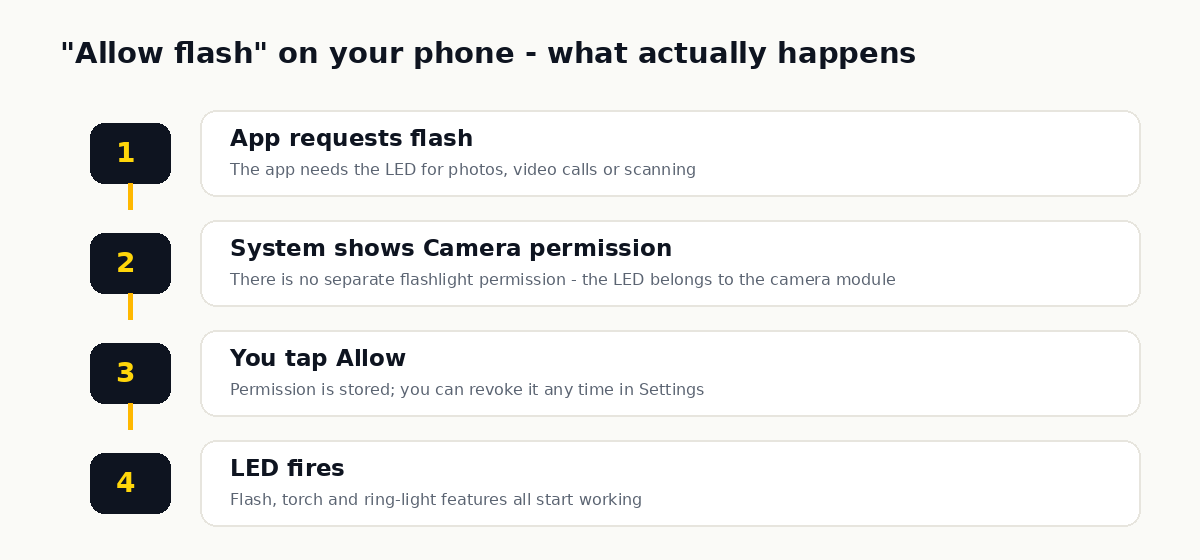
Allow flash access on Android
- Open Settings → Apps and select the app asking for flash access.
- Tap Permissions.
- Enable the Camera permission — on Android the flashlight is controlled through the camera permission.
- Reopen the app and try the flash feature again.
Allow flash access on iPhone
- Open Settings and scroll to the app in question.
- Turn on the Camera toggle.
- If the flash still fails, check Settings → Privacy & Security → Camera and confirm the app is listed and enabled.
Why there’s no separate “flashlight permission”
The LED on the back of your phone is physically part of the camera module, and both Android and iOS expose it through the camera system. That’s why a flashlight or scanner app asks for camera access even when it never takes a photo — camera permission is the flash permission.
Flash not working even after allowing? Check these in order
- Battery Saver mode — many phones silently disable the flash below 15-20% battery. Charge up and retry.
- Overheating — a hot phone disables the LED to protect it. Let the device cool down.
- Another app is holding the camera — only one app can use it at a time. Close all camera apps, or restart the phone.
- Do Not Disturb / bedtime modes — some profiles suppress the flash. Check your active mode.
- Test in the built-in camera app — if the flash fails there too after all the above, the hardware may need service.
A note on app trust
Camera permission is powerful — a granted app can technically capture images. Only allow it for apps with a clear reason to need it, and review your granted permissions occasionally under Settings → Privacy. A simple flashlight app demanding contacts or location access is a red flag.
Quick answers
Why does WhatsApp/Snapchat ask to allow flash?
For video calls, ring-light effects and low-light photos. It’s the same camera permission — grant it once and every camera feature in the app works.
I denied the permission by accident. How do I undo it?
Android: Settings → Apps → the app → Permissions → Camera → Allow. iPhone: Settings → the app → toggle Camera on. The app can’t re-ask on its own after a denial on some versions, so the manual route is the reliable one.
Does allowing flash access drain battery?
The permission itself uses nothing. Actually firing the LED does — which is why phones disable it in Battery Saver mode.
My flash works in the camera app but not in one specific app. Why?
That app’s own permission is blocked, or the app has an in-app flash toggle set to off. Check both — the in-app toggle catches most people out.